
Erase 2D Takeoffs
Erase 2D takeoff geometry such as a line, vertex or polygon.
Use for: Correcting or removing unwanted geometry. Deleting an entire polygon will automatically delete any backouts it contains.
On the 2D Takeoff toolbar, click Select Markup
 .
.On the 2D Sheet, click the takeoff you want to delete geometry from.
On the 2D Takeoff toolbar, click Erase
 , then do one of the following:
To Erase an entire takeoff or Backout geometry, hover the takeoff until all Vertices are highlighted, then click a line segment.
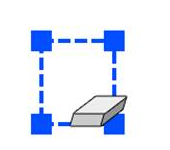
To delete a Vertex, hover the takeoff until a Vertex is highlighted then click it.
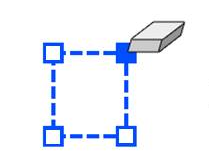 Note: If you deleted a Vertex from an Area or Rectangle Polyline, the polygon is closed automatically. For example, a Rectangle Area would be closed after deleting a vertex to form a triangle.
To delete a line segment, click on a line.
Note: If you click a line segment in an Area takeoff or an open Polyline takeoff, this will delete the entire takeoff.