How To: Pair a VR Headset with Autodesk Workshop XR
One of the most crucial steps happens before you even enter the Workshop XR environment. Setting up your VR hardware properly is a pivotal part of the process. Make sure your VR headset is correctly configured and ready for use before proceeding with the Workshop XR application.
Once your hardware is properly set up, follow these simple steps and you'll be holding your design reviews in no time.
Open Workshop XR Web App: Go to workshop.autodesk.com.
Sign in: Sign in by either creating an account or using your existing Autodesk login credentials.
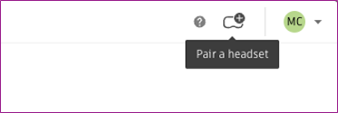
Locate the Headset Icon: Once you're in the application, glance to the upper right corner of the interface. You'll find a headset icon there. This is your gateway to pairing your VR headset.

Initiate Pairing Process: Click on the headset icon. This action will kick-start the pairing process, and a unique pairing code will be generated. This code remains valid for 10 minutes, giving you ample time to input it into your VR headset.
Launch Workshop XR on your VR Headset: The next step is to launch the Workshop XR app on your VR headset. As soon as you open the app, you'll be prompted to enter the pairing code.
Enter the Pairing Code: Now, just enter the pairing code that was generated in the web app. This will pair your headset with the Workshop XR application. We get it, this part can feel a bit quirky - lifting your headset to peek at the code and then entering it. But hey, consider it a small step in your VR adventure!
Please note, if the pairing process isn't successful on your first try, don't worry! You can easily generate a new code in the web browser and repeat the process.
We hope this guide has made the pairing process clear and easy to follow. Enjoy exploring with Workshop XR!