
Measure
Measuring distances in Workshop XR is a breeze with our measure tool! Follow this guide to get started.
Getting Started
Teleport into Your Model: If you need help with teleportation, check out the teleportation article.
Click the measurement tool in the core menu

- Simply point and click the trigger on your controller to mark the start point. Then, drag the controller to measure the desired length, mark the endpoint with another click of the trigger.
Snapping Indicators Guide
Workshop XR uses a 3D version of the following snap indicators; symbols appear when detecting the corresponding geometry to snap to.
 Note: Above is not official product imagery – provided & meant for illustrative purposes
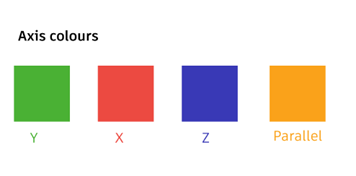
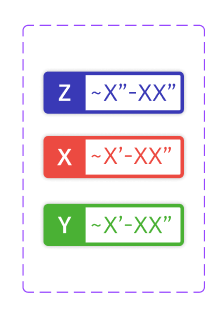
Axis/Vectors Color Coding
Additional XYZ Vectors appear when applicable for the most recently created measurement, or the actively selected measurement. Perpendicular indicators appear (Line turns yellow; perpendicular snap indicator appears) when the second endpoint of a measurement line is perfectly perpendicular to the first endpoint.
One-Click Perpendicular Measure
Quickly know the shortest distance perpendicular between two surfaces simply by pointing and aiming with the perpendicular measure tool enabled.
- Press select once to place a measurement as needed.
- Once placed, measurements are then visible to collaborators.
One-Click Edge Measure
Quickly know the length of geometry edges simply by pointing and aiming with the edge measure tool enabled.
- Press select once to place the measurement as needed.
- Once placed, measurements are then visible to collaborators.
Select Measurements
The “Selected State” of a measurement shows a white border around the primary measurement, and additional XYZ Vectors if applicable. Clicking on a measurement a second time will deselect it.
Delete Measurements
Select the individual measurements
Click delete
Persistence Behavior
Measurements are currently expected to persist for models loaded in a given workshop until/unless they are deleted, or the model version is updated in ACC Docs.
Hide Measurements (beta)
This beta setting allows individual users to instantly hide all measurements.
As a Beta setting, this is off by default, and the setting only applies to a current session. Meaning next time, a user enters a workshop, it would be off again.
Also note that this setting currently only impacts the end user who has toggled it on, and measurements will remain v isible for any other collaborators present.
Measurement Settings
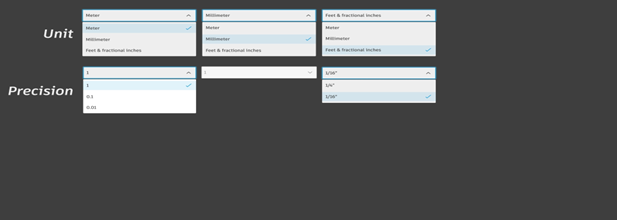
Measurement have both Unit Type and Precision Settings. Note: Avatar Height has its own setting.
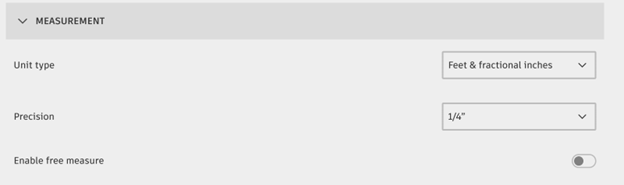
Enable Free Measure will be OFF by default.
Toggling this setting ON will disable snapping.
This follows some precedent from ACC, which has a similar setting.
| Unit | Unit Type | Precision Setting |
|---|---|---|
| Metric | Meters, Millimeters | Decimal formatting |
| Imperial | 1/16” and ¼" | Feet & Fractional Inches Formatting |
Web App Viewers
When joining from Web app, web collaborators will not see measurements created.