
Issue:
Users reported that when logging in to Autodesk Fusion, projects, folders, or files are missing. The Data Panel does not reflect that the data or projects are there.
The following may also be seen:
- Hubs might be missing from the hub selection drop-down menu.
- It may be impossible to save newly created designs.
- Autodesk Fusion might appear to be switching between two different sets of data.
- Some files may be missing when logging in on a different computer.
- Data Panel features such as Search, Refresh, and Open on the web may be missing or non functional.
-
Autodesk Fusion may appear to have been converted into a trial version.
- A file is missing after a failed attempt to delete an old folder with external references.
- Files may also be missing from the Fusion web client with the message "Something went wrong. Please try again later" or "Bad Request".
- Previous versions of designs may be missing.
- This may be seen after switching between license types (from trial to commercial or to personal, etc.).
Causes:
- The data was deleted.
- The data has not synced to the cloud.
- Data is stored in a different Hub, project, or folder.
- Account has been removed from a hub/project.
- Data is stored under a different email address.
- Project in the Data Panel is being filtered.
- The Autodesk Account email address has been changed.
- Autodesk Fusion is turned to Offline mode
Solution:
The file was deleted or not properly saved/synced
- Try restarting Autodesk Fusion to sync the desktop application.
- Check if Autodesk Fusion is running online or offline and keep it in online.
- Perform a manual reset of the Data Panel in Autodesk Fusion.
- Check trash folder in the Hub for any missing files: Restore accidentally deleted file in Autodesk Fusion.
- Check the recovery files for the missing file: How to find recovery files in Autodesk Fusion.
- Check the F and Q directories of the local cache: How to locate locally cached files in Autodesk Fusion.
- Address any network connectivity issues that may be interfering: Troubleshooting Network Connectivity Issues for Autodesk Fusion.
Data is stored in a different Project
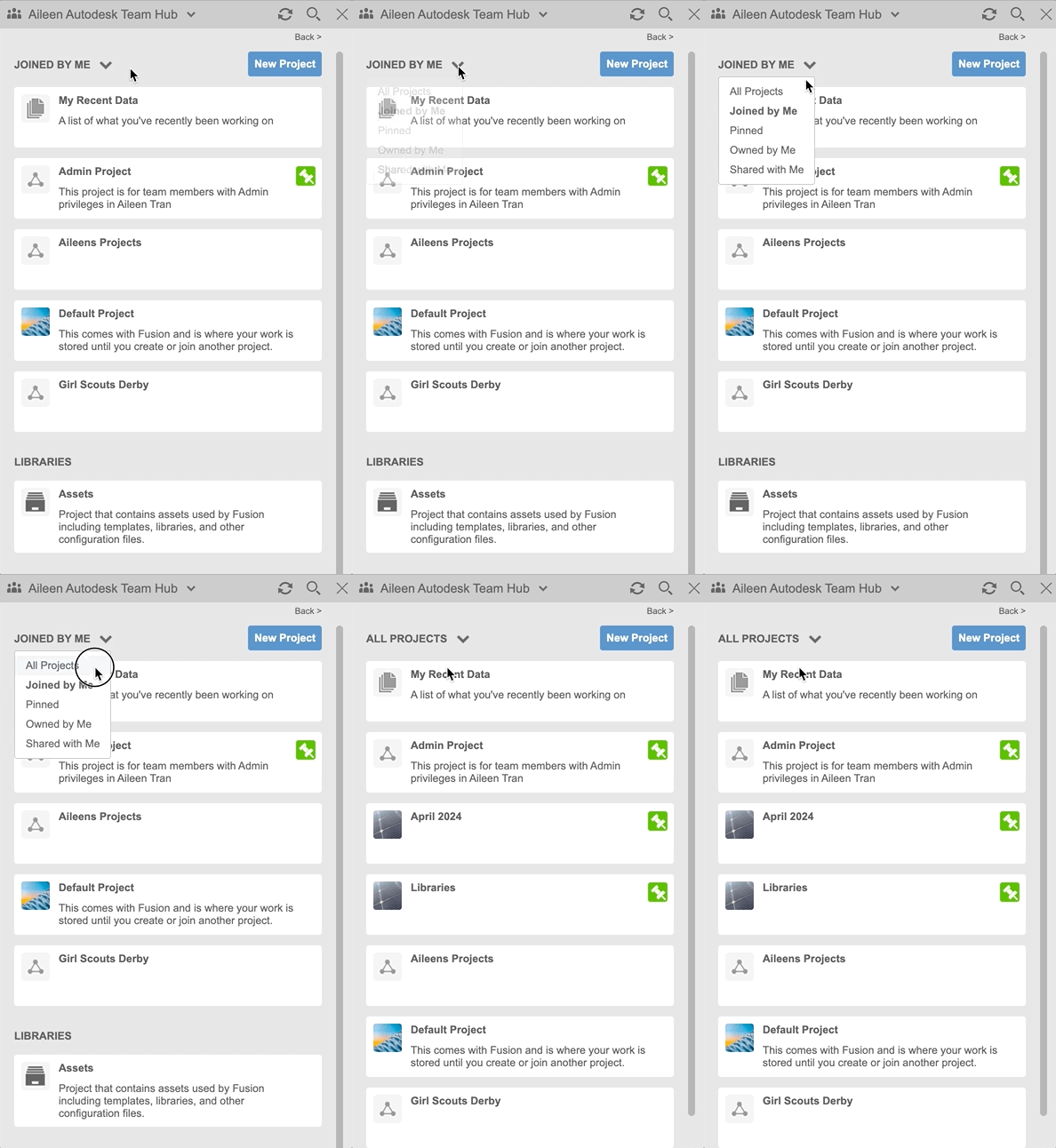
- It could be that the Data Panel is set to show only shared, pinned, or joined projects. Select "All Projects" to make sure this is not the case.
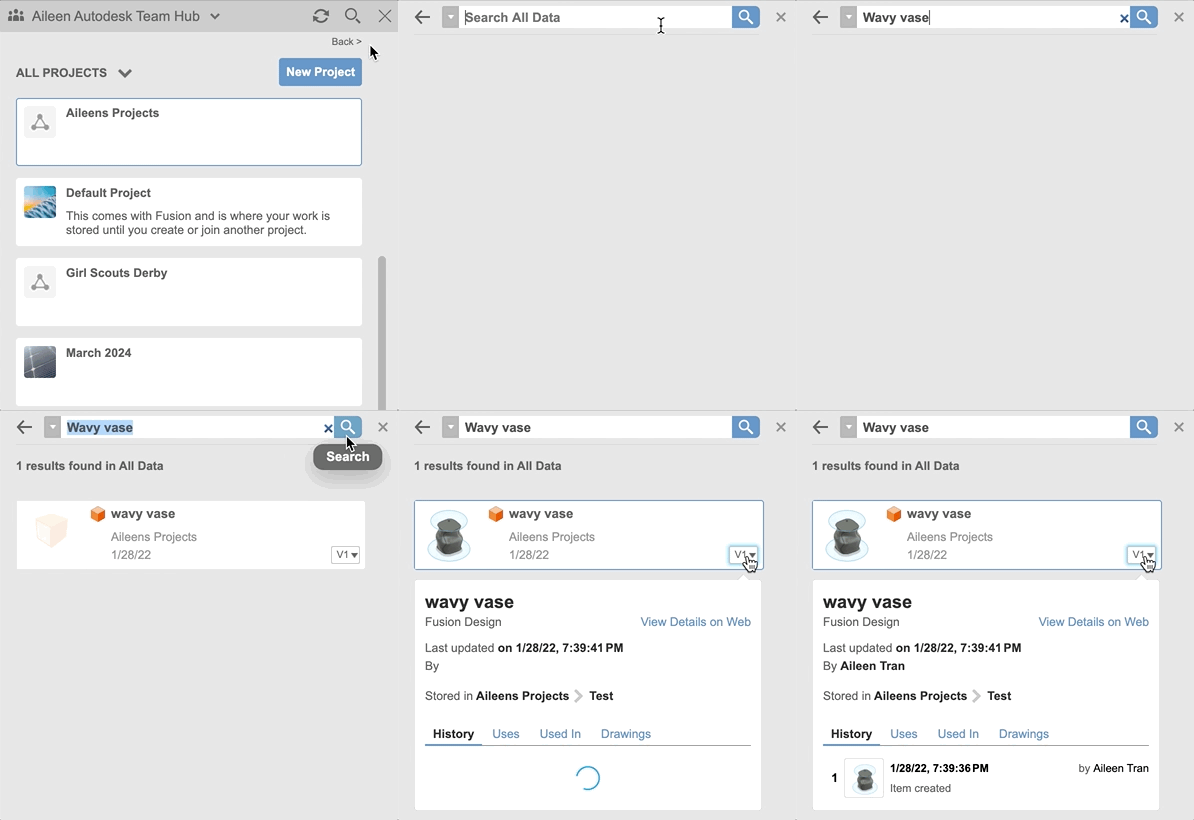
- Select the search icon in the data panel and type the design name. If the missing file shows, select the version drop-down to see the "Stored in" location.
- Go to the "My Recent Data" folder. If the missing file shows, select the version drop-down to see the "Stored in" location.
- Search for the file in the Fusion web client open the file from the web using "Open in Desktop" from the file viewer.
Note: To reorganize, right-click the thumbnail of the design and select Move. This will allow the file to be moved to the desired Project and more easily located and organized.
Data is stored in a different Hub
- Switch between hubs to see if the data is stored in another Hub. (Note: If the data has been shared from a Personal Hub, the data will show up in Single-User Storage rather than a hub)
- Verify your status is Active in the hub.
- Have the hub admin sign in the Fusion web client.
- Select the profile icon in the top right and Select "Admin".
- Go to "Members and Roles".
- Confirm that the affected account has an "Active". If they are Inactive, make them Active. See: Fusion Help | hub members and roles.
- Verify you are a Project Member.
- Have the Project Admin open the project in the Data Panel or in the the Fusion web client.
- Verify that the individual is a Project Member by checking the "Project Members" tab in the web client, or the "People" tab in the data panel.
- If not, have the Project Admin invite them to become an Editor or a Viewer in the project.
- If projects are still not visible, ask the administrator to reinvite the affected account.
Note: If the project Security Type is set to Secret, only Project Members will be able to see the project in the data panel.
Data is stored in a different Autodesk Account
Confirm being signed in using the correct account that the data is stored in or shared with:
- Every Autodesk Fusion account is associated with a unique alphanumeric named directory, which is used to access cloud data. Manually verify how many accounts have logged into Autodesk Fusion by looking at the following directories:
- When multiple alphanumeric folders exist, that means multiple email addresses have been signed into Fusion on that computer. Check the other accounts for the missing data.
- If the data is stored in a different account, transfer the data from one account to the other. See How to transfer files from one account to another in Autodesk Fusion.
Reset / Repair Fusion
- Launch the Fusion Service Utility.
- "Reset" Autodesk Fusion.
- Check if the issue is resolved.
- If the issue persists, "Repair" Autodesk Fusion.
If the Autodesk Account email address has recently been changed:
This topic requires assistance from an Autodesk Support Specialist. Follow these steps to connect with us via the Autodesk Assistant:
- Open the Autodesk Assistant using the icon in the lower‑right corner of your screen
.
- Describe your issue to the Assistant and type “Agent” to request connection with a Support Specialist.
- Sign in to your Autodesk Account when prompted so the Assistant can access your account details and help open your case faster.