
Configuration Rules
Configuration Rules  lets you create logical rules that drive or limit configured aspect values in a configured design in Fusion. You can create rules to automate combinations of values in highly configurable products to ensure you and your team can only create valid, manufacturable configurations across your product line.
Configuration Rules uses a low-code visual rules engine that makes it easier and more accessible to author rules than using code syntax.
This feature is part of an extension. Extensions are a flexible way to access additional capabilities in Fusion. Learn more.
Configuratrion Rules Overview
A Configuration Rule is a logical rule that limits or drives the values of configured aspects in a Configured Design. Each configuration rule creates a condition that drives or limits the valid values of one or more configured aspects in a configured design. A rule consists of a set of connected blocks that you can turn on and apply to the set of configurations.
Rules apply from top to bottom in the rules canvas. Arrange your rules in the canvas to control the order in which they are evaluated.
Rules are enforced in all workflows where you can edit the referenced aspect values.
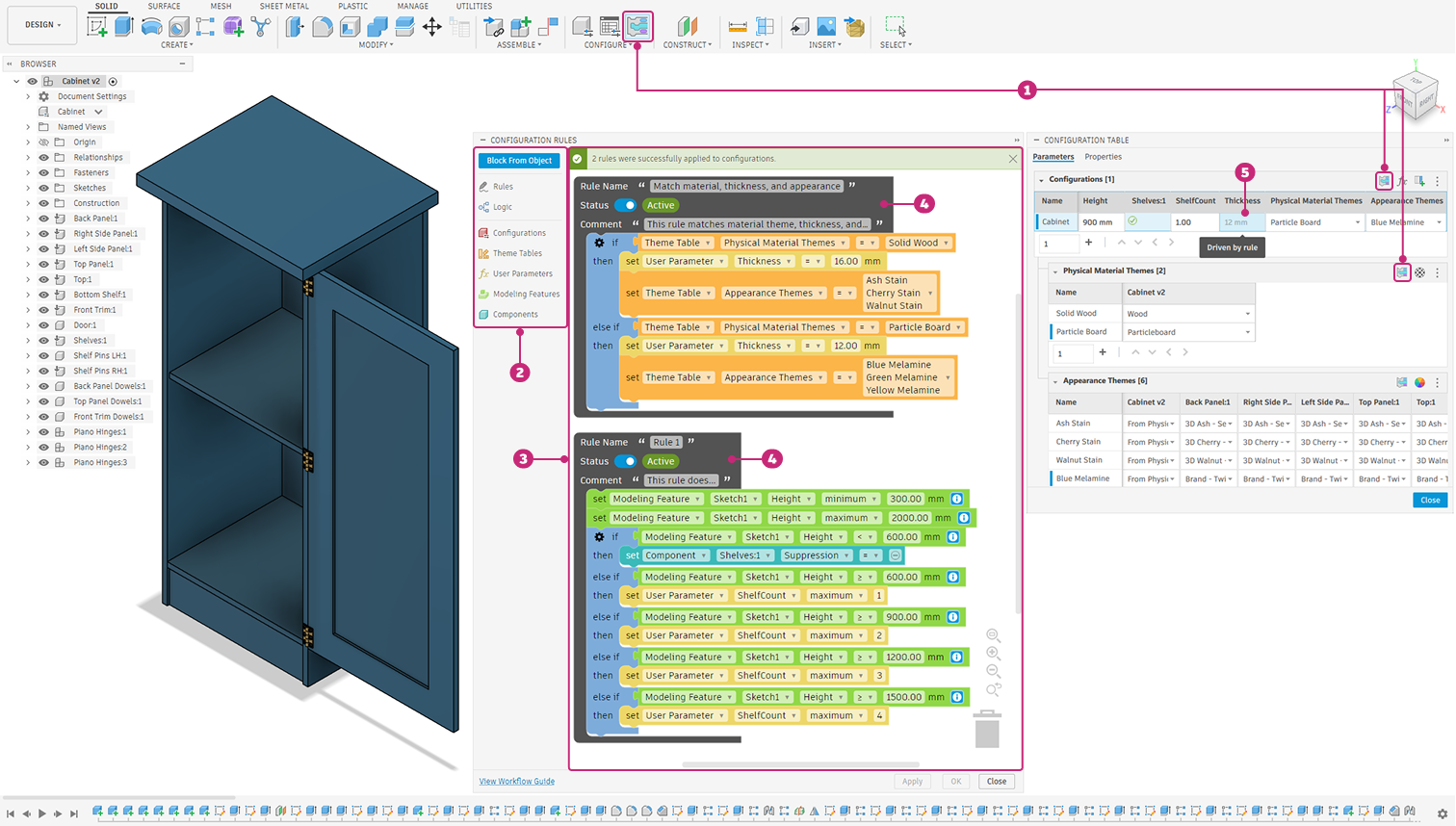
- Access points
- Toolbox
- Rules canvas
- Rules
- Rule enforcement example
Categories
The Toolbox organizes blocks into the following categories:
 Rules: Contains Rule and Comment blocks.
 Logic: Contains Logic, And/Or, Not, generic Getter, and generic Setter blocks.
 Configurations: Contains a Getter block, pre-filled for aspects related to configuration data like name and properties.
 Theme Tables: Contains Getter and Setter blocks, pre-filled for use with theme tables.
 User Parameters: Contains Getter and Setter blocks, pre-filled for use with configured user parameters.
 Modeling Features: Contains Getter and Setter blocks, pre-filled for use with configured modeling feature aspects like suppression and parameters.
 Assembly Features: Contains Getter and Setter blocks, pre-filled for use with configured assembly feature aspects like suppression and parameters.
 Components: Contains Getter and Setter blocks, pre-filled for use with configured component aspects like inserts, suppression, and visibility.
Blocks
Blocks are the visual building blocks of a rule. Connect them together inside a Rule block to create conditional logic:
- Use Rule blocks to define the logic of specific rules, organize them in ways that work for you, turn them on and off in your configured design, and separate logic so that it's easier to understand and troubleshoot.
- Use Logic blocks to define conditional statements (
if, then,if, then, else) within a rule. Combine conditions with And/Or and Not blocks. - Use Getter blocks to fetch the value of a configured aspect as a condition.
- Use Setter blocks to define the valid values when the condition is met.
- Use And/Or blocks to create more complex statments within a rule.
- Use Not blocks to simplify negating logic.
- Use Comment blocks to describe what a rule does.
Types of Rule Results
- Driven Value: A single valid value that is determined by the logic of a rule. A driven value cannot be changed because there is only one valid value.
- Limited Values: A subset of valid values that is determined by the logic of a rule. A limited value can be changed, but only within subset of valid values.
High-level workflow
- Drag blocks into the Configuration Rules canvas to create logical rules that:
- Drive a single valid value:
- Parameter values
- Theme selection
- Configured Insert selection
- Feature suppression
- Object visibility
- Limit the list of valid values:
- Parameter ranges
- Theme options
- Configured Insert options
- Drive a single valid value:
- Turn each rule on when you’re ready to apply it.
- Apply the rules, and existing values in the configuration table will update to adhere to the rules.
- Continue to create and edit configurations, and Fusion enforces the rules as you work.
Tips
- Start simple. Create a single rule with one condition and one result, then build complexity as you become familiar with the blocks and logic.
- Use the Block From Object tool to add blocks in context by clicking highlighted objects in the Browser, Timeline, or Configuration Table.
- Right-click a column header or theme table header in the Configuration Table to create a rule from a pre-populated starter template.
- Use the Comment block to describe what each rule does, so it's easy to understand the rule's intent at a glance.
- Toggle a rule Off to disable it without deleting it.