
Custom Configurations
Custom Configurations lets you embed flexible design intent into the Configuration Table of a Configured Design for a highly flexible product designed in Fusion.
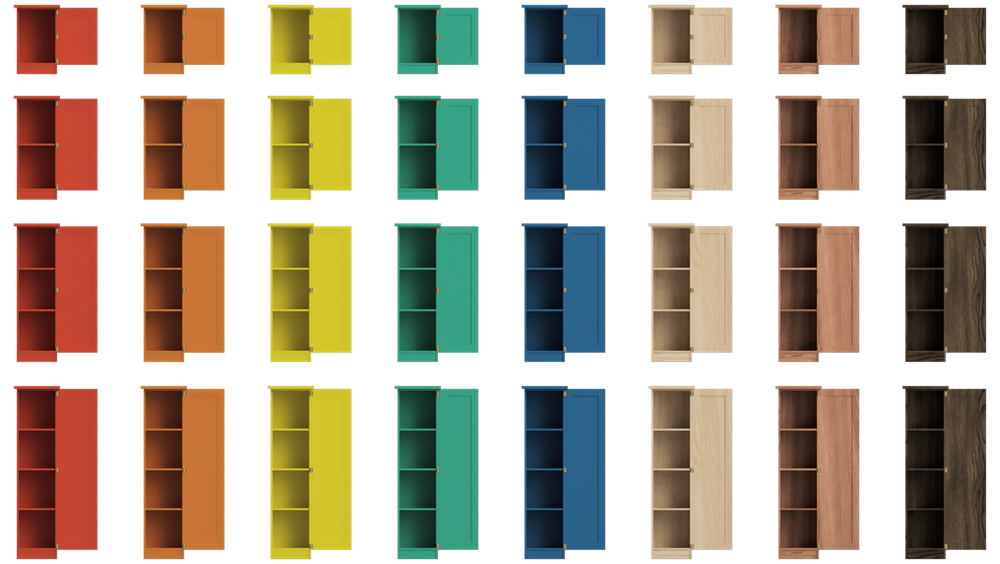
Customize the configured aspects that vary the most across your product line. Pre-create rows for default configurations or combinations you ship most often, and use Custom Configurations for everything else. This saves time and tames complexity because you don't have to pre-create every possible combination explicitly in the table before you need them.
Custom Configurations overview
A Custom Aspect is a configured aspect whose value can be set at the time of use. In the top table, custom aspects display a  Custom icon in the column header.
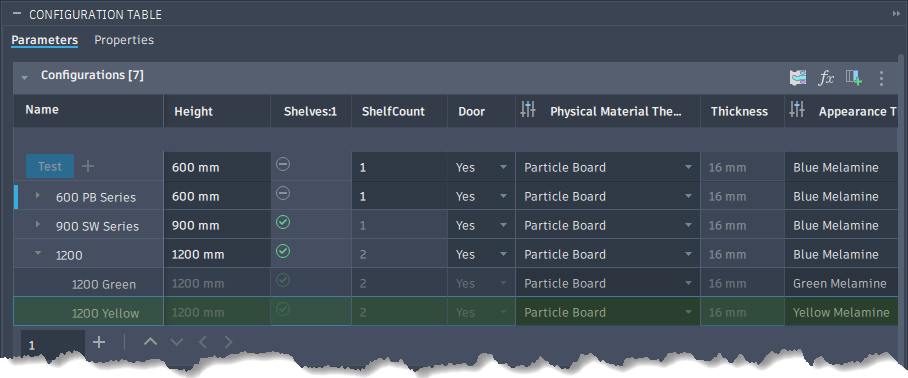
Configurations that share the same non-custom values are grouped together. The first matching row is the Parent Configuration, and additional matching rows display as Custom Configurations nested beneath it.
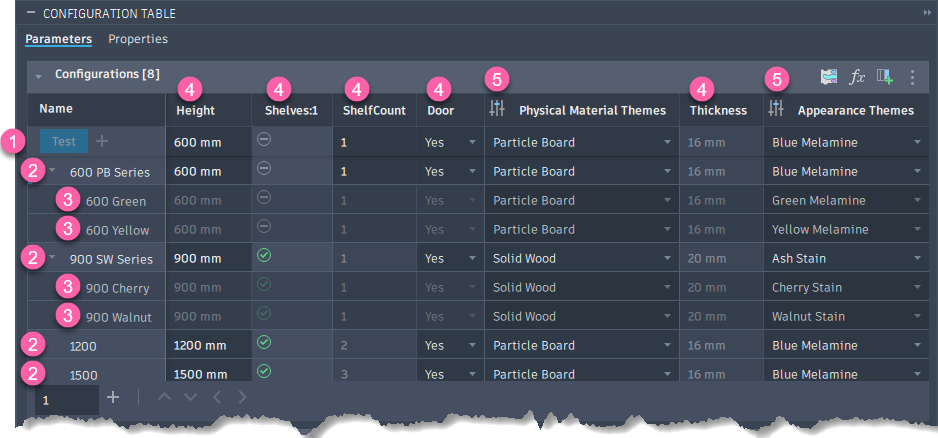
- Test Row
- Parent Configurations
- Custom Configurations
- Non-Custom Aspects
- Custom Aspects
High-level workflow
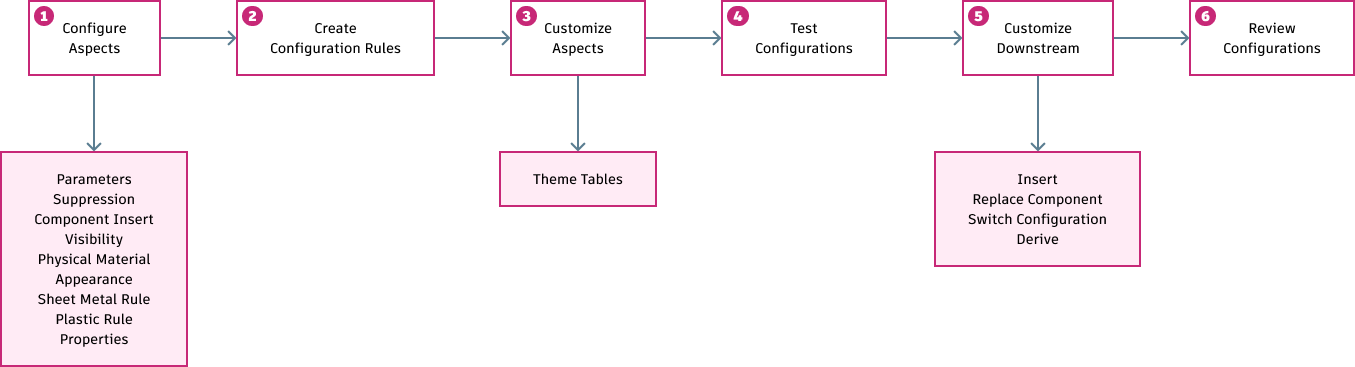
- Configure Aspects
- Create Configuration Rules
- Customize Configured Aspects
- Test Configurations in the table
- Customize during downstream use
- Insert
- Switch Configuration
- Derive
- Review configurations back in the table
- First, you identify Custom Aspects in the table. When you Customize a configured aspect, you signal that its value can vary at the time of use.
- Optionally, you can create Configuration Rules to define the logic and limits for possible combinations.
- You can then test combinations in the Configuration Table without pre-creating them all.
- Then during downstream workflows like Insert, Switch Configuration, and Derive, you select the combination of aspects you need on the fly, and Fusion creates the specific configuration at the time you need it.
- Finally, you can always review and edit them in the table of the Configured Design, which still acts as your single source of truth for the full set of product configurations in use.
Customize configured aspects
In the top table, right-click any Theme Table column and click Customize to declare the aspect as a Custom Aspect. To revert, right-click the column and click Uncustomize.
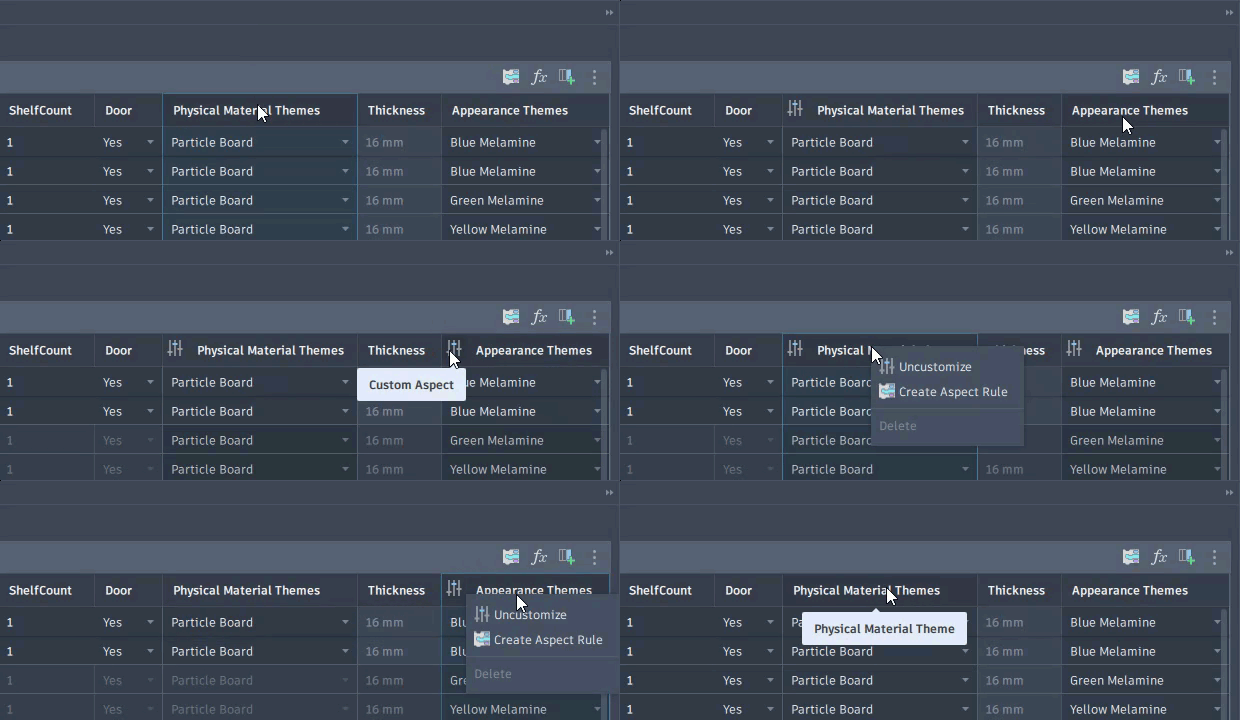
When you customize or uncustomize an aspect, Fusion re-evaluates the Configuration Table hierarchy:
- Rows with matching non-custom values group together.
- The first matching row becomes the parent.
- Additional matching rows become Custom Configurations nested beneath the parent.
Test combinations
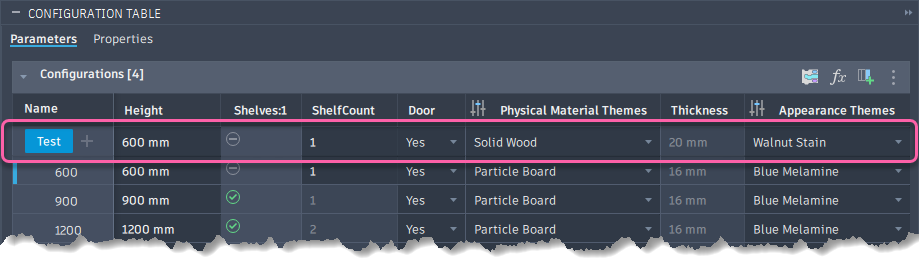
The Test Row at the top of the Configuration Table lets you adjust values to try combinations of custom and non-custom values without committing to them up front.
- Adjust as many values as you need, then click Test to compute the combination. Fusion activates a matching row if one exists, or activates the Test Row if the combination is unique.
- Click Add Configuration to commit a unique combination as a new row in the table.
Customize in downstream workflows
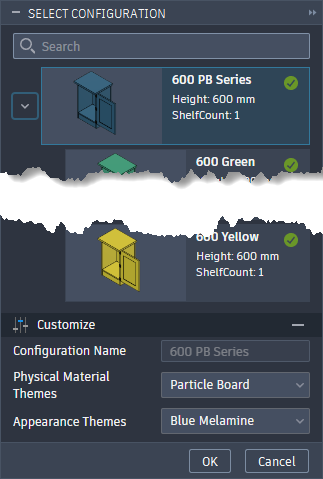
When you use configurations in downstream workflows, the Select Configuration dialog displays each existing configuration as a card. You can:
- Select a Parent Configuration or an existing Custom Configuration.
- In the Customize section, set values for each Custom Aspect.
If the combination already exists in the table, Fusion reuses it. If the combination is new, you can name it, and Fusion creates a new Custom Configuration in context.
Downstream workflows that support customization include:
- Insert
- Replace Component
- Switch Configuration
- Derive and Insert Derive
Other workspaces (Drawing, Render, Animation, Simulation, Generative Design, and Manufacture) can use any custom configuration that already exists in the table.
Review new custom configurations
Custom configurations created in downstream workflows display in the Configuration Table of the source Configured Design nested beneath their logical parents as soon as they're saved. If anyone has the design open, new custom configurations appear in the table automatically as they're created. This doesn't require an additional save.
Tips
- Pair Custom Configurations with Configuration Rules to enforce valid combinations across your product line. Non-custom aspects can drive or limit custom aspects, but custom aspects cannot drive or limit non-custom aspects.
- Double-click a configuration row to activate it and sync its values to the Test Row.
- Use the Search field in the Select Configuration dialog to filter cards by name, part number, description, key parameter value, or custom aspect value.