
About Autodesk Assistant in Fusion
In Fusion, Autodesk Assistant provides a range of AI capabilities, from answering questions about how to use Fusion, to inspecting your design for you, to editing a design with your permission.
Using Autodesk Assistant for information and guidance
When you prompt Autodesk Assistant with a question, it searches for the most relevant Autodesk sources to give you an answer. For questions about Fusion concepts, features, and workflows, such as “What is adaptive clearing?” or “Where do I find sheet metal rules?”, Autodesk Assistant typically uses the Fusion product documentation and cites the source material so you can learn more.
For some questions, Autodesk Assistant may use other methods or sources to provide an answer. This can include questions about general design or manufacturing concepts, or other topics that are outside the scope of the Fusion product documentation.
| What Autodesk Assistant can do | Use it to | Example prompts |
|---|---|---|
| 'Tell me' - Explain concepts, answer questions, describe workflows, or help locate tools | Learn, troubleshoot, or find a feature | “Why is my sketch over-constrained?” “Where do I find Sheet Metal rules?” “What is adaptive clearing?” “What is the difference between ERC and DRC?” |
Always review Autodesk Assistant responses, and any proposed actions, before relying on them.
Autodesk Assistant agentic capabilities
Autodesk Assistant's agentic capabilities provide additional levels of assistance. Using its agentic capabilities you can ask Autodesk Assistant to do things for you, such as:
- Inspect your designs and answer questions about what it finds,
- Work with you through a task, offering guidance and assistance one step at a time,
- Perform a sequence of tasks for you, within the permission you provide.
Access Autodesk Assistant in Fusion
To open Autodesk Assistant:
At the top of the Fusion window, on the right side of the Application bar, click Autodesk Assistant.

Alternatively, click the help menu
 (see the image above) and select Autodesk Assistant:
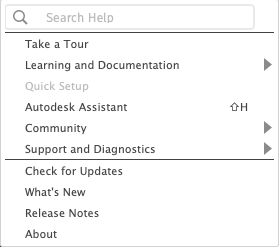
Autodesk Assistant appears docked on the right side of the canvas and remains available as you work.
To close Autodesk Assistant:
- Click Close on the bottom right or top right of the Autodesk Assistant panel.
Capabilities and access
Autodesk Assistant capabilities vary by subscription:
| What Autodesk Assistant can do for you | Commercial / Startup | Trial | Educational | Personal |
|---|---|---|---|---|
| Answer questions and find information | ✅ | ✅ | ✅ | ✅ |
| Inspect, analyze, and edit your designs. Plan and take actions on your behalf to automate your workflows.1 | ✅ | ✅ | ✅ | ✅ |
| Create projects, folders, and manage users1,2,3 | ✅ | ✅ | ✅ | — |
| Generate AI visualizations4 | ✅ | — | — | — |
| Connect you with a support person | ✅ | ✅ | — | — |
1 Uses included monthly Flex tokens (beta), or Flex tokens.
2 Requires a collaborative editing (CE) hub. CE hubs are rolling out progressively - this capability becomes available when your hub is updated.
3 Creating projects requires your hub Admin to grant you permission. Managing users requires an Admin role.
4 Create 20 included AI visualizations per month from your design, or more with Flex tokens.
My Insights
My Insights is available to Fusion Trial users only. If you have a Trial subscription, the My Insights tab provides personalized recommendations to help you discover new capabilities and improve your efficiency. It appears only in the following workspaces:
- Design
- Manufacture
When a new Insight becomes available:
- If Autodesk Assistant is closed, launching it will take you directly to the My Insights tab.
- If Autodesk Assistant is open, the orange dot that appears on the chat tab indicates you can switch to the My Insights tab to read it.
Fusion Insights include:
- Feature recommendations: Learn about Fusion features you haven't used yet that might be helpful for your workflow
Chatting with Autodesk Assistant
For best results when chatting with Autodesk Assistant:
Use the right context - Open the relevant design, workspace, setup, study, or project before asking Autodesk Assistant to help.
Be specific - Use exact names from your Browser, such as components, sketches, bodies, setups, studies, and parameters.
Choose the right level of help - Ask Autodesk Assistant to tell you, show you, work with you, or do a task for you.
Review before approving - When Autodesk Assistant proposes an action, check that it affects the correct data, and ask it to edit the script, if necessary. Approve actions only when you are ready, and use the Undo feature in Fusion if you don't like the changes.
For tips on writing effective prompts and general best practices, see Write effective prompts and Autodesk Assistant limitations and best practices.