
Smoothing for Steep and Shallow reference
Improve part quality and make CNC machines run more smoothly with Smoothing.
Toolpath tolerance
When generating a toolpath, you must specify a Tolerance value. A tolerance value determines the distance a toolpath can deviate by when compared to a nominal toolpath. A tighter tolerance value results in longer calculation times but provides a better surface finish on a part. Generally, tight tolerances are appropriate for finishing toolpaths and loose tolerances for roughing toolpaths.
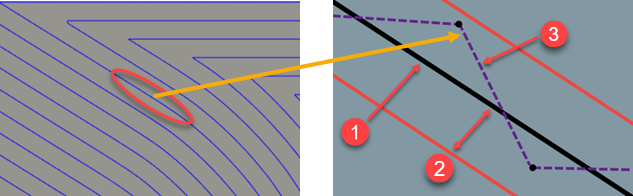
1 - Nominal toolpath
2 - Toolpath tolerance
3 - Actual toolpath (polygonized lines connected at points that are within the specified tolerance)
Smoothing tolerance
By default, the tolerance that Smoothing uses is half (smoothing tolerance factor = 0.5) the toolpath tolerance.
Selecting a smoothing option
The animation below shows how the different smoothing options affect where the points, which connect the polygonized lines, are placed on a toolpath.
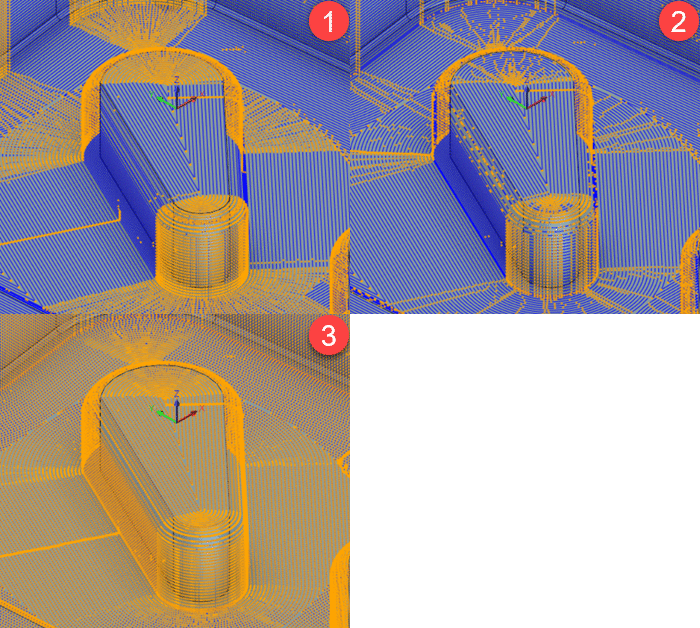
1 - Smoothing not applied - places the points along the toolpath for the required tolerance.
2 - Fit arcs applied - reduces the number of points by replacing multiple lines with arcs where possible.
3 - Evenly spaced points applied - removes existing points and replaces them with points that are a fixed distance apart where possible.
Smoothing for older machine tools
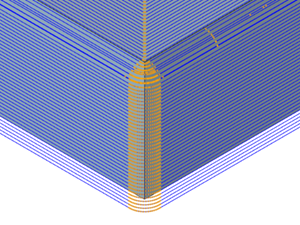
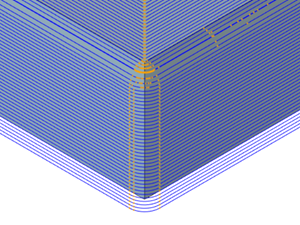
Use Fit Arcs to replace multiple linear moves on a toolpath with arcs (G2/G3s) that are within a given tolerance. Fit arcs reduces the toolpath file size and improves the quality of a part by making the CNC machine run smoothly.
For example, when using Fit arcs, multiple lines around the outside edge of a part are converted into arcs, reducing the overall number of points, which are represented by orange points along the cutting moves.
 |
 |
|
| Smoothing not applied | Fit arcs applied |
Smoothing for newer machine tools
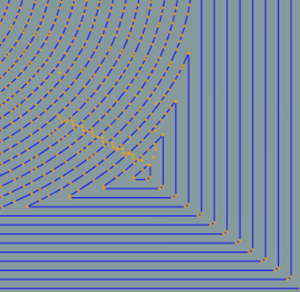
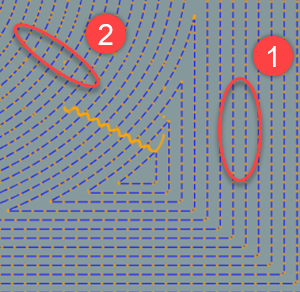
Use Evenly spaced points to place a multitude of points on a toolpath that are a fixed distance apart. Adding a large number of points increases the calculation time for the toolpath. However, having evenly spaced points results in a smoother motion on the machine tool, which improves the surface finish of a part and can result in significant machine cycle time reductions. Points may be clustered closer around corners, or where appropriate so, to stay within the tolerance.
 |
 |
|
| Smoothing not applied | Evenly spaced points applied | |
| 1 - Evenly spaced points | ||
| 2 - Closely clustered points |
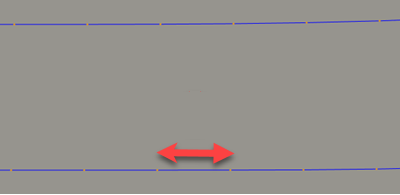
Specify a Maximum Spacing value to place the points along the cutting moves a set distance apart that cannot be exceeded.
Apply smoothing
- In the Steep and Shallow strategy dialog, in the Passes tab, select Smoothing.
- In the Passes tab, specify a Tolerance value.
- From the Smoothing Mode drop-down list, select an option that is appropriate for your machine tool.
- If you select Evenly Spaced Points, enter a Maximum Spacing value.
- If necessary, edit the Smoothing Tolerance Factor.
Edit the tolerance factor
Smoothing uses a tolerance, which is a factor of the tolerance specified for the toolpath. By default, this value is set to 0.5 * tolerance. Advanced users may want to edit this factor for better control. To edit the tolerance factor:
Generate a steep and shallow toolpath that has the Smoothing checkbox enabled.
Right-click the steep and shallow toolpath in the Browser and click Compare and Edit.
In the search box, located at the bottom-center of the dialog, type Smoothing Tolerance Factor.
Right-click the default value and click Edit Expression.
In the Edit Expression dialog, enter a tolerance factor.
Tip: If you want your Smoothing tolerance to be the same as your toolpath tolerance, specify a smoothing tolerance factor of 1.Click OK. The toolpath is now out of date and requires regenerating for the new tolerance factor to take effect.