
Create hem
Use the Hem  to fold a sheet metal edge back onto itself.
On the Design workspace toolbar, click Sheet Metal > Create > Hem
.The Hem dialog appears.
On the canvas, select edge on a sheet metal body. Hold
Ctrl(Windows) orCommand(MacOS) and click to select multiple edges.Select the Type of hem:
- Flat
 : Creates a fold that rests tightly along the connected flange.
 - Open
 : Creates a fold with a small gap between the edge and connecting flange. Useful for thicker materials to reduce cracking.
 - Rolled
 : Creates a rounded fold that provides a smooth edge for gripping or fastening.
 - Teardrop
 : Creates a rounded fold with an extended flange edge, bent beyond 180 degrees to form a teardrop-like shape. Useful for thicker materials to reduce cracking.
 - Rope
 : Creates a rounded fold with an extended flange edge and a small gap between the edge and the connecting flange, similar to an open hem.
 - Double
 : Creates a double-folded edge by rolling the material twice, resulting in a layered hem with two internal gaps.
- Flat
Specify hem dimensions depending on the selected type:
- Length: Distance of the fold along the edge.
- Gap (for open, teardrop, rope, or double): Space between layers after folding.
- Angle (for rolled): Defines how far the edge folds to form the rounded cavity. A larger angle results in a more pronounced roll.
- Radius (for rolled, teardrop, or rope): Defines the curvature of the fold. A larger radius results in a smoother, more open bend, while a smaller radius creates a tighter roll.
- Setback (for double): Distance from the edge to the inner side of the first fold, placed between the connecting edge and the start of the double fold.
Select the Bend Position:
- Adjacent
 : Places the hem so that it starts at the selected edge on the flange.
 - Tangent
 : Places the hem so that it is tangent to the selected edge on the flange.
- Adjacent
(Optional) Flip
 the hem to reverse the fold direction, allowing it to bend inward or outward on the connecting flange.
(Optional) Select Miter Corners to miter the corners where sheet metal corners would otherwise overlap.
(Optional) Select Override Rules to change one or more default values from the Sheet Metal Rule for this operation only. This does not change the values in the Sheet Metal Rule itself.
Click OK.
The hem is added to the sheet metal body on the canvas. A Hem
feature appears in the Timeline.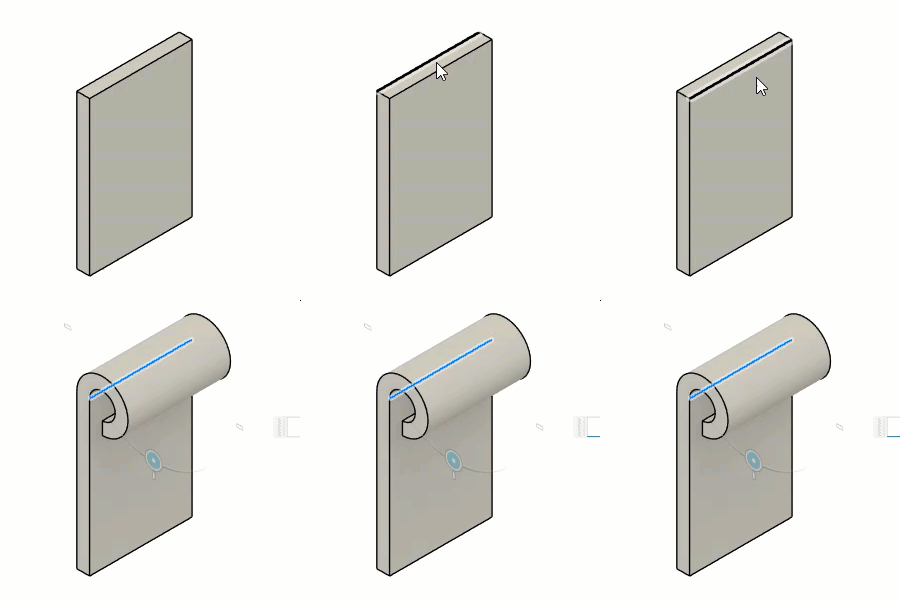
Tips
- Hold
Ctrl(Windows) orCommand(MacOS) to modify the selection set once the sheet metal hem preview displays on the body on the canvas. - Select Override Rules to override one or more values from the Sheet Metal Rule assigned to the component.
- Select Miter Corners to miter the corners where sheet metal corners would otherwise overlap.