
Fusion Manage documentation reference
Dashboard
The dashboard is your launchpad to the Fusion Manage information that is important to you. It has logical panels containing your data. You can expand and collapse the panels to show and hide information.
Before beginning, you need:
- A Fusion Manage license (often acquired by a team administrator)
- A Fusion Manage site enabled by an administrator for your team
- To switch to the hub for which the site was enabled
Where to find this feature in Fusion Manage:
In Fusion, go to the hub with which you are using Fusion Manage.
(From the Data Panel
 at the top left of the Fusion window, select your hub from the drop-down menu.)
Click Design > Manage > Dashboard.
The Dashboard opens in the main Fusion window. It includes Fusion Manage charts, outstanding work, bookmarks, and more.

Workspaces
A workspace is a collection of items of the same type, behavior, and properties. Use workspaces to store, view, and work with items that have the same attributes.
Your site has:
- Components: Designs that have been assigned item numbers
- Drawings: Drawings that have been assigned item numbers
- Change management: Change orders, change requests, problem reports, change tasks
Before beginning, you need:
- A Fusion Manage license (often acquired by a team administrator)
- A Fusion Manage site enabled by an administrator for your team
- To switch to the hub for which the site was enabled
Where to find this feature in Fusion Manage:
From the Dashboard menu
 , click Workspaces.
Click a workspace category.
The Design and Engineering category contains the Components and Drawings workspaces.
The Change Management category contains the Change Orders, Change Requests, Problem Reports, and Change Tasks, workspaces.
Click a workspace to open it.
Item management
Items are the building blocks of Fusion process management. An item is a unique data record used to track designs and drawings throughout the product lifecycle and the change management workflows. Once you have assigned item numbers to parts, you can start moving the parts through the release process using either Quick Release or Release to Change Order (CO).
Before beginning, you need:
- To switch to the hub for which the Fusion Manage site was enabled
- To open a design containing items that you want to manage
Where to find this feature in Fusion Manage:
Select an item in the Fusion browser.
Click Design > Manage > Assign
 .
.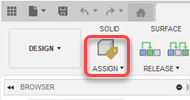
To assign a unique number to the item, in the Assign Item Number dialog, click Submit.
Change management
Use change orders, change requests, problem reports and change tasks to manage changes quickly and efficiently.
- Change orders - Track changes to your designs and drawings that have been assigned item numbers.
- Change requests - Propose a change to an item by describing what needs to be done.
- Problem reports - Document, analyze and resolve issues identified by your organization.
- Change tasks - Captures the activities needed for change requests or change orders. You can manage actionable items needed to implement a change within a timeframe.
Before beginning, you need:
- To switch to the hub for which the Fusion Manage site was enabled
Where to find this feature in Fusion Manage:
- From the Dashboard menu , click Workspaces > Change Management.
Workflow and lifecycle management
Lifecycles and workflows combine to form the basis of process management. A workflow consists of states and actions that are required to complete a managed process. Lifecycle states track the revisions of designs and drawings.
Before beginning, you need:
- To switch to the hub for which the Fusion Manage site was enabled
- To open a design whose workflow that you want to manage
Where to find this feature in Fusion Manage:
- In a change order, change request, problem report or change task, click the Approval Workflow tab.