Line Girder Analysis allows you to review, adjust, and validate the design of all pre-stressed girders for any concrete bridge you select. View initial results in canvas or purchase detailed girder design documentation (in PDF format) using cloud credits.
Select a bridge and add information about your project using the Line Girder Analysis asset card. Once you have input project information, press Start Analysis in the Line Girder Analysis asset card. Project information you enter appears in the title block of the detailed girder design documentation.
To add project information
- Select the desired design bridge.
- Click


 .
Note: The bridge deck is automatically hidden for you so that you can focus on girders. To toggle deck visibility, click
.
Note: The bridge deck is automatically hidden for you so that you can focus on girders. To toggle deck visibility, click

- Click Project information in the Line Girder Analysis asset card.
Input values for Project Name, Company Name, and Address in the Project Information panel that displays. Project information you specify will display in the title block of the detailed girder design documentation that you can purchase. You can also upload a logo file. When you are finished, close the Project Information panel.
To design pre-stressed girders using line girder analysis
Once you have input project information, start your analysis.
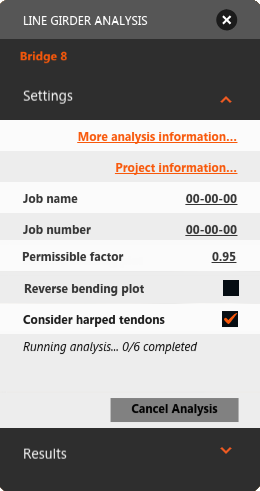
- Enter a Job name and Job number in the Line Girder Analysis card.
- Select Reverse bending plot or leave that option unselected. This does not have an affect on in-canvas results.
Reverse bending plot affects the graphic representations you receive in the detailed girder design documentation, if you choose to purchase the full report. Reverse bending plot changes the direction of bending moments, but does not change the direction of torsion moments.
- Click Start Analysis.
The service will begin running analysis on every girder of your bridge.Your line girder analysis results may take a few minutes to load.
- When the analysis is complete you can hover over individual girders to view in-canvas results.
Note: InfraWorks 360 identifies in-canvas whether or not all the girders in your bridge satisfy design requirements.
- If a girder exceeds design parameters, that girder will be highlighted pink on your bridge.
- If a girder is close to exceeding design parameters analysis, it will be highlighted orange on your bridge.
- If a girder satisfies design parameters, it will not be highlighted.
In the example below, all girders satisfied design parameters. Hovering over the girder displayed a prestress transfer performance ratio of 0.77 , which represents the design over the permissible value at the critical position along the girder.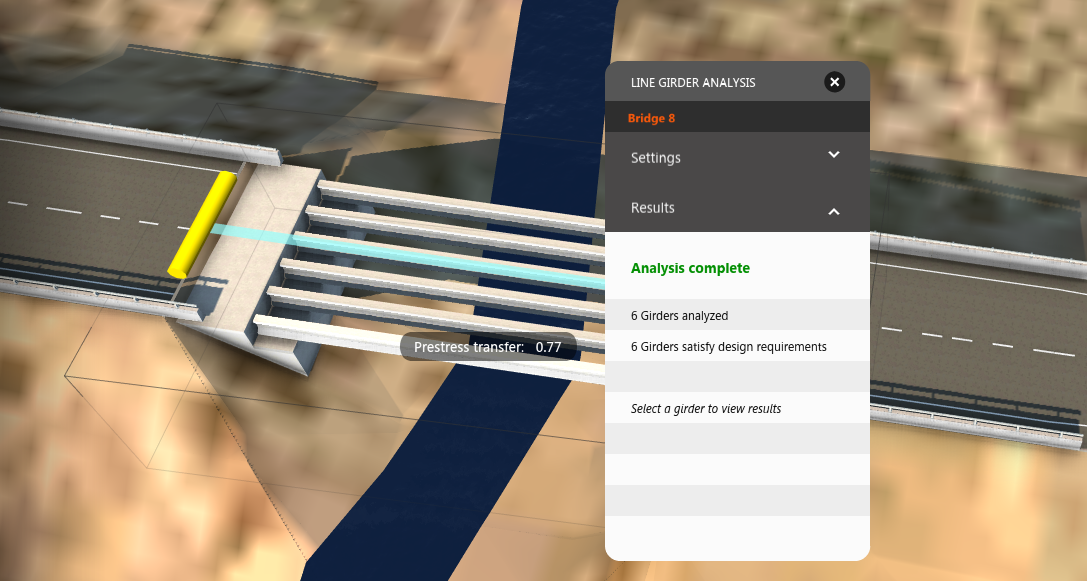
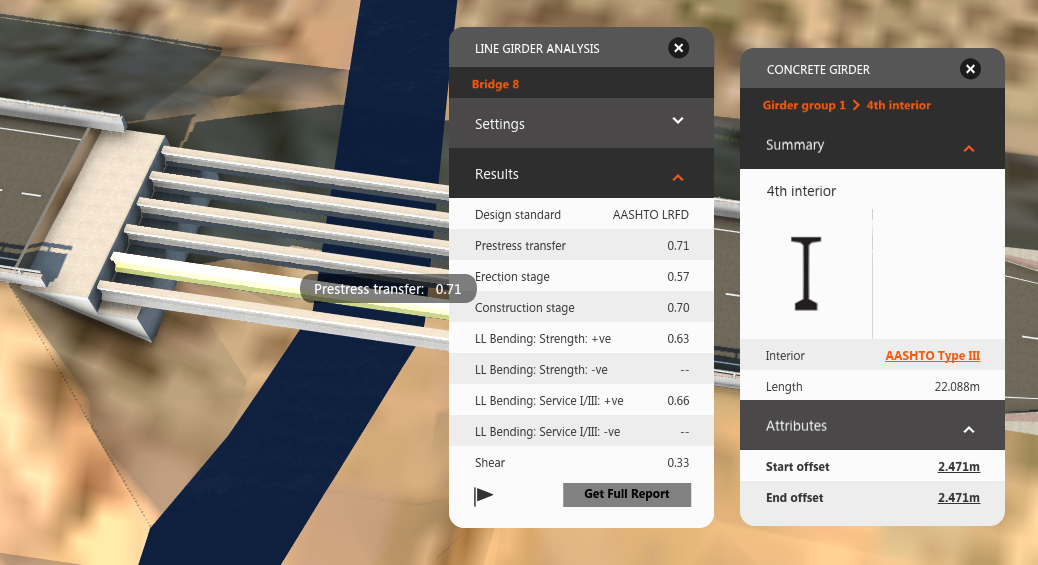
- Select an individual girder to view analysis results for that girder using the in-canvas asset card.
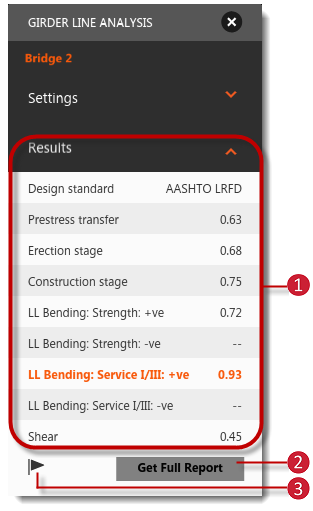
To review Line Girder Analysis results
|
Note: When you purchase the full report, Line Girder Analysis also generates a full model of your bridge that you can open and work with in the standalone version of Autodesk Structural Bridge Design as well.
|
Additional information
See Autodesk A360 Cloud Credits FAQ for more information about cloud credits.