Modify the girder component type and offsets for an individual girder. Once you have made modifications, you can easily apply those changes to all girders, all girder groups, only interior girders, or only exterior girders, for the selected bridge.
To apply modifications to other girders and reset girder changes
Once you have modified settings for a girder, you can choose to apply those settings to all girders in that girder group, or all girders in the selected bridge. If you are working with an interior girder type, you can choose to apply your changes to all interior girders as well. Use the same procedure to apply modifications to an exterior girder to other girders.
- Select a girder and perform any desired modifications.
- Right-click on the girder and hover over Apply To...
- Click All Girders, All Girders in Group, or all Interior/Exterior Girders. Your modifications to the selected girder will be applied to other girders in the current bridge depending on the choice you make here.
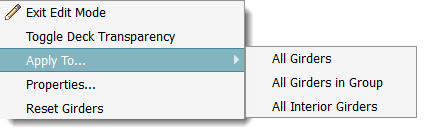
Note: Click Reset Girders to reapply bridge rules (determined by the bridge style) to all girders for the selected bridge.
To modify girder attributes
- Select a girder.
- Click
 in the
Utility Bar to enter Edit mode
in the
Utility Bar to enter Edit mode
- Expand the Attributes tab.
- Click on the underlined value next to Start or End Offset and input the desired values.
- Press Enter to update the selected girder.
To modify girder type
- Select a girder in Edit Mode.
- Click on the orange girder component name. A catalog of corresponding girder component types will appear in the Select Component catalog.
- Double-click a girder component style in the catalog to apply to the selected interior or exterior girder.
Additional tips
Review and modify Girder properties through the Properties Palette. Select the Girder, right click and choose Properties. Enter Edit mode and click the desired field(s) to modify.