Generate a PRM file from custom process parameters.
Video length (5:03).
A process parameter (PRM) file records machine process parameters and material properties. A moving heat source is applied to the material on a small-scale analysis. The PRM file stores the mechanical response of the material to the machine parameter setting. This can be extrapolated to a full part. For each new material or processing parameter set, a new PRM generation must be completed. However the resulting PRM file can be reused for any future simulation using the same combination of material and processing parameters.
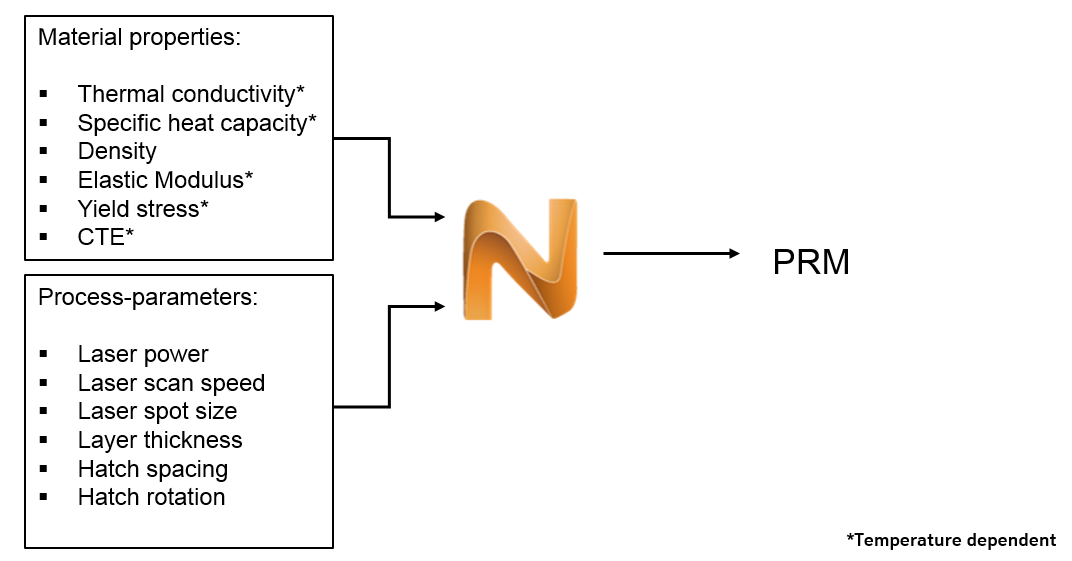
Follow the step-by-step instructions shown in the video.
- In the Simulation Utility window, click
 .
.
The Process Parameters dialog box opens, showing the available library of PRM files.
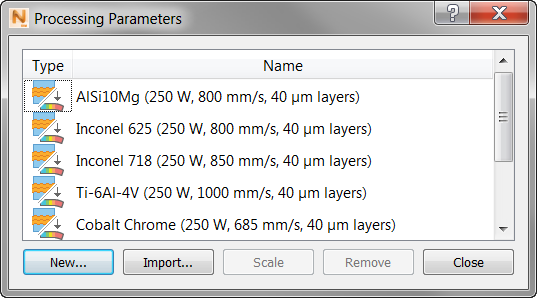
Here users can import PRM files generated outside of the Simulation Utility or from other users, or click Remove to delete unwanted PRM files from the library.
- For this example, we want to simulate the creation of a new PRM file; click New to open the New Process Parameters dialog, which is used to set processing parameters. For this example, custom process parameters will be used.
- Adjust the values to match the parameters shown below. You may need to change your Settings to Metric to enter values below in millimeters rather than meters. If so, see the
Netfabb Simulation Settings Help topic.
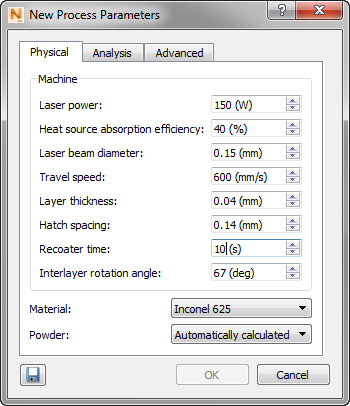
If a new material is ever required, they can be added permanently by creating a new material in the Materials Library, or temporarily in the Process Parameters Material drop-down menu to create a PRM file. PRM files are encoded with the material properties used to generate them. For more information, see Processing Parameters. For this example choose the Inconel 625 properties included with the software.
- Click OK.
A dialog indicates a path and name for the new PRM file. The file name can be changed here, but if you want to change the library path, go to .

Choose a descriptive name that will identify the PRM file for future use. As soon as the OK button is pressed the simulation starts running. Because this process could take several hours to complete, you may want to cancel the solve.
- Click OK to close the Process Parameter dialogs.
- To ensure the simulation is running properly, select
Job Manager
 from the
Solve panel of the
Home tab. This brings up the list of past and current runs, as shown here:
from the
Solve panel of the
Home tab. This brings up the list of past and current runs, as shown here:
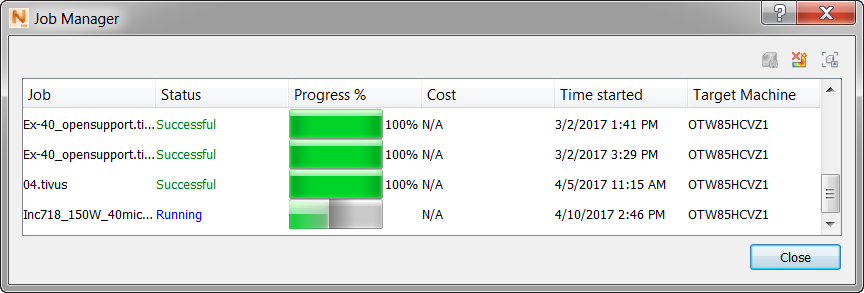
To check for completion, click the View Logs button in the upper right corner of the Job Manager from time to time, and watch for the process to end. To cancel the solve, select the job, and then click Cancel
 in the upper right of the dialog.
Depending on system resources, the time required to generate this PRM file can vary widely. However, this process needs to be completed only once for each combination of material and process parameters.
When the simulation is complete the following prompt opens:
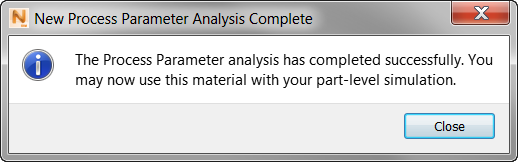
When you click , your new PRM file appears in the library.
If you did not take the time to generate the PRM file, the package of sample files for use with the tutorials (available on the Download Page) includes a copy of the PRM file configured in this tutorial, inside the Example_2 folder. You can import it into your Process Parameters Library folder, and it will show up with the others:
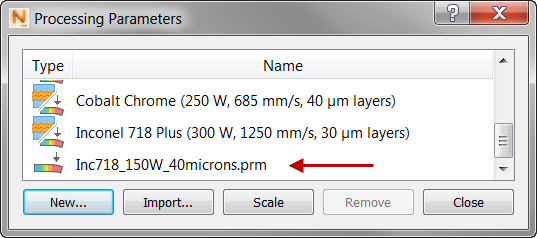
The icon for this PRM file indicates that it is designed specifically for stress and distortion analysis, whereas the other PRM files shown here are designed for a combination of stress, distortion, lack of fusion, and hotspot analysis.