Make the most of your AutoCAD Mechanical Item and BOM workflows by configuring these settings in Vault.
Use Validation Options in Item Lifecycles
When setting up lifecycle state transition criteria for your items, be sure to take advantage of the automatic validation options available. Validation options are a great way to ensure that items meet certain requirements before changing state.
- Linked items are released
- Children items are not Obsolete
- Children items are released
- Associated item file links are up-to-date
- Associated item file links are released
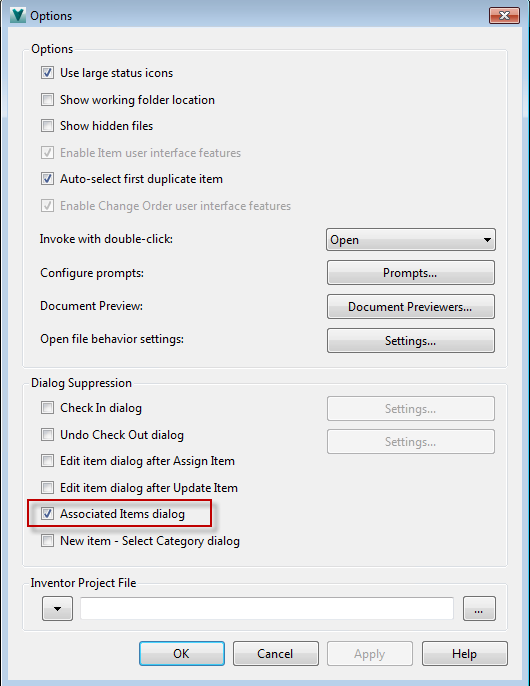
Suppress the Associated Items Dialog for a Faster Workflow
By default, when you link an item to an AutoCAD Mechanical file and jump to the item, the Associated Items Dialog displays. This dialog lists all items that are currently linked to the file. Since some files may have many item links (part references), this list can be quite long.
Autodesk recommends suppressing this dialog in your Vault Options so that you go straight to the newly-linked item in these situations.
Leverage the Flexible Sub-component Links Feature to Suit Your Design Process
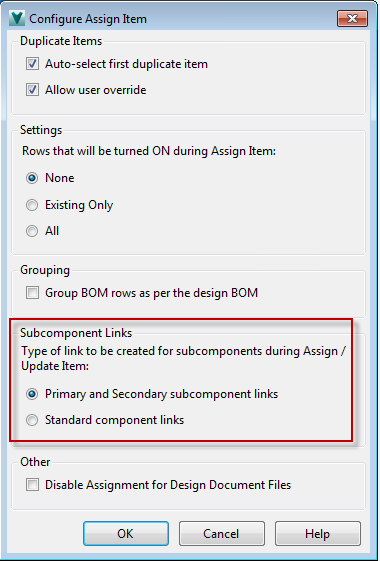
Control the link type for sub-components by configuring whether Primary and Secondary or Standard component links are used during an Assign Item or Update Item event.