After you have enabled the title block names in Vault, map your AutoCAD Mechanical BOM properties to Vault properties.
Have Categories Suitable for DWGs Already Defined or use the Base or Engineering Category in Vault
When you create a new property, you must choose which type of vault objects can use that property (e.g., items, custom objects, files). In this case, you will choose file.
However, if you want files only in a certain categories to see and use the new title block properties, select a category that supports DWG workflows.
Make Sure a Drawing Is Already in Your Vault
Before creating a mapping, make sure you have added to your vault a drawing that matches the title block name you exposed for indexing. The title block value is used to locate the drawing and all other properties are automatically imported when you use the Import from Vault option.
This is the fastest way to import related properties.
Use an AutoCAD Mechanical Property Mapping Key
AutoCAD Mechanical files can be challenging when setting up the property mappings because of the number of names you must keep in mind: the internal name, the default display name, and any overrides you may have done on your own. For this reason, Autodesk recommends using a spreadsheet, such as the one highlighted in this blog, to keep track of your property values.
Use Bi-Directional Mappings
Bi-directional mapping means that you can automatically update BOM properties in AutoCAD Mechanical from your vault, and vice versa.
Do Not Enable the Create Setting When Configuring Mapping
Autodesk recommends that the Create setting on the Mapping tab be disabled for properties you are mapping to AutoCAD Block attribute properties.
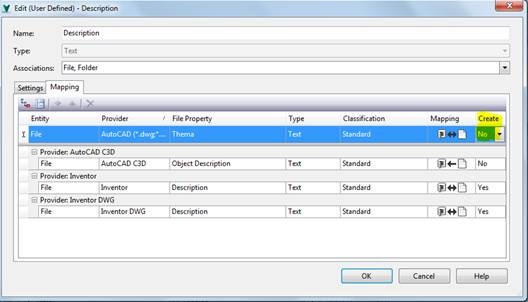
This setting influences file properties only and not block attribute properties and may cause issues with synchronization.