Modeling Improvements
The Alias 2026.1 update introduces a new Curve Trim tool with construction history and multiple Trim Types, enhancing curve editing workflows. The Soft Proportional Modification tool now supports undo, history, and a new Volumetric Proportionality method that enables multi-object deformation without welding, along with improved manipulators and selection behavior. Additional modeling enhancements include streamlined Trim Stage Editing, Curve Fillet history support, drag-and-drop reference importing, History View filtering, and updates to tools like Accelerated Surface, Pick Chain, Profile Blend, and Symmetric Modeling.
New Curve & COS Trim Tool
The new Curve & COS Trim tool lets you interactively trim and segment curves and curves-on-surface with construction history, and keep the original curve data accessible to modify if needed. Having this option allows users to update the trimmed portion of a curve if a theoretical intersection needs to be updated later. You can also project curves and use them as trimming objects, similar to the Trim Surface tool.
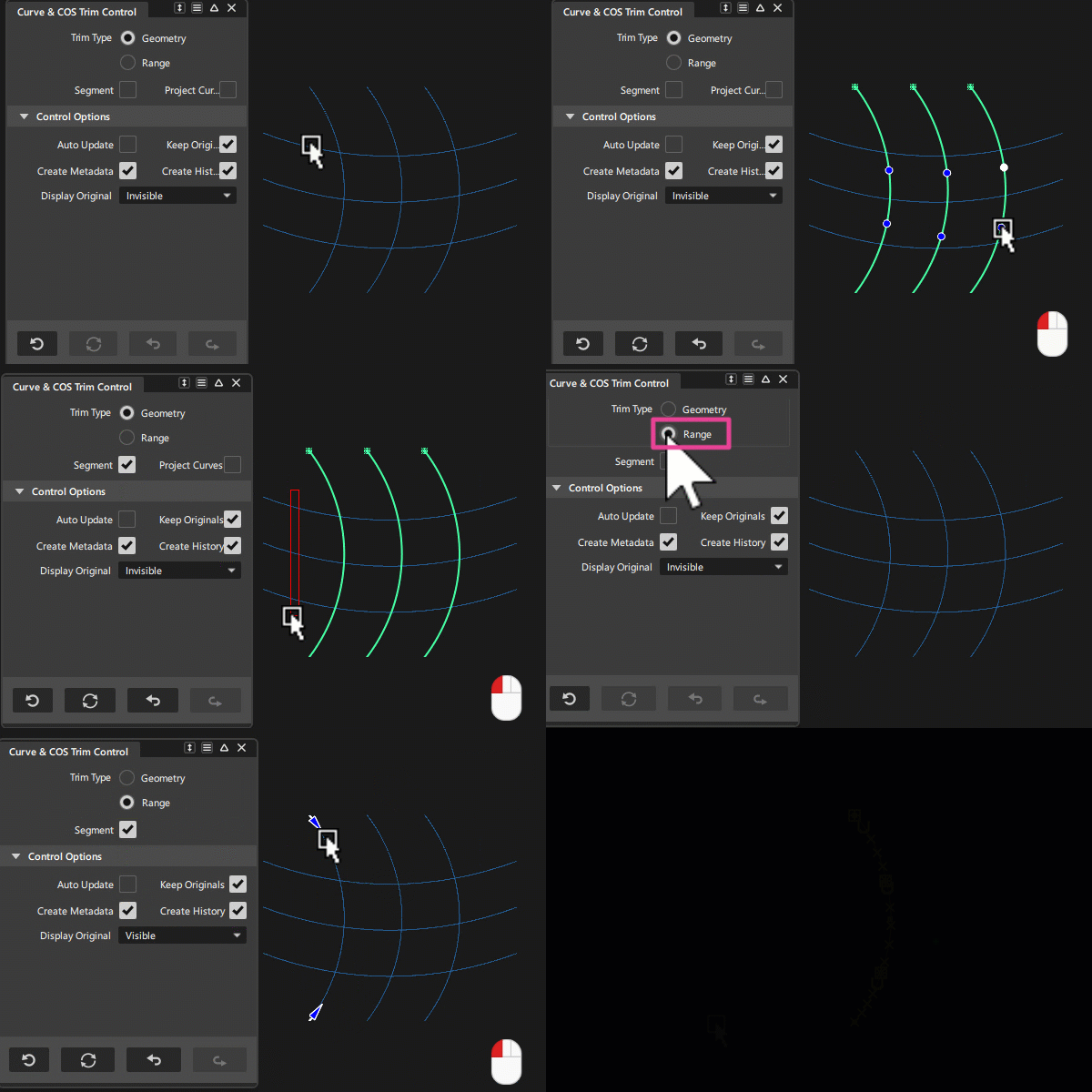
Choose from two Trim Types:
- Geometry: Trim or segment curves at intersections with other geometry (curves, surfaces, or construction planes). Enable Project Curves to use projected curves as trimming objects.
- Range: Use in-canvas manipulators to trim or segment individual curves. Snap to an intersection or the grid to define placement.
By default, Keep Originals is enabled, allowing quick updates to trim regions. Use Display Original options to make input curves Invisible, Template, or Visible after exiting the tool.
Turn on Project Curves to use projected curves as trimming objects. The tool provides the same Vector options that you find in other Alias tools that include Project.
When trimming or segmenting curves:
- Select one or more curves that you want to trim or segment (highlighted green).
- For Geometry trimming, blue dots (trim region indicators) show kept regions. Select the indicators to reposition them or use Shift + select to add or remove them.
- Ctrl + select trimming objects (highlighted yellow).
- Turn on Segment to split curves at intersections when using Geometry or define segments with manipulators when using Range.
- Turn on Auto Update to instantly view and adjust trim results and trimming objects.
 For more information, see Curve & COS Trim.
Soft Proportional Modification Tool Enhancements
We've made several enhancements to the Soft Proportional Modification tool to improve usability and functionality.
New Volumetric Proportionality Method
A new Volumetric Proportionality method now calculates the falloff weight of passive CVs based on world space distance rather than relying on hull-connected proximity. This means that active CVs from one object, such as a subdivision surface, NURBS surface, or curve, can now drive transformations of passive CVs on other objects.
This means that if your model is comprised of multiple objects, you no longer need to combine the objects to use the Soft Proportional Modification tool to shape and modify them together.
Construction History and Undo Support
Construction History
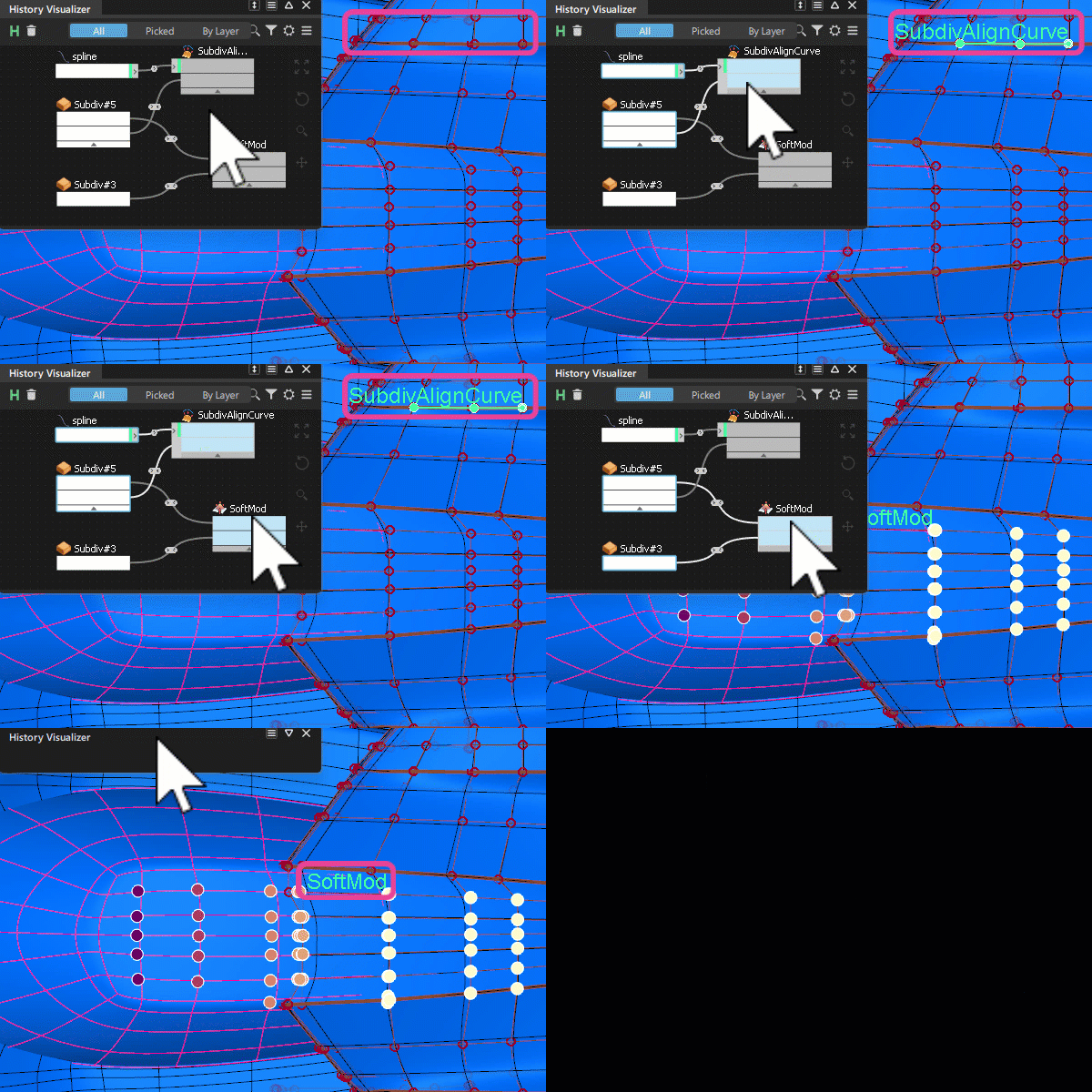
The Soft Proportional Modification tool now has history. If you select the tool node in the History Visualizer or History View, Alias displays a SoftMod label to indicate that the selected CVs have Soft Proportional Modification tool history. Other history commands that affect the same object also display their respective labels.
The Soft Proportional Modification tool also checks for CVs already controlled by other history commands to avoid potential conflicts.If any selected CVs are already controlled by another history command, the tool displays this icon  over the CVs, and prevents them from becoming used as either active or passive CVs in another transform operation. This ensures that CVs are only controlled by one history command at a time.
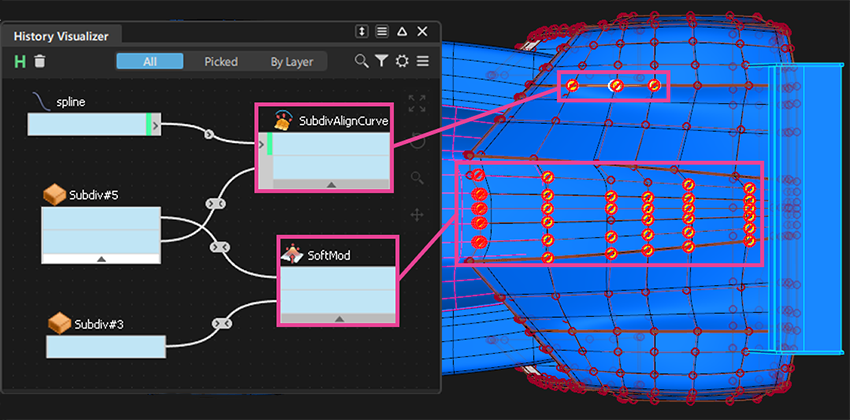
This is particularly important when working with subdivision objects or NURBS surfaces since some subdivision modeling tools support multi-target history, including the Subdiv Align to Curve, Subdiv Align to Surface, and Subdiv Modify Crease tools. Multi-target history allows a single object to have multiple history inputs. For example, the Soft Proportional Modification tool can have the same history inputs as the Subdiv Align to Curve tool. However, the same CVs cannot be used in multiple history commands at once.
For more information, see Multi Target History.
Undo and redo
The Soft Proportional Modification tool now supports Undo functionality. You can now undo and redo transformations using the options from the Edit menu or by using the Ctrl + Z hotkey.
Selection Enhancements
- You can now preselect objects before activating the Soft Proportional Modification tool. This allows you to select the object you want to modify before starting the tool, streamlining your workflow, especially for selecting large areas like headlamp lenses or wheel arches.
- The Selection Behavior options (Preferences > Selection Options) now control the LMB, MMB, and RMB selection behavior for the Lasso Pick and Box Pick. In previous versions, these options could not be modified. This improvement enhances the user experience by aligning the selection options with global settings.
Manipulator Improvements
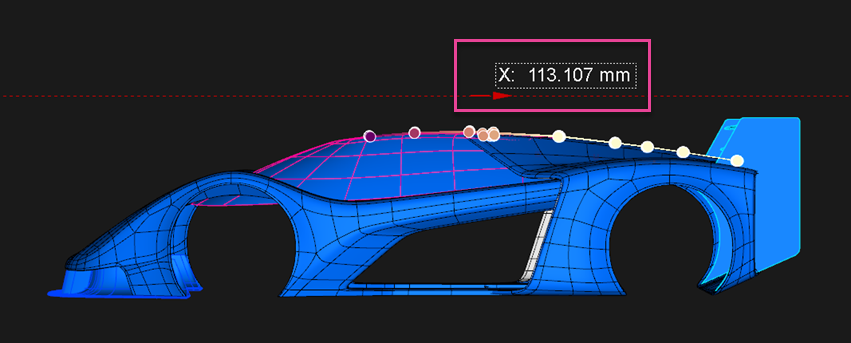
When in XYZ Mode, colored axis lines now display to indicate the direction of the transform: red for the X axis, green for the Y axis, and blue for the Z axis. A label also displays showing real-time displacement values and direction as you manipulate CVs. This allows you to make more accurate adjustments when moving CVs.
X,Y,Z Mode Improvements
When you use X,Y,Z Mode, the tool now respects planar windows and camera settings like the Alias Move tool. For example, if you're in an orthographic view or a perspective view with Perspective with Ortho Faces turned on, the mouse controls default to the following:
- LMB: Free movement
- MMB: View-X (camera right)
- RMB: View-Y (camera up)
If you are working in a non-planar Perspective view, the mouse controls default to XYZ mode:
- LMB: X-axis
- MMB: Y-axis
- RMB: Z-axis
Also, the Soft Proportional Modification tool now respects mouse button mapping preferences when using the tool with construction planes.
You can change the default mapping in the Mouse Button Mapping section of the Modeling General Preferences.
Direct Input of Move Values
We've also added the ability to enter Move values directly in the promptline when using X,Y,Z Mode. When in X,Y,Z Mode, type a value in the promptline and press Enter to move the selected active CVs by that amount along the selected axis. You can also type negative values to move in the opposite direction.

When entering Move values in the promptline, be aware that:
ABS - Moves CVs the specified distance from the original position.
Important: With the Soft Proportional Modification tool, ABS does not take into account any previous transformations made during the current tool session.REL - Moves CVs the specified distance from the current position.
For more information, see Soft Proportional Modification.
Edit Trim Stages Improvement
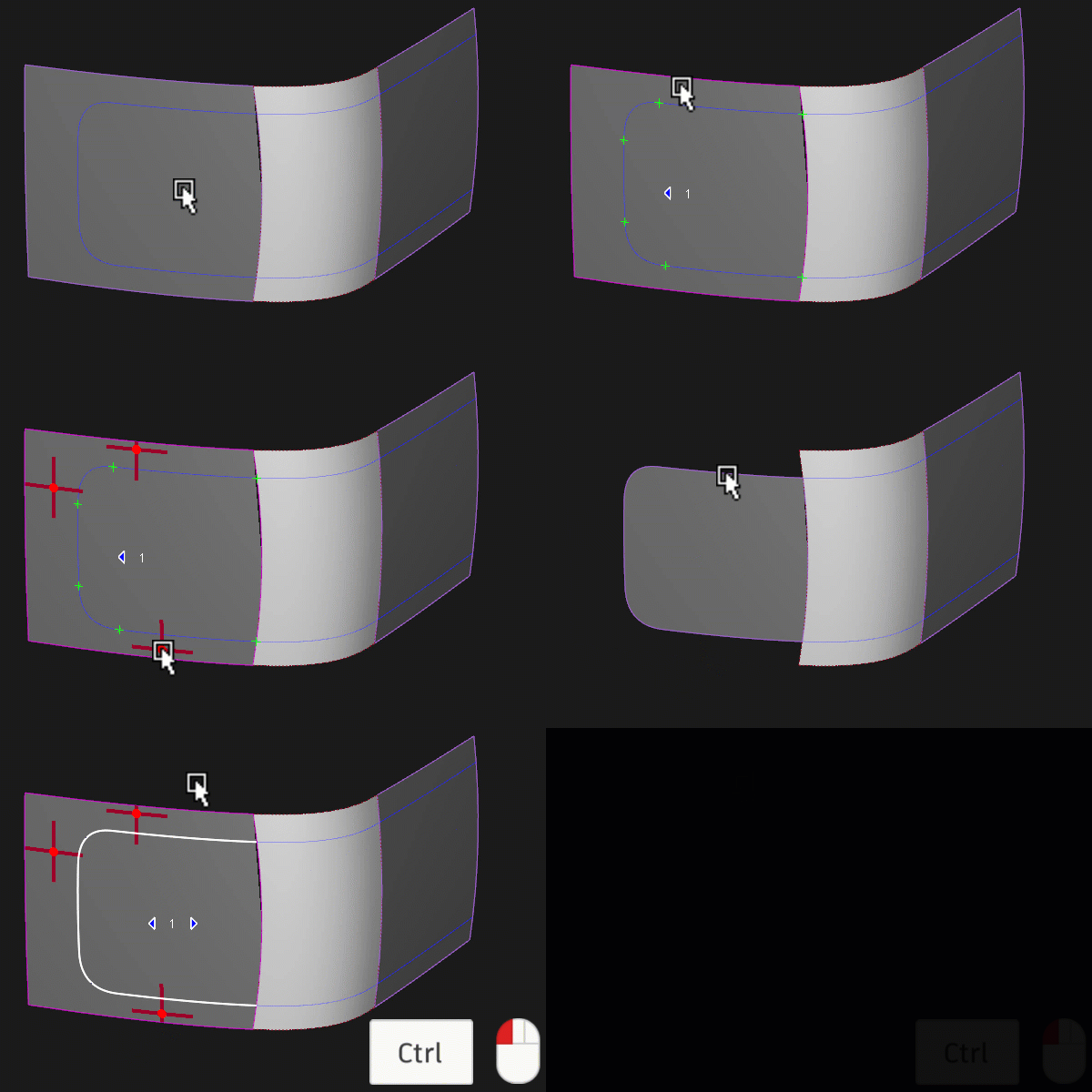
A new enhancement simplifies the process of removing specific trimmed regions from a surface. When Edit Trim Stages is on, selecting a trimmed edge that you want to edit now takes you directly to the trim stage that created it. For example, in the previous version of Alias, you would click through each trim stage to locate a curve-on-surface you wanted to remove, then press Ctrl + LMB to delete it. Now, you can simply press Ctrl + LMB on the trim edge that you want to edit, and the tool jumps straight to that trim stage with the curve-on-surface selected for deletion. This means that you can now click directly on a Curve-on-Surface to delete without having to cycle through all the stages.
Improvements to the Curve Fillet Tool
We have added Keep Originals to the Trim Type options. This allows you to modify the original input curve and use the curve fillet and trim curves generated by the operation to create geometry. Construction history lets you make adjustments to the original curves and have all affected geometry update accordingly. Also, with Keep Originals on, you can put the original inputs on a layer, which you can then hide or make visible.
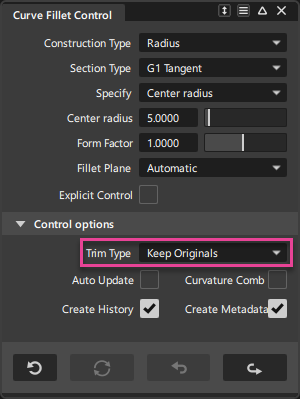
Note that the improvements to the curve trimming now use the same trimming functionality as the Curve & COS Trim tool.
Surface Fillet Updates
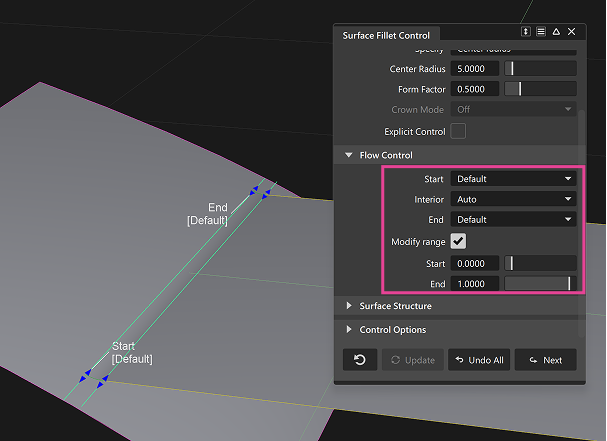
You can now extend the start and end of surface fillets using the in-canvas manipulators. When the Flow Control options Start and End are both set to Default, and Modify Range is on, Start and End manipulators are available. Use this option when you need to control the start and end of a fillet. For example, it is particularly useful when other options, such as Extend, create fillets that fall short of the intended area.
For more information, see Surface Fillet.
Round Tool Addition
We've added a new Fade Out corner blend for cases where two incident edges with fillets on opposite sides of the common face come to a corner and meet tangentially. The tool now creates two surfaces to blend the fillets. One surface is part of the incident fillet and trimmed to fade along the edge. The other surface is a four-sided surface that fills the remaining space.
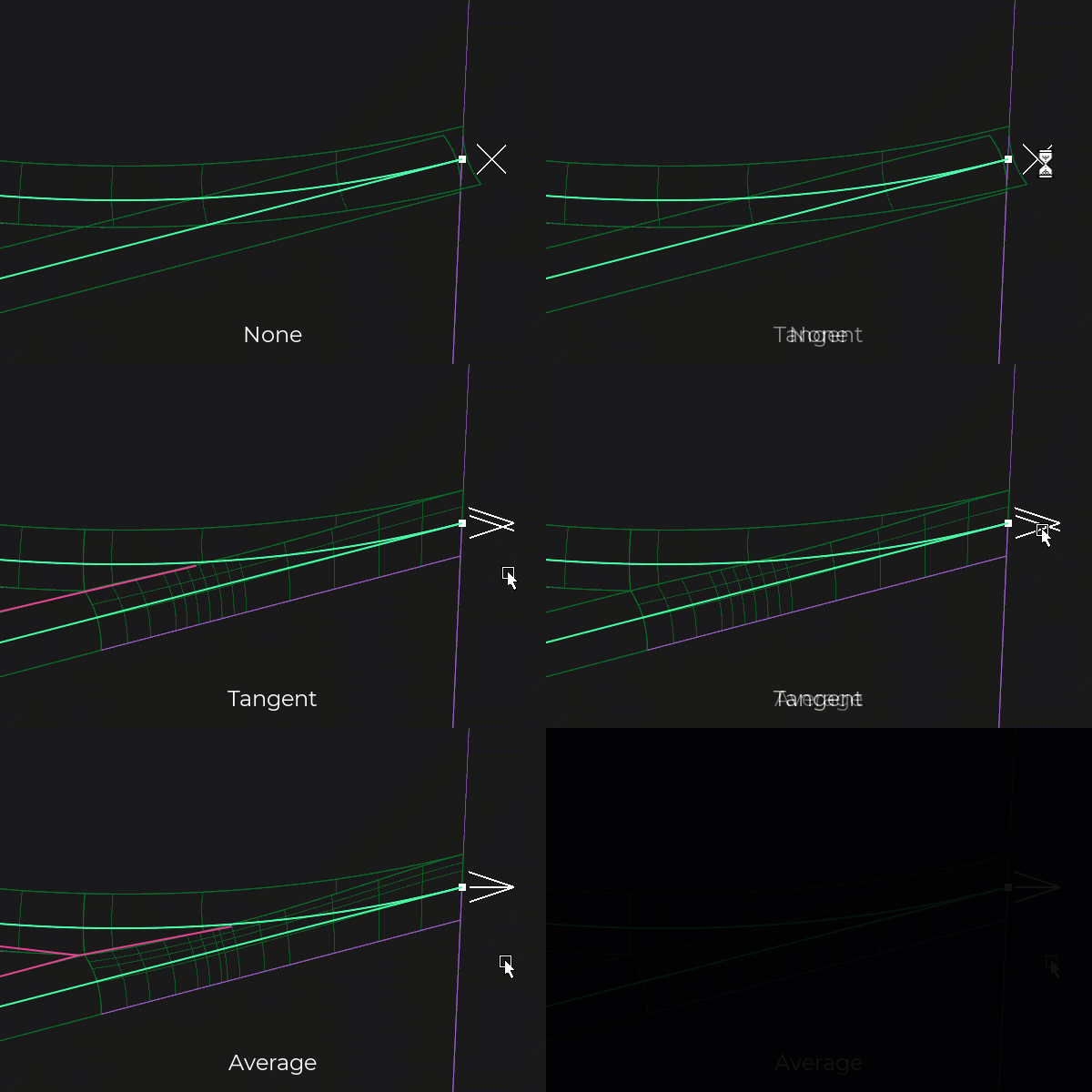
You can choose between two Fade Out types:
- Tangent - The resulting edge of the fade out is tangent to the other converging edge.
- Average - The resulting edge of the fade out is continuous based on an angle that is the average of the two converging edges.
For more information, see Round.
Curves & COS Offset Additions
Flow Control Manipulators Added
You can now control the extension of open COS ends directly in the viewport using new in-canvas manipulators. These manipulators appear when only one input COS is present, allowing you to switch between Default, Auto, and Extend for both COS Start and COS End.
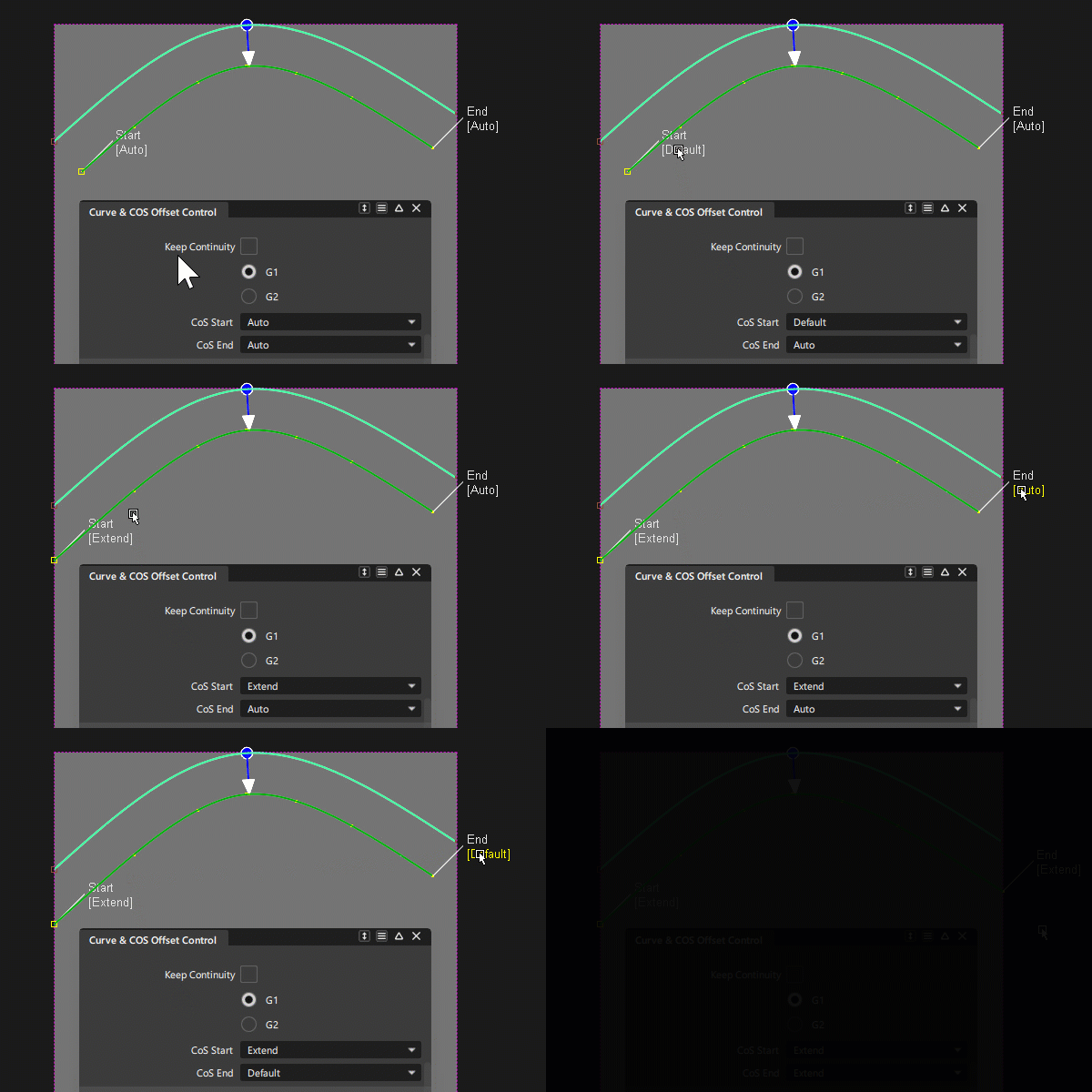
These manipulators are available when offsetting a single COS and allow you to define how the start and end of the COS should behave, whether to maintain default behavior, automatically adjust, or extend to the next surface.
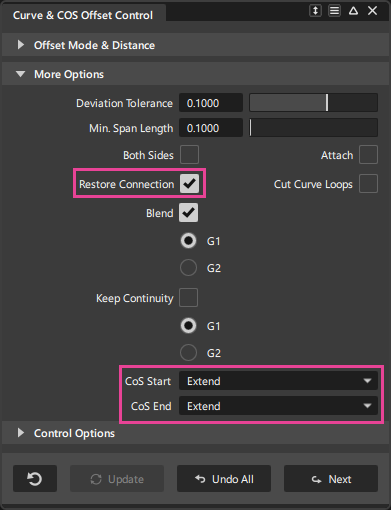
The previous Extend option has been renamed to Restore Connection to avoid confusion.
Flip Offset Option Added
A new Flip Offset option allows you to quickly reverse the direction of an offset without manually adjusting the control points.
For more information, see Curve & COS Offset.
Reference Manager Improvements
You can now import a reference by dragging and dropping a .wire file or other Alias supported file formats, such as CATIA V5, from a file browser window into the Reference Manager. This improvement simplifies the workflow for creating reference files in Alias.
The Isolate option in the context menu now supports isolating views of layers and layer folders. In previous versions of Alias, only top-level references could be isolated. This improvement is useful for isolating specific parts of a reference hierarchy, making tasks with complex assembly references easier.
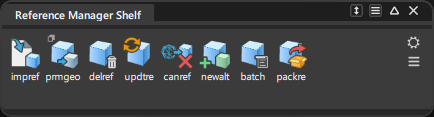
We've refreshed the Reference Manager icons for options in the Settings and Menu to make them more consistent and readable when you drag them into a custom shelf.
History Visualizer and History View Enhancements
We've made several enhancements to History Visualizer and History View, such as menu alignments and UI updates, that now make the user experience more consistent between the two tools.
Menu Alignments
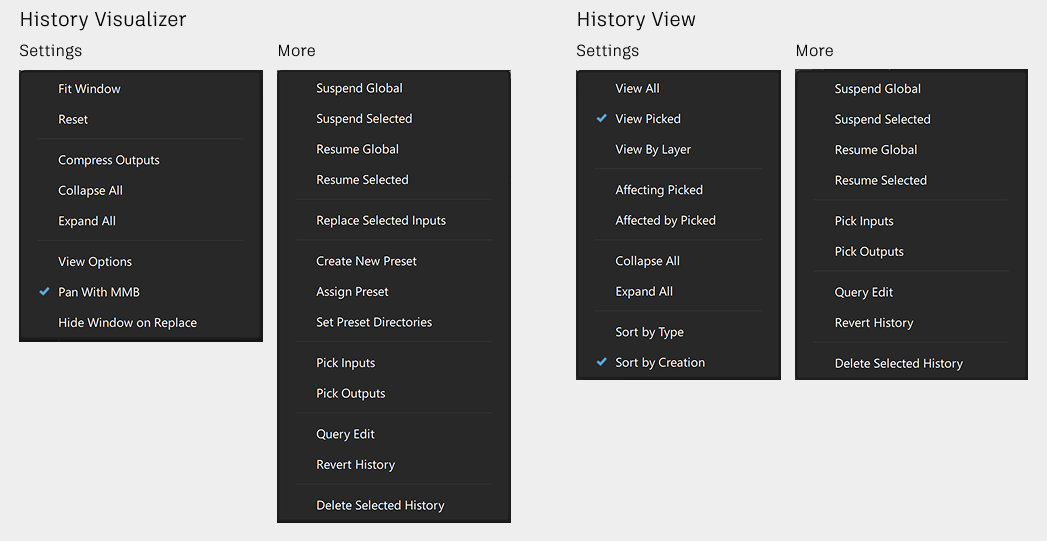
The History Visualizer and History View menus have been aligned to improve consistency and usability. This includes the Settings, More and right-click menus.
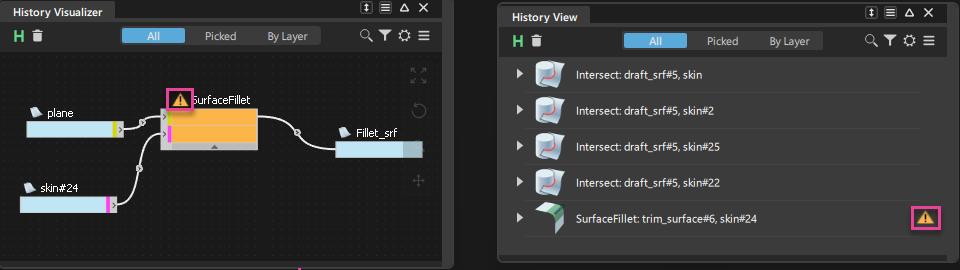
Updated Warning icon
We've updated the Warning icon in the History Visualizer, so that it now displays in orange instead of red. The icon also now displays in the History View. This makes the icon consistent with other warning icons used in Alias, such as in the Reference Manager.
History View UI Refresh
We've added the All, Picked, and By Layer filters to the History View window. These options let you quickly filter the view by selection. This now makes the History View and History Visualizer user experience more consistent.
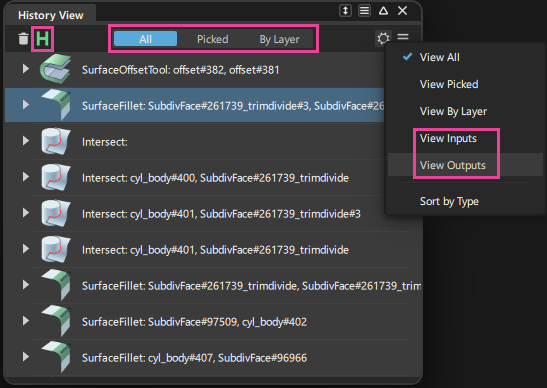
Selecting the Picked filter is the same as selecting Active from the Settings menu in previous versions of Alias. By Layer, which is new to History View, allows you to filter and view commands targeting nodes on selected specific layers. You'll also find a new Sort by Creation option in the History View Settings menu, which lets you group history items by their creation order. This option is on by default.
In addition to these updates, we've made changes to the names of the following menu options:
- Affecting Active is now View Inputs
- Affected by Active is now View Outputs
Additional History View and History Visualizer updates
In both the History View and History Visualizer windows, you can now toggle Suspend History on and off from the icon bar by selecting the Suspend History icon
 .
.Alt + clicking a tool node in History View and History Visualizer now zooms the viewport focus to the geometry that a tool node is operating on. This works similar to the Look At tool.
History Visualizer: The Set Preset Directories window now flags invalid preset directory paths with an
 icon. If a previously set preset directory path is broken or the directory no longer exists, click the icon to either browse to the new directory location or remove it from the list.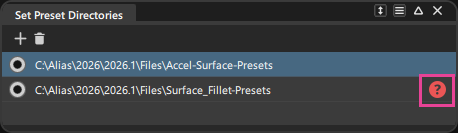
For more information, see the following:
Other Modeling Improvements
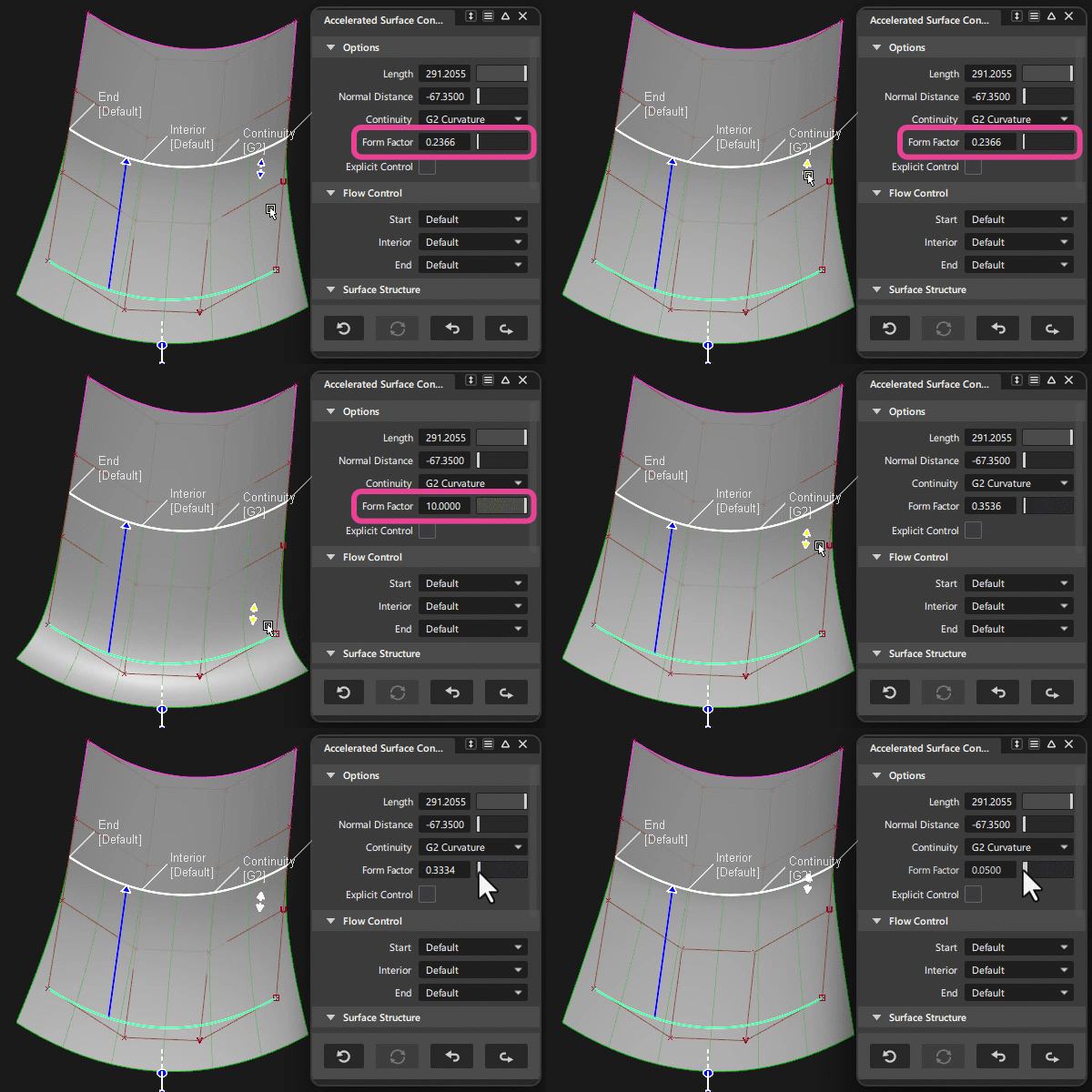
Accelerated Surface tool: We've added a Form Factor in-canvas manipulator which allows you to interactively adjust this value directly in the viewport. Use the manipulator to drag the CVs in the V direction to adjust the amount of acceleration.
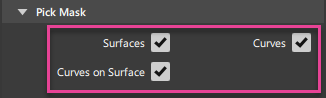
Pick Chain tool: We've added a Curves-on-Surface option to the Pick Mask, which allows you to chain pick curves-on-surface (COS). We've also modified the Pick Mask section of the control window so that you can turn on any combination of surfaces, curves, or curves-on-surface. This update improves working with complex curve networks that include surface-bound curves.
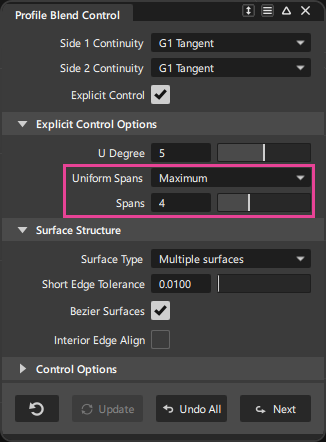
Profile Blend and Free Form Blend tools: We've added the Uniform Spans options to the tool's explicit controls. When Explicit Control is on, you can use the Uniform Spans options for Single Surface and Multiple Surface types, including Bezier Surfaces. Select a Uniform Spans option from the drop-down list, then use the Spans slider to control the number of spans to generate in the output NURBS or Bezier surfaces. See Explicit Control Options for more information.
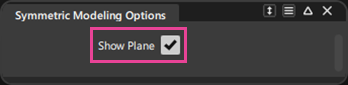
Symmetric Modeling: A new Show Plane option allows you to toggle the visibility of the symmetry plane on and off in the viewport. Turning the display off is useful when you want to focus on the geometry without the distraction of the symmetry plane.
- Corner Blend - A new Planarize U Hull option flattens the U-direction hulls of blended surfaces to improve surface quality. This option applies only when three fillets meet at a corner and works independently or alongside the Align Base Edge option.
- Surface Offset tool - A new Flip Offset option now makes it easier to reverse the direction of an offset without manually adjusting the Offset Distance values.
- Control Panel - We've added an Invert Comb option to the Curvature section of the Control Panel. This options allows you to quickly flip curvature combs from above to below the curve and back again. To do this in previous versions of Alias, you needed to set a negative Comb Scale value or use the Alt key to drag values below 0.
- Object Lister - We've added a new Delete Layer/Folder and Contents option to the More and context menus. This allows you to delete layers and folders as well as any objects assigned to them. In previous versions of Alias, after deleting a layer or folder, the objects assigned to them get re-assigned to the Default layer, from which you needed to delete the objects if you no longer needed them.
- Smooth tool: The Smooth tool now lets you select CV rows for smoothing.
- Check Model: You can now interrupt Check Model operations in Alias by pressing the Esc key.