Assign Controller Rollout
The Assign Controller rollout is a Motion Panel rollout that lets you assign and append different animation controllers to individual objects. (You can also assign controllers in the Track View.)
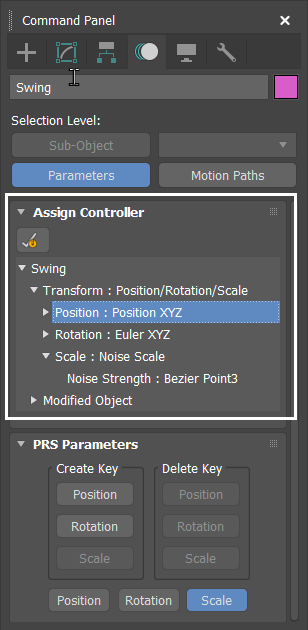
The Motion Panel Assign Controller rollout (highlighted)
Animation controllers are plug-ins that handle all animation tasks in 3ds Max. For a list of available animation controllers, see Animation Controllers.
To view the Assign Controller Rollout
Select an object and click the Motion panel. The Assign Controller rollout is the first rollout on the panel.
Do not confuse the Assign Controller Rollout with the Assign Controller Dialog. The Assign Controller Rollout is for managing transform controllers and the Assign Controller Dialog is the place where you choose and assign Animation Controllers.
See also Assign Controller Rollout (character studio), and Assign Controller in Track View.
For information on how to assign a controller, see Assigning Controllers.
Assign Controller Rollout context menu
Right-click a controller to do the following: #### Assign Controller
Opens a submenu from where you can double-click assign a controller. See a demonstartion of this technique in the Assigning Controllers with the Motion Panel part of the Assigning Controllers topic.
Copy Controller
Copies the Controller to the clipboard.
Paste Controller Copy, Instance, or Wire
Assigns a copy or instance of animation controller from the clipboard to the right-clicked field.
Choose Paste Controller Wire to open a Parameter Wiring dialog with the copied parameter and the paste destination parameter selected. This is equivalent to creating a wire parameter in the viewport between two parameters.
Reset to Default Controller
Restore the controller original default.
Open Controller Properties
Opens the properties window for the controller, if applicable.
Show in Track View
Opens the Track View. See also Assign Controllers in Track View for more.
Show Parameter in Wire Parameter Dialog
Opens a Parameter Wiring Dialog with a focus on the selected parameter.
Expand/Collapse
Exposes or minimizes the controller in a tree view.
Select All/Invert/None
Choose the controller selection.