TSD functionality is only available if the TSD option is enabled on your licence.
There are two types of time series data (TSD) objects in InfoWorks ICM: Scalar Time Series Data and Spatial Time Series Data. These objects provide an intermediate store between external data sources (such as SCADA/telemetry or RADAR) and an InfoWorks or SWMM run .
This approach of intermediate storage has the following advantages:
- Performance – retrieving data from the external sources for every run would be impractical and inefficient.
- Historical data storage – the state of a TSD can be viewed as it was at any time in the past. This allows old runs to be re-run with exactly the same input data.
- Sharing – as well as sharing between different models within the same database, TSD objects can be copied between databases. This is useful if a user wants to send a run to support along with the model data and time series data.
The main differences between Scalar and Spatial time series data objects are shown in the table below.
|
Characteristic |
Scalar time series data

|
Spatial time series data

|
|---|---|---|
|
Type of time varying data stored |
Scalar |
Spatial |
|
Information stored in each time series data point |
In a Scalar TSD, each time series data point has no geometry (i.e. no polygons) and has only one value. |
Each time series data point in a Spatial TSD stores a number of polygons and a value for each of these polygons. |
|
Number of datastreams and data sources |
Scalar TSDs can have many streams and data sources defined. |
Spatial TSDs can only contain one stream (and only one data source). Spatial data requires much more storage than scalar data so limiting Spatial TSDs to one stream significantly helps partition the storage. Also, a model tends to have many scalar data sources (and only a few spatial data sources) so it is more manageable to keep a number of streams together in one Scalar TSD rather than have many tree objects. |
| Display in InfoWorks ICM |
Scalar values are displayed alongside their timestamp in a grid (see Time Series Data Grid). |
Spatial time series values are displayed in the GeoPlan as a theme. See Displaying Spatial Rainfall on the GeoPlan. |
See the Scalar Time Series Data topic and the Spatial Time Series Data topic for further details.
Working with TSD objects
See the Working with Database Items topics for details on how to create, open, edit, save or delete Scalar and Spatial time series data objects.
The specific differences in the way TSD objects behave compared to the other database items are:
- Time series data objects can reside in a Live group or a Model group. This means that either group can be right-clicked in the Explorer window to create a TSD object.
- To save a TSD object, click
 located in the top right corner of the TSD object and select Yes when prompted to confirm the save.
View and edit time series data points
The procedure to view the time series data points for an individual stream inside a time series data depends on the TSD object type:
- Scalar time series data - drag a Scalar TSD object onto the InfoWorks ICM main window, select a row (stream), right-click and select Show time series data from the context menu.
- Spatial time series data - drag a Spatial TSD object onto the InfoWorks ICM main window.
The Time Series Data Grid, where the data points can be viewed and edited (if required), is opened.
Open the current view of a Time Series Data object
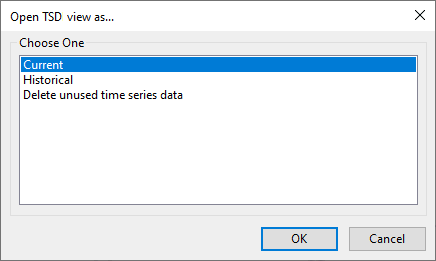
- Right-click the relevant TSD object in the Explorer window, and select Open as from the context menu. The Open TSD view as dialog is displayed.
- Select Current from the list.
- Click OK. The current view of the TSD object is displayed (Observed or Forecast Page for Scalar TSD and Time Series Data Grid for Spatial TSD).
Open the historical versions of a Time Series Data object
- Right-click the relevant TSD object in the
Explorer window, and select Open as from the context menu. The Open TSD view as dialog is displayed.
Note: If the TSD object is in a cloud database and the number of versions exceeds 10,000, a message is displayed warning you that it may take some to retrieve version information, and gives you the option to cancel the opening of this dialog. If you choose to open the dialog:
- Select Historical from the list.
- Click OK. The Select date for historical view of TSD dialog is displayed.
- Select the date and time to return to and click OK. The historical version of the TSD object corresponding to the date and time selected is displayed in read-only mode.
Delete historical data from a Time Series Data object
- Right-click the desired TSD object in the Explorer Window to display the Open TSD view as dialog.
- Select Delete unused time series data from the
list.
Note: This option is not available for TSD objects in cloud databases.
- Click OK. The Delete unused time series data dialog is displayed.
- Specify a date upper limit for data deletion. Only unused values with time stamps older than this date will be deleted.
- If required, enable the Keep the latest version of each value even if it has not been used by a simulation option. This means that InfoWorks ICM will not delete the latest version of every value ( = latest imported) with a time stamp older than the date specified in the Only delete data with time stamps older than field.
- Click OK to delete the historical data and close the dialog.
An example is included in the Delete Unused Time Series Data Dialog topic.
Edit time series data
You can edit data contained in time series data objects. See Editing Time Series Data for more information.
Update time series data from data source
Time series data may be updated from external data sources. See Updating Time Series Data for further details.