The following improvements have been made to the Spec Editor in this release:
- Override the reported valve actuator height and width
- Locate parts in the Catalog Browser using Size Filters and Property Overrides
- General usability, validation, and workflow improvements
Override Reported Valve Actuator Height and Width
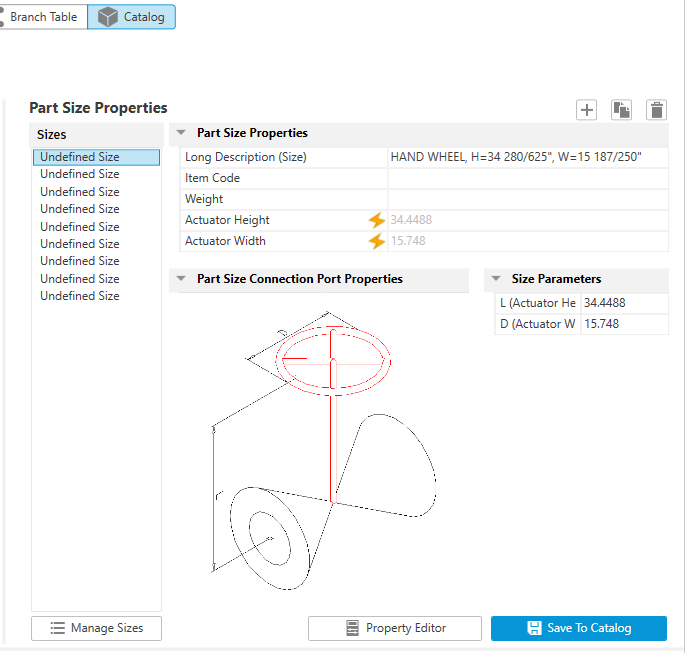
You can now switch between Acquire and Override modes for valve actuator height and width in catalogs.
The Actuator Height and Actuator Width fields each display an icon indicating the current mode.
- Override Mode
-
Select Override mode to specify a custom mapping value from the drop-down list.
- Select the appropriate value from the drop-down list.
- Hold Alt and click the mode icon to reset both properties to Acquire mode.
- Acquire Mode
-
In Acquire mode, the mapped value is obtained automatically.
- Click the mode icon to switch to Override mode before editing the mapping.
- Hold Alt and click the mode icon to switch both properties to Override mode.

Size Filter and Property Overrides in the Catalog Browser
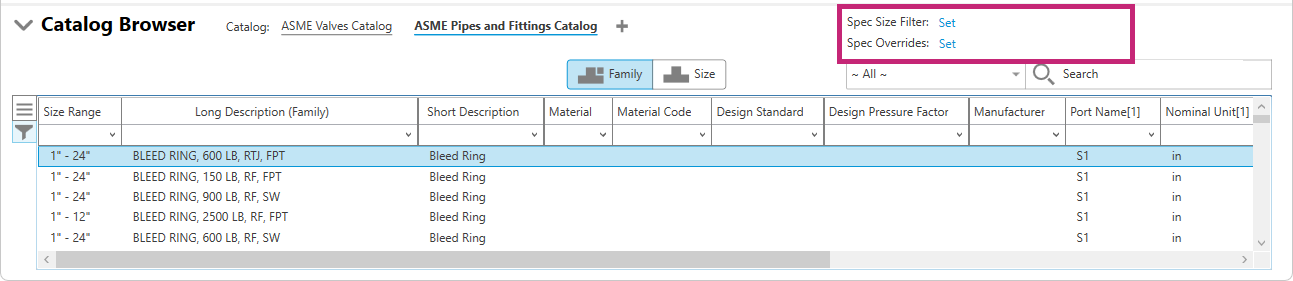
In the Catalog Browser, you can use Size Filters and Property Overrides to locate parts in a catalog and control how they are added to a spec.
- Size Filter
-
The Size Filter controls which part sizes are displayed in the Catalog Browser for the active catalog. Click Set next to Spec Size Filter in the upper-right corner of the Catalog Browser to open the Size Filter dialog box.
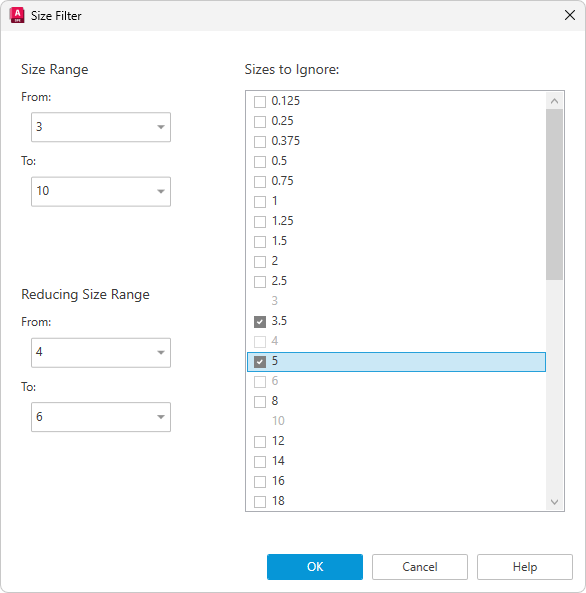
In the Size Filter dialog box, define filter criteria to narrow the displayed part sizes in the active catalog:
- Specify the minimum and maximum part sizes to include.
- Specify the size range for reducing parts.
- Select the part sizes to exclude from the results.
 Note:
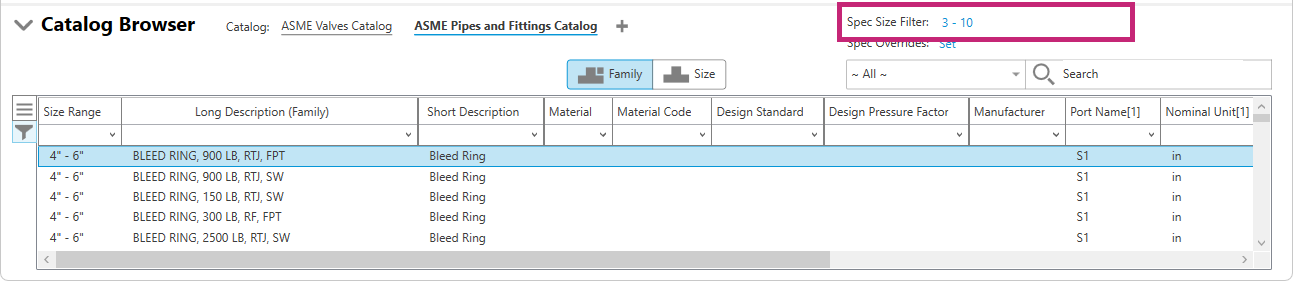
Note:- Only the sizes displayed in the Catalog Browser after applying the filter are added to the spec when using Add to Spec.
- The filter applies only to the active catalog.
- The filter is cleared when you switch to a different catalog.
- After a filter is applied, the selected size range is displayed next to Spec Size Filter.
- Click the displayed size range to reopen the Size Filter dialog box and modify the filter.
- Hover over the displayed size range and click the X icon to clear the filter.
- Property Overrides
-
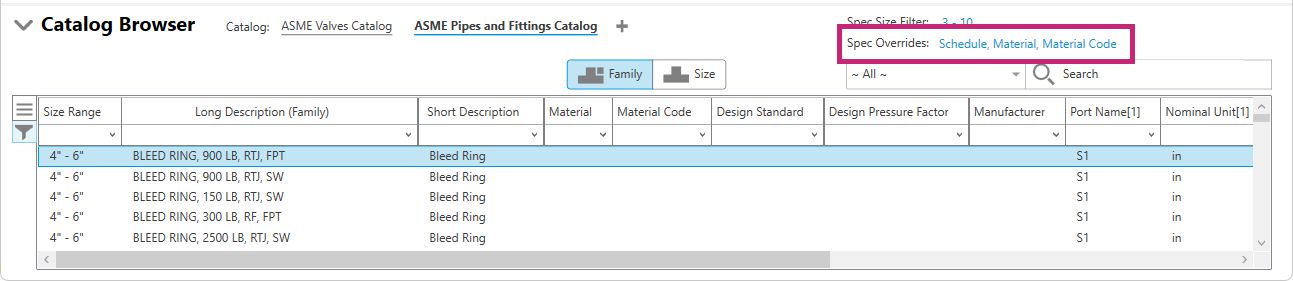
Property Overrides allow you to override specific property values when adding parts to a spec. Click Set next to Spec Overrides in the upper-right corner of the Catalog Browser to open the Property Overrides dialog box.
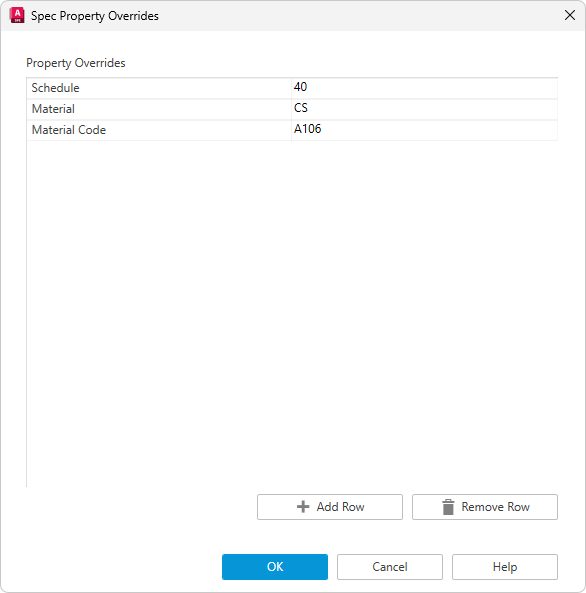
In the Spec Property Overrides dialog box, do the following to add a property override:
- Select a property from the drop-down list or enter a property name manually.
- Specify a value for the property.
- Click Add Row to add additional property overrides.
- Optionally, select a property row and click Remove Row to remove a property override.
When parts are added to a spec, the specified property values are automatically applied and override the corresponding values in the spec.
Additional Improvements
- Spec Description now supports multi-line editing with scrolling, including keyboard and mouse navigation.
- Required property validation is now enforced in the Property Editor. If a required property contains an empty or invalid value, an Invalid Input task dialog box is displayed when saving, prompting you to correct the value before proceeding.
- In the Catalog Property Editor, the Add button is no longer disabled when a custom property contains an invalid default value. Instead, a message box provides guidance for correcting the invalid value.
- Valve operators with the same size but different geometry dimensions now display correctly in the Operator Mapping dialog box.
- The Long Description (size) list in the Valve Operator Mapping dialog box is now sorted alphabetically by default.
- The scale in the Branch Table can now be adjusted from 10% to 400% by holding Ctrl and scrolling the mouse wheel.
- The Property Filter icon is now located in the left column of the Catalog Browser.
- Decimal values are now imported correctly from Excel when using non-English regional format settings.