Set up templates to automatically number Revit elements.
A numbering template uses a filter to define the scope, an output parameter, and specifies rules for partitioning (defining numbering sequences), matching and number formatting.
You can define multiple templates for the same element, each with its own output parameter. When using the same filter and output parameter, the template that is higher up on the list will have priority over numbering the same element. If a template is disabled or the element is removed from the scope of numbering, its number value remains as simple text. Adding the element back in scope will renumber according to the partition where the element will belong
The numbers are assigned by the template in the order of element creation and modification (if matching is enabled). You can edit the number as needed and when the number you input is already in use, you will get an error and you can choose to swap numbers.
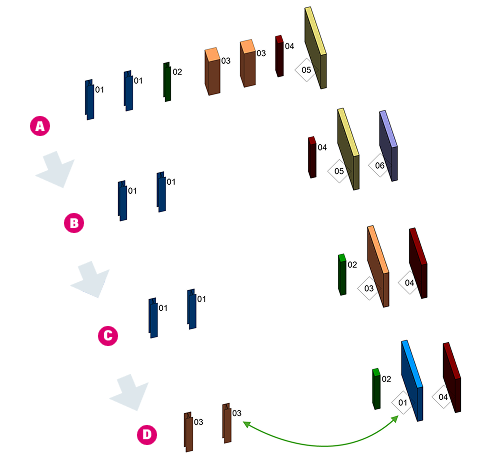
Here's an example of how numbering works, with matching enabled.
A - Columns and walls are numbered in the same sequence, with geometry matching enabled
B - Three columns are deleted and a gap in the numbering sequence remains. A wall is added and it gets a number at the end of the sequence. Gaps are not filled automatically.
C - Running the Remove Gaps command for the number sequence