System Modeler user interface
The System Modeler interface has the following main areas:
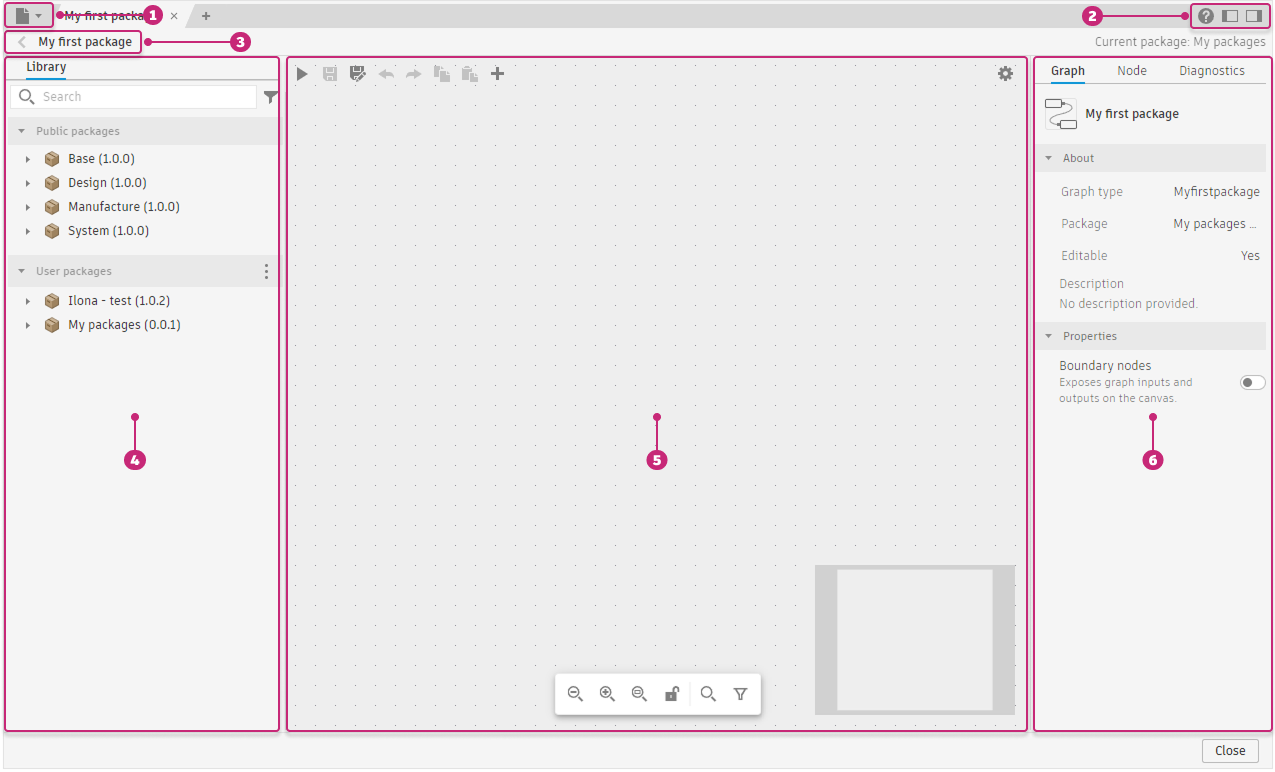
- File menu: File and package operations. See File menu below.
- Panel controls: The ? button opens contextual help. Collapse or expand the Library panel with Ctrl+B (Windows) / Command+B (macOS) and the Details panel with Ctrl+I (Windows) / Command+I (macOS).
- Breadcrumb bar: Shows your position in the graph hierarchy when inside a subgraph. See Breadcrumb bar below.
- Library panel: Browse and search nodes by package and category.
- Graph canvas: The main area where you build and edit graphs.
- Details panel: Inspect and configure the selected graph or node.
File menu
Click File menu  at the top left to open it.
- Create graph: Creates a new graph in the current package
- Open graph: Opens an existing graph. Press Ctrl+O (Windows) / Command+O (macOS).
- Save: Saves the current graph. Press Ctrl+S (Windows) / Command+S (macOS). This option is unavailable for graphs from read-only packages.
- Save as: Saves a copy of the current graph with a new name. Press Ctrl+Shift+S (Windows) / Command+Shift+S (macOS). This option is always available and saves a copy to an editable package, such as a user package. Use it to duplicate a read-only graph into a package you can edit.
- Import package: Imports a package from a file
- Export package: Exports the current package to a file
Breadcrumb bar
When you enter a subgraph, the breadcrumb bar shows your full path through the hierarchy, for example:
Basic Milling & Drilling Workflow > Color Holes & Pockets > Color Pockets
Click any segment to navigate back to that level. See Subgraphs.
Library panel
Browse and search nodes by package and category. Left-click a node to add it to the center of the canvas, or drag it to a specific position. See Library panel.
Graph canvas
The main canvas where you build and run graphs. See Graph canvas.
Selecting nodes
- Click a node: Selects it and opens it in the Node tab of the Details panel
- Ctrl+click (Windows) / Command+click (macOS) a node: Adds it to the current selection
- Shift+drag on the empty canvas: Draws a selection box. All nodes inside are selected.
- Double-click a subgraph node: Enters the subgraph
Details panel
Inspect and configure the selected graph or node, and review diagnostics after a run. Switch between the Graph, Node, and Diagnostics tabs. See Details panel.
Additional interface elements
Tab bar
Multiple graphs can be open at the same time, each as a tab. Click a tab to switch to that graph. Click × to close a tab. Click + to create a new graph.
The current package is shown in the top-right area of the editor. It reflects the package that owns the graph in focus.
Click Close at the bottom right to close the System Modeler and return to Fusion.