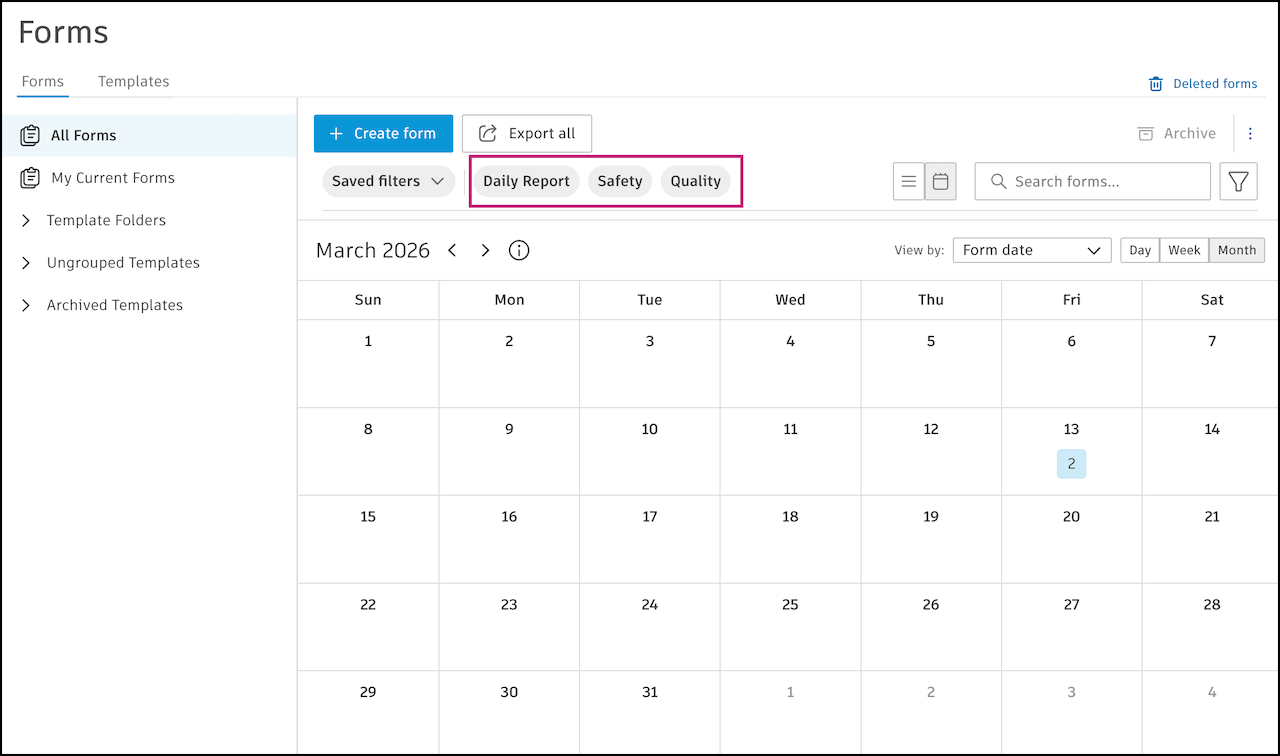
Saved and Quick Filters in Forms
Use saved filters to return to the forms you check most, faster. A saved filter stores your filter setup, search text, sort order, and table layout, so you can reapply it with one selection.
There are also quick filters, which are provided by default to surface the most commonly used filters for instant access.
About Saved Filters in Forms
A saved filter stores a filter configuration that you reapply with a single selection. It keeps your filter criteria, search text, sort order, and table layout. Only one saved filter can be active at a time. Saved filters are private and visible only to you.
Saved filters work on the web in both List view and Calendar view in Forms.
Create and Manage Saved Filters for Forms
Create, edit, rename, and delete saved filters from the Saved filters drop-down menu or the Filters panel.
Create Saved Filters in Forms
You can create a saved filter for Forms from two places.
Navigate to the Forms tool.
Enter search text, change any view configurations like sorting or column visibility, or set the filters you want to save.
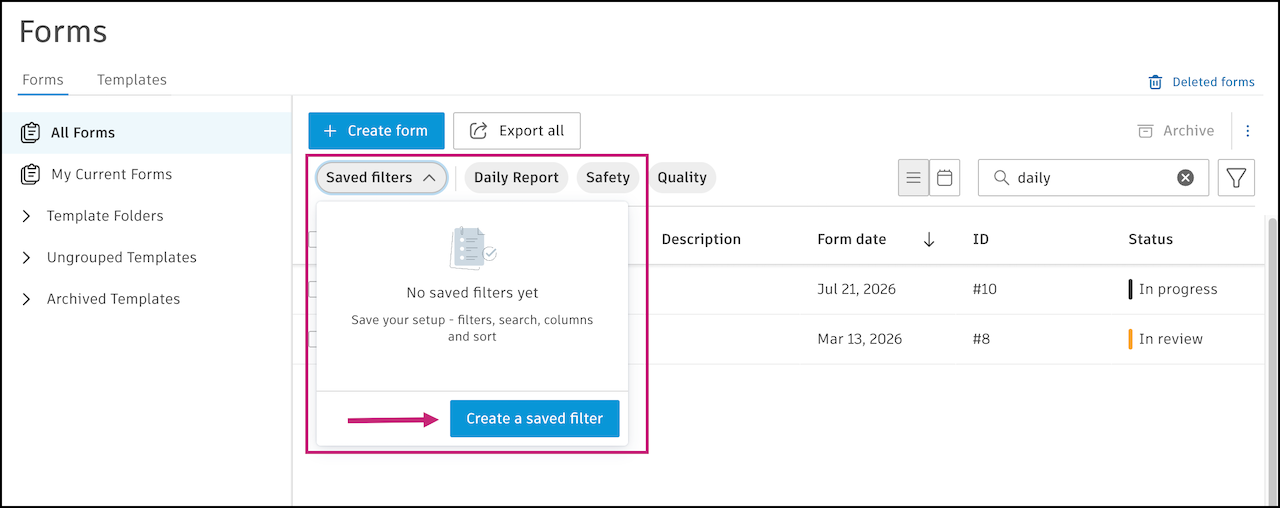
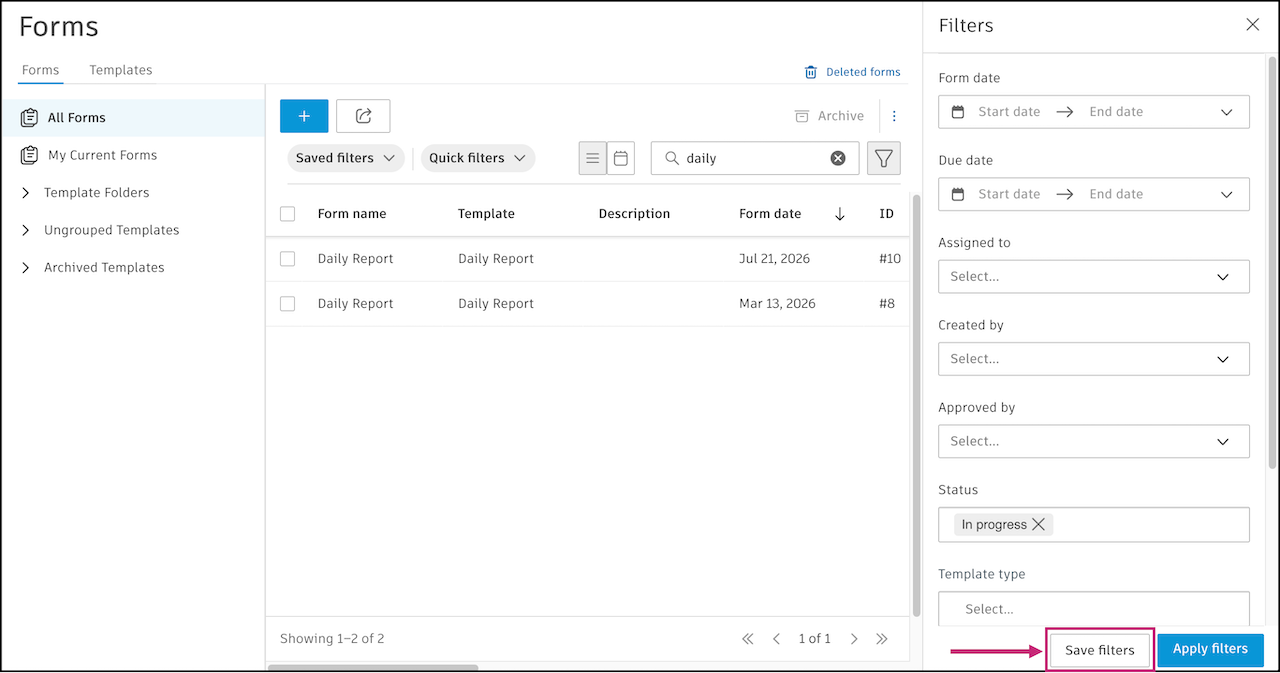
Save the view from one of these places:
Open the Saved filters drop-down menu over the Forms list view or calendar view
The Filters panel, where you click Save filters
Enter a name for the filter.
Select what is included: filters, search text, and view configuration.
Click Create.
The filter appears at the top of the Saved filters drop-down menu.
Rename Saved Filters in Forms
Open the Saved filters drop-down menu.
Find the filter you want to rename, then click on its More menu
 and select Rename.
Enter a new name, then save it.
Renaming a filter doesn't change its criteria. Each name must be unique.
Delete Saved Filters in Forms
Open the Saved filters drop-down menu.
Find the filter you want to delete, then click on its More menu
and select Delete.When prompted, confirm by clicking Delete.
Deleting a filter removes it from the list. If that filter is active, its settings stay applied on your view but are no longer saved.
Use Quick Filters
Quick filters surface the most commonly used filters for instant access. They appear as capsule tags in the header row, next to the Saved filters drop-down menu.
Click a quick filter tag to apply it. The issue list updates immediately to show matching results.