
Beta Signup
The Betas tab in hub settings lets hub administrators try new functionality before it's generally available. Each beta lists a name, an active date range, filterable tags, and a description. Click Learn more for details about a specific beta's functionality.
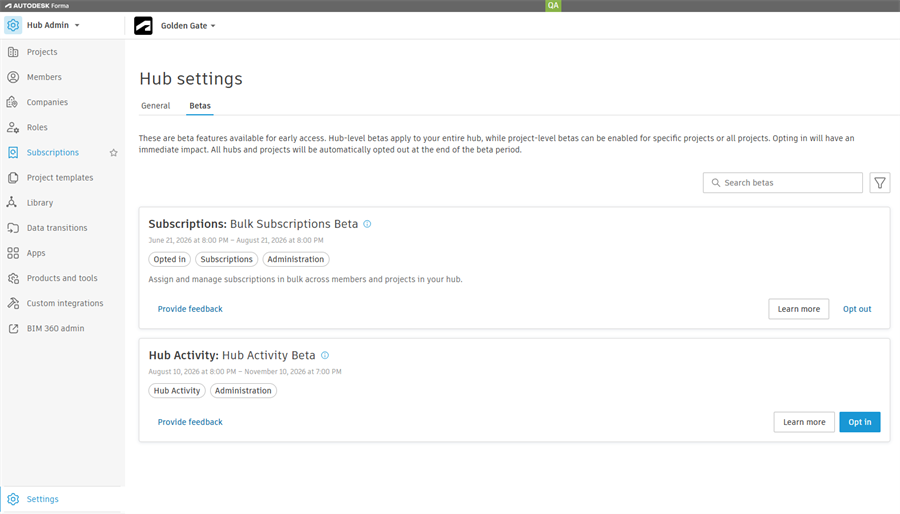
Opt Into a Beta
Hub administrators can opt into a beta from the Settings page. Opting in applies to the entire hub and all of its projects.
- Click Opt in.
- Read the terms and conditions, then select the checkbox to accept them.
- Some betas include a second checkbox for consent to collect your hub members' data as part of the beta.
- Click Confirm opt-in.
The beta functionality turns on for your hub right away. It turns off automatically when the beta ends.
Opt Out of a Beta
Once you opt into a beta, you can opt out from the same location.
- Click Opt out.
- click Opt out, in the confirmation dialog.
Provide Feedback on a Beta
Hub administrators can share feedback on a beta at any time.
- Click Provide feedback.
- Enter a rating, a comment, or both.
- Click Submit feedback.
Your feedback goes directly to the team running the beta.
Note: You can't edit feedback after you submit it, but you can submit more feedback.