
This dialog is used to:
- Open an existing cloud, workgroup or standalone database
- Create a new cloud, workgroup or standalone database
- Update a selected cloud, workgroup or standalone database
- Get the database identifier for a database that you do not have access to so that it can be saved to a text file. See User Permissions for further information.
It is displayed when you select a cloud, workgroup or standalone type of database from the Open/Create dialog.
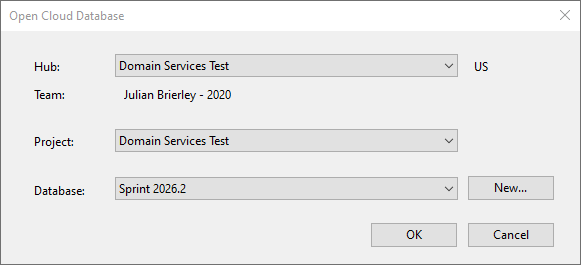
Open Cloud Database dialog
|
Item |
Description |
|---|---|
| Hub | A dropdown containing the names of the hubs to which you have access. |
| Project | A dropdown containing the names of the projects to which you have access. |
| Database | A dropdown containing the names of all existing cloud databases that are stored on the selected hub |
| New | Opens the New Database dialog, where you can specify the name for a new cloud database. |
| Update to |
Displayed when updating a cloud database. Lets you choose which version of the database that you want this cloud database to be updated to from the dropdown. Note: The earliest version available is 2023.0. |
| OK | Saves any changes and closes the dialog. The selected cloud database will be opened in the Explorer window. |
| Cancel | Cancels any changes and closes the dialog. |
Open Workgroup Database dialog
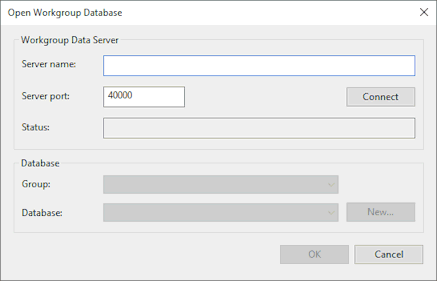
Dialog description
|
Item |
Description |
||||||||||
|---|---|---|---|---|---|---|---|---|---|---|---|
| Workgroup Data Server |
|
||||||||||
| Database |
This section is only available when the connection to the Workgroup Server is established.
|
||||||||||
| Update to |
Displayed when updating a workgroup database. Lets you choose which version of the database you want this workgroup database to be updated to. The available versions are listed in the dropdown. Note: The oldest version available is 2023.0. |
||||||||||
| OK | Saves any changes to the dialog and closes the window. The selected workgroup database will be opened in the Explorer window. | ||||||||||
| Cancel | Cancels any changes to the dialog and closes the window. |
Open Standalone Database dialog
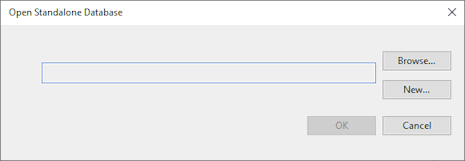
Dialog description
|
Item |
Description |
|---|---|
| Read-only text box |
Displays the name of the standalone database, if one has been selected. |
| Browse | Opens a standard Windows Open dialog that you can use to find an existing standalone database. |
| Open | Opens a standard Windows Save As dialog with a suggested location, name, and database version for a new standalone database. These can be changed if required. |
| Update to |
Displayed when updating a standalone database. Lets you choose which version of the database you want this standalone database to be updated to from the dropdown. Note: The earliest version available is 2023.0. |
| OK | Saves any changes and closes the dialog. The selected standalone database will be opened in the Explorer window. |
| Cancel | Cancels any changes and closes the dialog. |