
Sign In to PIX for tvOS
You can install PIX for tvOS by searching PIX SYSTEM in the Apple App Store.
Head to Apple's direct website to learn more about how to Use your Siri/AppleTV Remote or how to Use the Apple TV Remote App
Open PIX for tvOS

Click Sign In
If you have completed the sign-in process within the last 30 days, and you have already set up a PIN, then you will be able to select your name from the home page and sign in using your PIN.
If you have not yet set up your account on Apple TV, you will need to follow the steps below to set up your account.
.png)
You will be prompted with a barcode to scan on your Apple TV using your mobile device’s camera. You cannot scan the barcode with your authentication app which is used for 2-Factor Authentication.
You can either scan the barcode, or you can navigate to pixauth.tv using a web browser on a computer or mobile device.
Click Done.
Scan the barcode
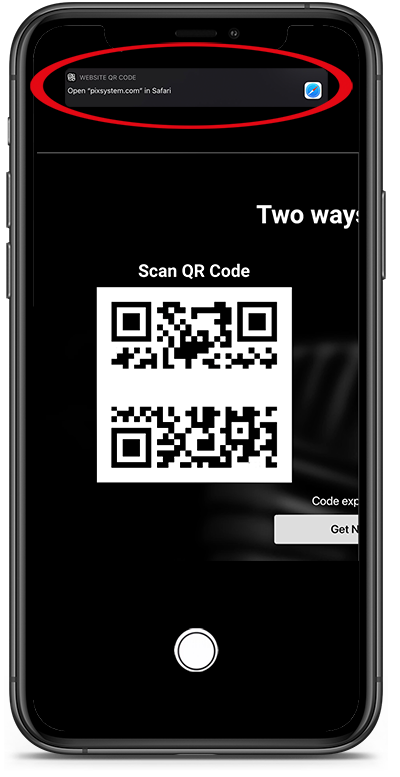
To scan the barcode:
- Point the camera on your mobile device at the QR code.
- Follow the prompt that navigates your mobile device’s web browser to the PIX authentication page.
- A Sign in window will open using your device's native web browser
Note that on Android devices, the URL is typically at the bottom of the camera’s screen.
Sign in to PIX

Enter your PIX login credentials on the Sign-in screen.
You will first be prompted to enter your PIX username or PIX account email, then on the following screen, enter your password for PIX.
Need to recover or reset your password?
Tap Forgot your password? To reset your PIX password, or reach out to PIX Support to get some help with resetting it.
Please note: We do not recommend using an automated password generator to set up your password for PIX as auto generators often exceed the character limit or include non-supported characters.
Get your 2FA code from an Authentication app
If your PIX account requires that you enter 2FA, you will be prompted to enter your 2FA code.
You can switch to your Authentication app, hold your finger on the code to copy it, then paste the code into the 2FA box for PIX on the PIX sign-in screen.
Connect your account to your Apple TV

After entering your login credentials for PIX, you will be prompted to connect a device and confirm that the code displayed on your Apple TV matches the code in the box on the "Connect a device" web page.
Hit Confirm.
Choose how you wish to Sign In

You can choose to use a PIN to log in to your PIX for Apple TV. Choosing this option will save your user account to the Apple TV device, and for future logins, you will be able to use a PIN of your choosing.
If you choose to use your password, you will be signed in immediately, but your account will not be remembered on the home page for future logins. To ensure your account is stored on the device, please choose USE PIN and complete the PIN setup process.
Use a PIN for tvOS

Setting up your PIN
- Enter your PIN by swiping the Touch surface on your Apple TV remote to select your numbers, or dictate using your Siri button.
- Confirm your PIN on the next screen. If your PINs do not match, you will be prompted to match the PIN or start over.
Starting over will take you to the previous screen, where you can re-enter a new PIN.

Once your PIN is confirmed, you will be signed into your account, and your account will be saved as a user for the PIX for tvOS application on the Apple TV.
Did you forget your PIN?
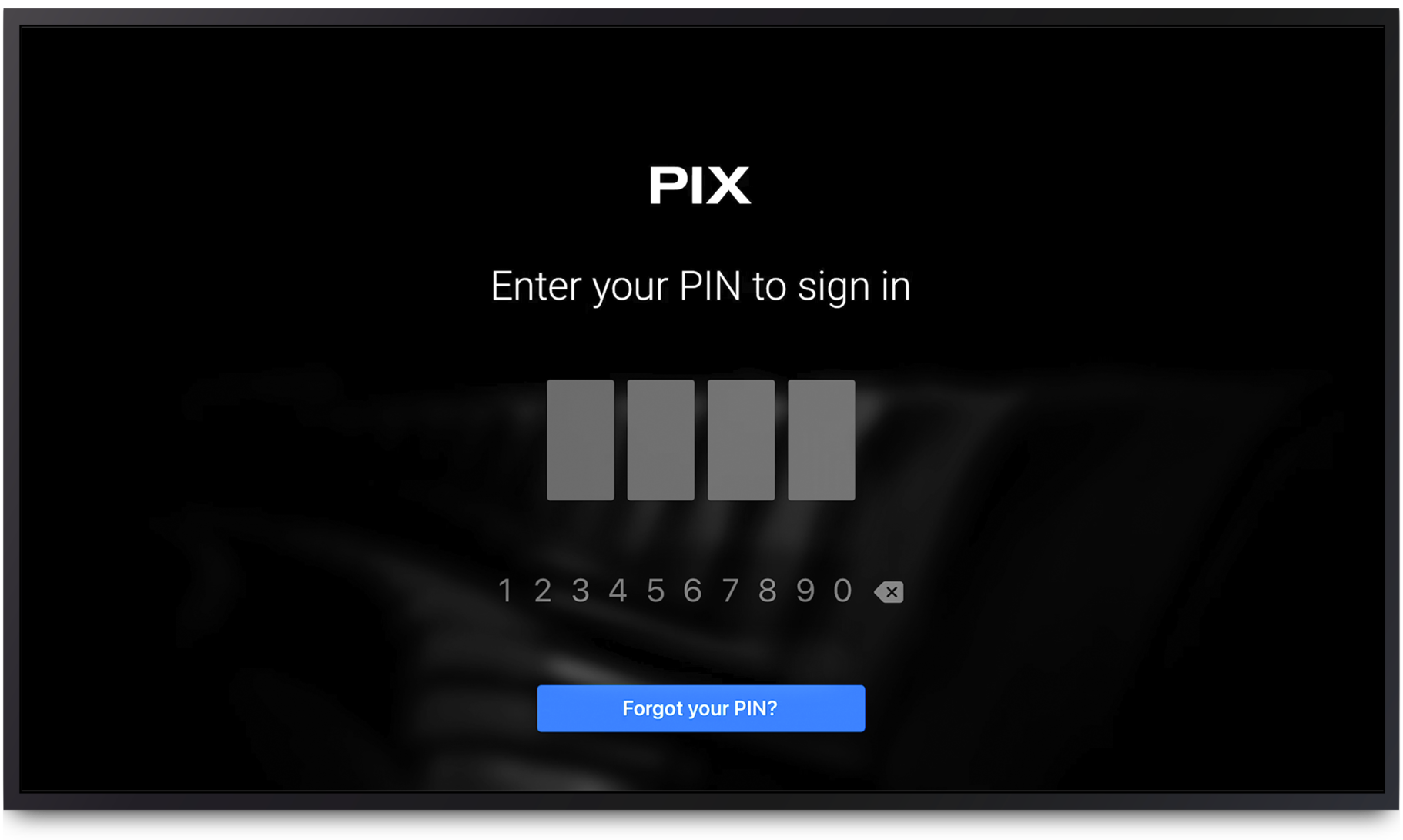
If you have already set up a PIN on tvOS but have forgotten it - just tap Forgot your PIN?
You will be prompted with a new barcode on your Apple TV to scan and sign in to your account.
Reconnecting your PIX account to tvOS
Every 30 days, you will be required to re-connect your PIX account to the PIX for tvOS application on your Apple TV.
To re-connect your account:
- Select your Name
- Enter the PIN you have set up previously
- You will be prompted with a message: “Session Expired, For security purposes, a non-PIN sign-in is required every 30 days. Please try again.”
- Scan the barcode on the screen
- Authenticate your account on your computer or mobile device
- Click Sign In.
- You should not be prompted to re-enter your PIN.
For the next 30 days, you will be able to use your tvOS PIN to sign in.
Removing accounts from PIX for tvOS

To remove an account from the PIX for tvOS app on the Apple TV:
- Sign Out (if you are already signed in).
- Select Settings on the Apple TV home page.
- Select an account name/remove