
Create a tabulated drawing for a configured design (Drawing workspace)
Create a tabulated drawing for a configured design in the Drawing workspace in Fusion.
Create a table that displays configuration data from a configured design
On the toolbar, select Tables > Configuration Table
 .
.The Table dialog displays and the empty configuration table displays at the cursor.
In the Table dialog, in the Table tab, make sure the Configuration Table is selected as the Type.
(Optional) In the dialog, modify the Title.
Select which configured aspects to show as table columns.
(Optional) In the Table dialog, in the Column Order tab, adjust the order of columns in the configuration table.
Click to place the configuration table on the sheet.
The table displays on the sheet and is populated with information from the configured design.
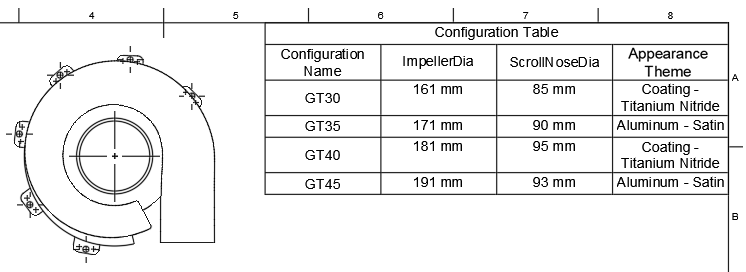
Edit a table that displays a configuration data from a configured design
Double-click the configuration table.
The Configuration Table dialog displays.
In the Table tab:
Edit the Title.
Adjust the Table Direction:
- Up: Places the header at the bottom and orders rows from bottom up.
- Down: Places the header at the top and orders rows from top down.
Select which configured aspects to show as table columns:
Check a column to include it.
Uncheck a column to exclude it.
In the Column Order tab:
Adjust the order of columns in the configuration table:
- Select a column, then click the Up arrow to move it left.
- Select a column, then click the Down arrow to move it right.
Click Close.
Tip
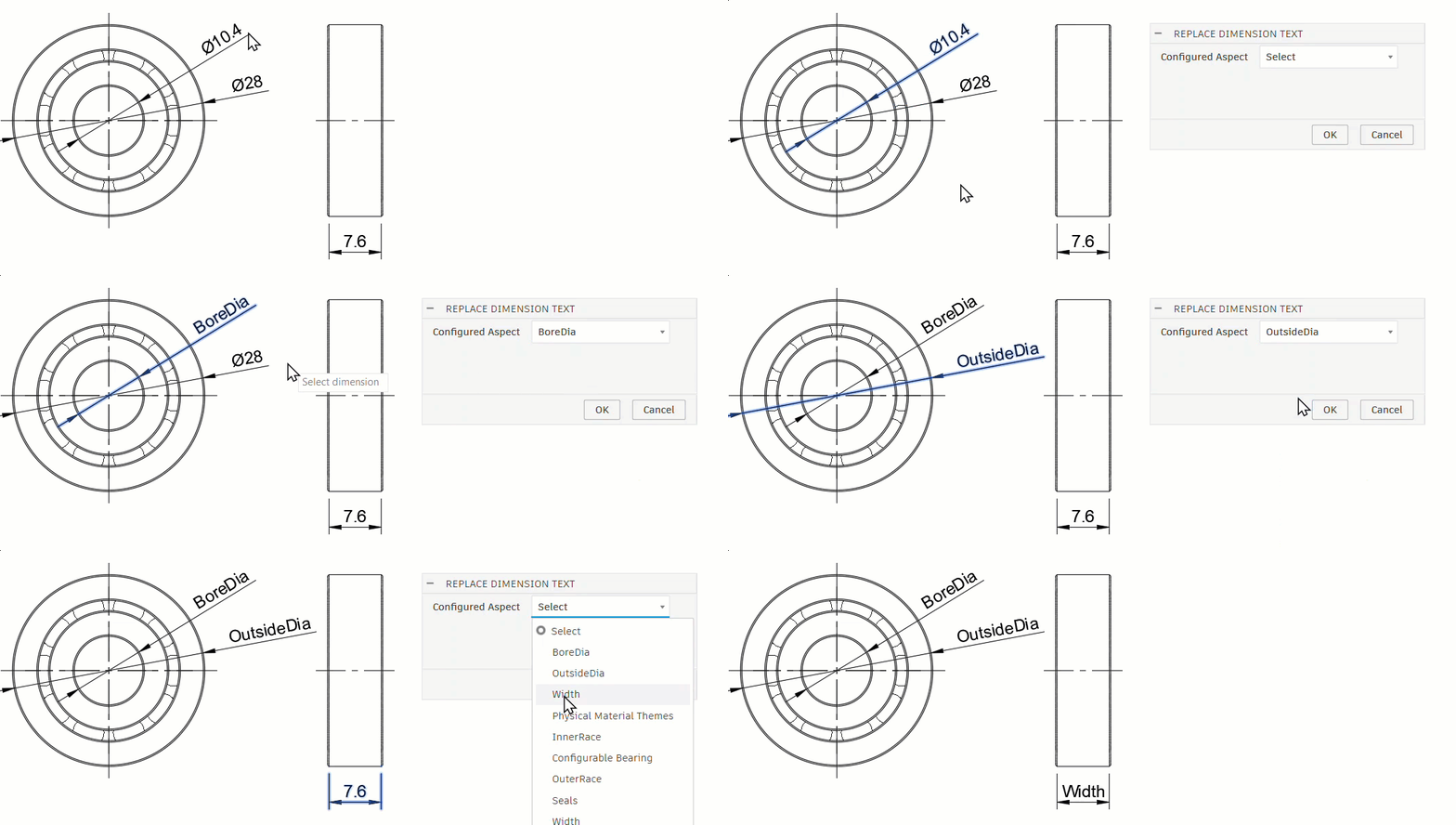
- To replace a dimension value with the configured aspect name, right‑click the dimension and choose Replace with Configured Aspect. Or use the Dimensions dropdown on the toolbar and select Replace with Configured Aspect. You can also double‑click the dimension, then under Replace Dimension Text, choose the desired configured aspect.
 .
.