
Home tab
The Home tab, similar to the Data Panel, is a central location where you can view and access your data. Many Autodesk products use a Home tab, giving you a consistent way of accessing your work.
Access the Home tab
In the application bar, click Home  .
.
To have the Home tab open by default whenever you start Fusion, go to Profile > Preferences > General and check the Start Home tab at startup box.
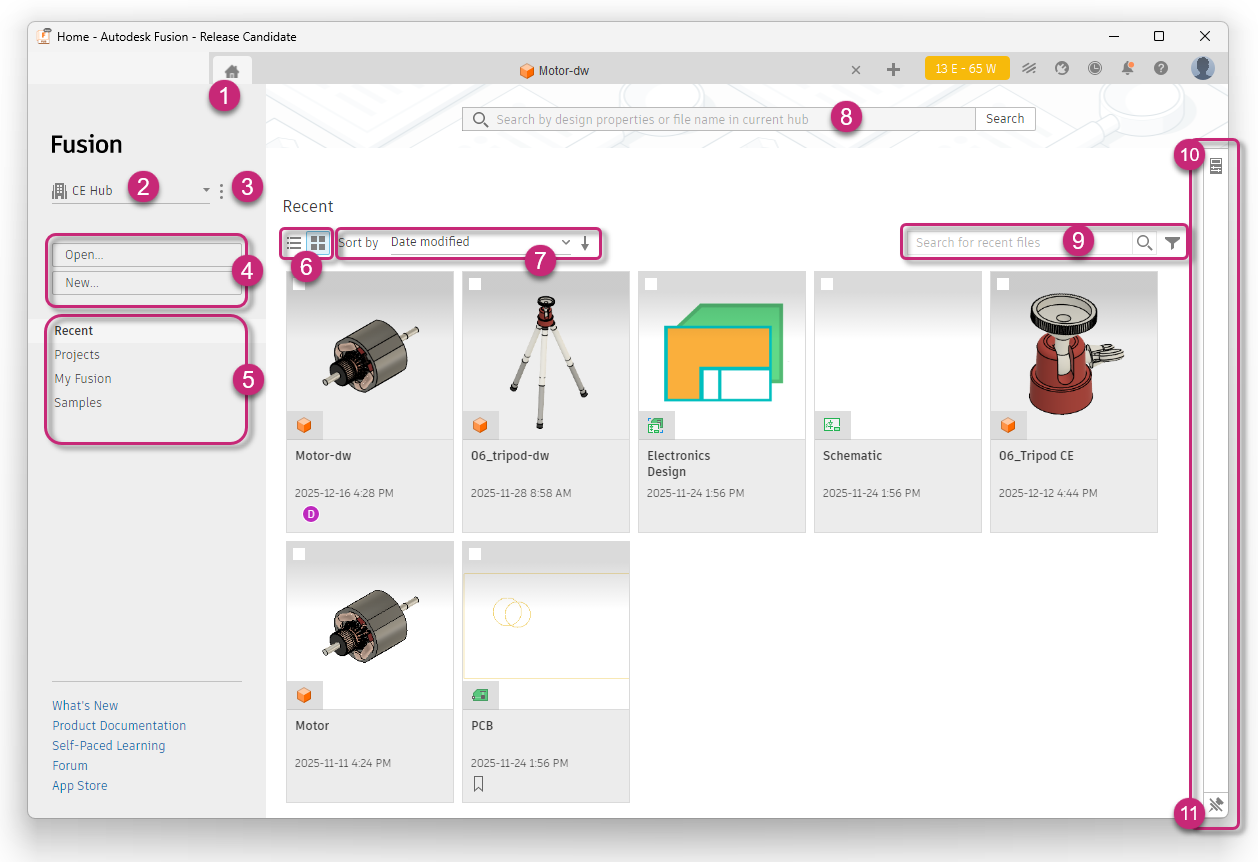
Access the Home tab
.Switch between hubs.
Access contextual controls for the hub
 .
.Open or create projects.
View recent data, projects, My Fusion, and sample files.
My Fusion is your customized shortcuts area. See Start Fusion and the Fusion web client for the first time.
Switch between List View
 and Grid View
  .Note: In List View, you can customize columns using Column Settings
 .
.Sort projects.
Search for designs, files, and properties in the current hub.
Search
 and filter
  in the Projects and Recent pages.
Open the Details panel
 for the current selection.
Pin
 the Details panel so it stays open while you work in the Home tab.
View recent data and projects
The Recent option is selected by default, showing your recently worked-on projects.
To navigate within projects:
On the left side of the window, click Projects.
A middle panel opens containing a list of projects that you are a member of.
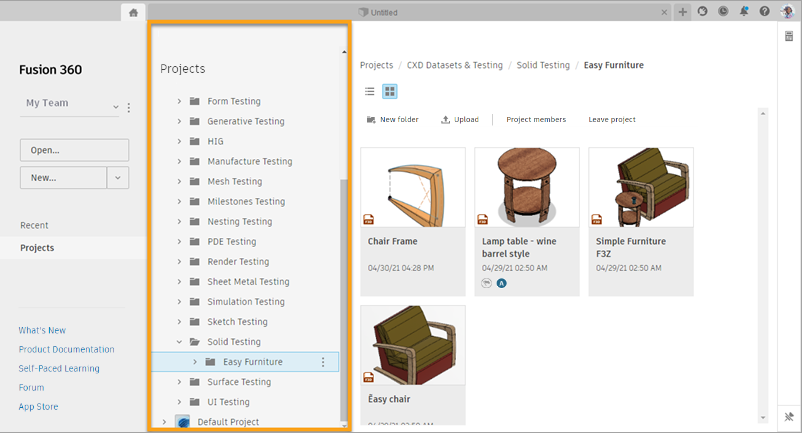
Browse through the projects until you find the project or component you want to work with.