
Create or edit parameters
Learn how to create, edit, and manage Parameters in Fusion.
Create a parameter in the Change Parameters dialog
Click Design > Solid > Modify > Change Parameters
 .
.The Parameters dialog displays.
Click Add User Parameter
 .
.The Add User Parameter dialog displays.
Click a cell to edit the value:
Name: Enter a unique name for the parameter.
Expression: Enter an expression used to calculate the parameter's value.
Note: The Value is automatically calculated based on the Expression.(Optional) Comments: Enter a comment about the parameter.
Expand the list of units and select a Unit type.
Click OK.
The new parameter displays in the list of parameters in the Parameters dialog.
Create Parameters in an active tool dialog
You can create named feature parameters in the canvas or in an open dialog as you work.
In an active tool, click a parametric text field to activate it:
- In the canvas, click the floating text field.
- In an active dialog, click a parametric text field.
Enter a unique name and a value or expression to define the parameter.
Example 1:
Parameter_Name=50- The parameter name is
Parameter_Name. - The value is
50.
- The parameter name is
Example 2:
Width=50- The parameter name is
Width. - The value is
50.
- The parameter name is
Example 3:
Length=Width*2- The parameter name is
Length. - The expression is
Width*2.

- The parameter name is
Enter all remaining inputs then click OK.
Fusion creates the new model parameter and adds it to your Favorites  so you can find it easily in the Parameters dialog.
Create a Text user parameter
In the Parameters
dialog, click Add User Parameter .The Add User Parameter dialog displays.
Enter a unique Name for the parameter.
Expand the list of Unit types and select Text.
In the Expression field, enter alpha-numeric text between two
'.For example,
'Example Text'.(Optional) To reference a current text parameter, type its name and select it. To combine text and a parameter, add a
+between them.For example,
'Example Text'+ExistingTextParameter1orExistingTextParameter1+ExistingTextParameter2.Click OK.
The new text parameter displays in the list of parameters in the Parameters dialog.
Edit a parameter
Click Design > Solid > Modify > Change Parameters
.The Parameters dialog displays.
Optional: Uncheck Automatic Compute to pause updates and reduce compute time as you edit your parameters.
In the list of parameters, expand the component and feature that you want to edit.
Click a cell to edit:
- Name: Enter a specific name for the parameter.
- Expression: Edit the expression used to calculate the parameter.
- Comments: Enter a comment about the parameter.
Click OK.
The parameters update and the design computes to reflect the changes.
Tips
In the parameter text field, click
to switch between the parameter's expression and its value.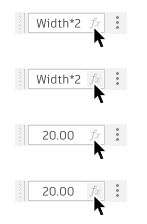
To reuse a favorite parameter, type its name in any parameter field. Then select it from the list that appears.