
Issue:
Users reported that when using Autodesk Desktop Connector, some files are not syncing as expected with the cloud project.
Other symptoms that may appear include:
- The synchronization process is unusually slow, files are queued for later, or files are synchronized randomly later or do not sync at all, or sometimes cause duplicates.
- Files don't get unlocked.
- No errors are displayed, sync pending status only.
- Only folders are visible in Desktop Connector, and no files are displayed.
- A message may be displayed in the Desktop Connector diagnostic logs or Windows event viewer that includes the message, "Cannot create a file when that file already exists."
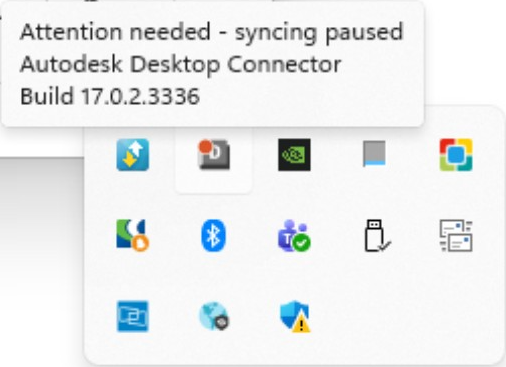
- A message appears on Desktop Connector Icon as "Attention needed - syncing paused"
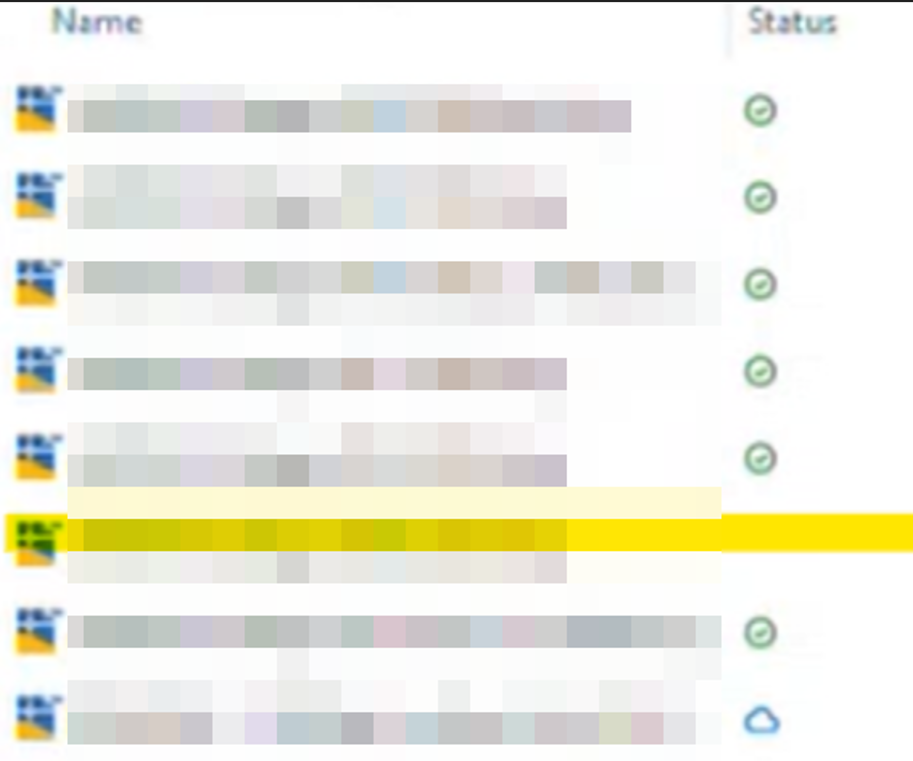
- Cloud icon not displaying in File explorer folder in Desktop Connector
Causes:
Files may not sync due to several causes:
- The machine on which Desktop Connector is being used is not connected to internet.
- Desktop Connector is not running.
- Desktop Connector has not been updated to the latest version.
- Lack of project folder permission.
- Project or account name has changed.
- A newer version of the file exists in the cloud from the version of the file that is on the machine.
- An issue with the data set.
- A conflict in the local workspace.
- Interaction of internet security or antivirus protection.
Solution:
To resolve file syncing issues, try or more of the following potential solutions.
Check the system requirements
- Review the System Requirements.
Make sure that the machine on which the Desktop Connector is being used is connected to the internet
- If the machine is not connected to the internet, syncing will be paused until an internet connection is established and the Desktop Connector is running.
- Consider working offline if internet is limited.
Sign in to Desktop Connector
- The Desktop Connector should be running.
- If the Desktop Connector is not running, syncing will be paused until an internet connection is established and the Desktop Connector is running.
Use the Desktop Connector Troubleshooting Tool to check for syncing issues with specific files
- Go to the Troubleshooting Tool from Desktop Connector.
- Check both tabs:
- My Unsynced Changes
- Unsynced Cloud Updates
Address files which are not syncing
Check if the issue is related to a particular file or set of files. Review if they are free from corruption.
- Check if files type involved are supported: Supported files.
- Make sure that the Desktop Connector is running.
- Review the member's folder permissions in the project.
- Check that the project and account names haven't changed.
- Look for Long Paths and Leading and Trailing Spaces in the project.
- Ensure the file name doesn't end with a four digit number, see Cannot sync a DWG file with a date at the end of the file name in Desktop Connector for more information.
Run tests to confirm if syncing is working after updating files
- Add a new file to the folder and check if it syncs.
- If the file doesn't sync, that indicates an issue with the folder.
- Review the steps in this Help page Folder that are not syncing.
- If the file does sync, proceed to the next step.
- If the file doesn't sync, that indicates an issue with the folder.
- Open one of the unsynced files, make a small edit, and save and close the file.
- Check if the sync is successful.
- If the file doesn't sync after saving the edit, copy the unsynced file to a local disk location and then copy the file back into the Autodesk Docs drive to create a version.
- Note: Use Copy as opposed to Move, as Move would act as a Delete from the original location once the files are successfully moved.
- If the file is deleted, the version history is reset. Also, make sure that the file name is not changed or it may cause a duplicate.
- Note: Use Copy as opposed to Move, as Move would act as a Delete from the original location once the files are successfully moved.
- If the file doesn't sync after saving the edit, copy the unsynced file to a local disk location and then copy the file back into the Autodesk Docs drive to create a version.
- For further techniques, see the Help page Syncing Troubleshooting.
Resolving issues with the Desktop Connector environment
- Restart the computer.
- If possible, update Desktop Connector to the latest version.
- See the Latest Release and Notes.
- If possible, update Desktop Connector to the latest version.
Free Up Space to remove local data
Note: Proceed with caution as the following instructions will delete unsynced data from the local drive.
- Make a local copy of all the files reported in the unsynced file logs as a backup so that any unsynced edits aren't lost.
- Use the Free Up Space command to remove local data.
- Sign out of Desktop Connector and Exit.
- Sign in using the same email address used previously (this avoids unsynced data deletion).
- Check if the file syncs.
For issues specific to a particular BIM 360 or ACC project
Note: Proceed with caution as the following instructions will delete unsynced data from the local drive.
- Make a local copy of all the files reported in the unsynced file logs as a backup so that any unsynced edits aren't lost.
- Unselect the impacted project from the Select Projects dialog in Desktop Connector.
- For reference see the help article, Manage Projects.
- Restart Desktop Connector.
- Reselect the project and copy unsynced files back into the project folders.
Use the Desktop Connector Connection Reset Utility
Note: Proceed with caution as the following instructions will delete unsynced data from the local drive.
- Reset the Desktop Connector using the Reset Utility.
- This will delete local data.
Uninstall and re-install Desktop Connector from the machine
- If resetting doesn't help, perform a clean uninstall and install the latest version of Desktop Connector.
- This will delete the local data.
Resolve issues caused due to internet security or antivirus protection
- As a test, set the exception in the internet security or antivirus protection to exclude Desktop Connector drive: C:\Users\<username>\DC or the designated location in case the workspace has changed.
- As a test, disable internet security or antivirus protection or change its settings to allow connectivity, with the approval and assistance of your IT team. If this helps, contact the internet security or antivirus vendor to check the best setting for your environment.
- If this helps, contact the internet security or antivirus vendor to check the best setting for your environment.
See Also:
- How to create diagnostic logs for Desktop Connector
- How to clear the (hidden) local Autodesk Docs Desktop Connector cache for troubleshooting purposes
- Files not syncing between Desktop Connector and cloud projects
- Basic Troubleshooting (Desktop Connector Help)
- Resetting Desktop Connector version 16.x to default to resolve local cache issues
- Conflicting Software and Network Configuration (Desktop Connector Help)
- "Desktop Connector folder needs to be cleared" when starting the system or launching Autodesk Desktop Connector
- Sync issues when using AutoCAD, Autodesk Desktop Connector, and BIM 360