
Model Analytics in Library
Model Analytics helps project teams and executives assess the health and quality of models across projects. By surfacing key model metrics in the Insight tool, project leaders can identify problem areas, track improvement over time, and take action before model issues affect downstream workflows.
Model Analytics is available in the Autodesk Forma Library as a centralized way for hub administrators to manage this service and control how it is applied across projects. From the Library, you can control which projects have access to the Essentials tier of data collection or which projects are paused from data collection. You can also customize which data types are collected for Model Analytics.
In this topic, you'll learn:
- The prerequisites for using Model Analytics
- How to access Model Analytics in the Library
- How to manage Model Analytics for projects
- How to customize data collection for Model Analytics
Prerequisites
To use Model Analytics, make sure:
Revit Desktop is installed
The Revit Model Analytics add-in is installed.
You have subscriptions to Forma Design Collaboration and Cloud Worksharing.
Model Analytics is enabled for your hub in Hub Settings.
Learn more here.
Access Model Analytics in the Library
You must be a hub administrator to access Model Analytics in the Library.
Navigate to Hub Admin and click Library in the left navigation.
Click the Model Analytics card.
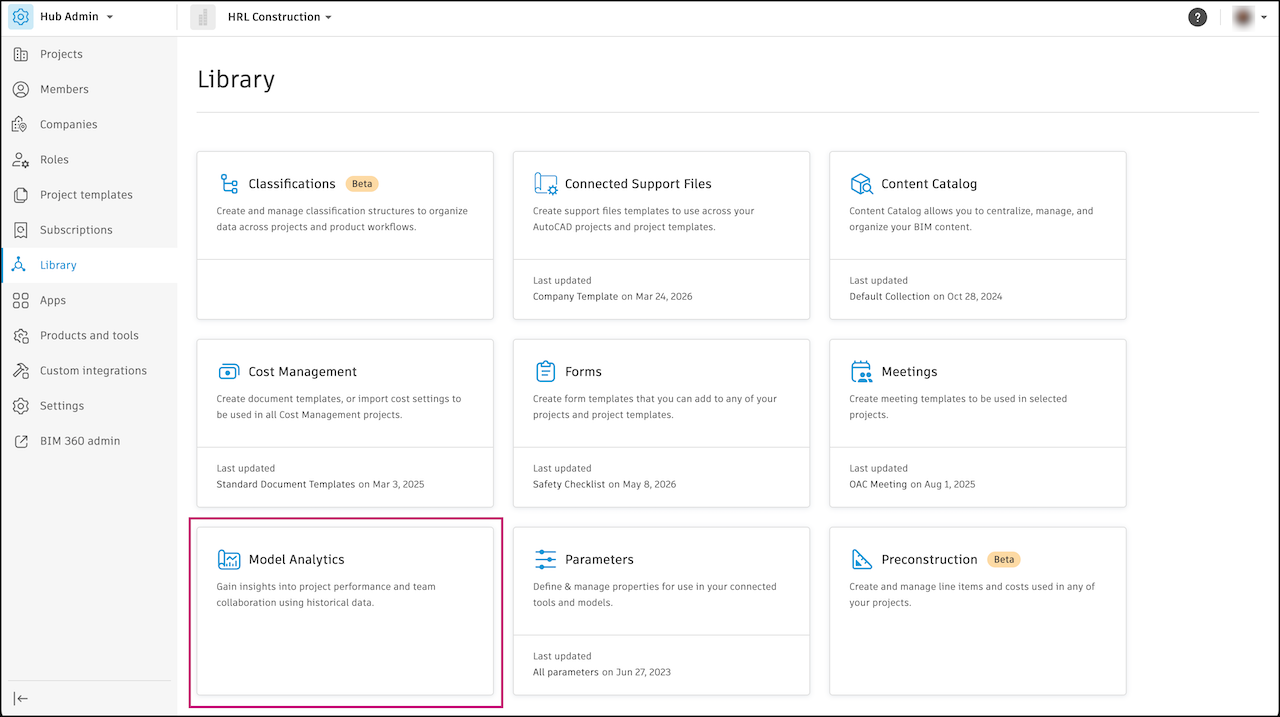
If Model Analytics is activated in your hub, you can immediately see and manage your projects for Model Analytics. If not, you will be prompted to activate Model Analytics for your hub.
Manage Model Analytics for Projects
You can enable or disable Model Analytics for projects in your hub. By default, all projects are set to the Essentials tier, which means data collection is enabled for those projects. If you want to pause data collection for specific projects, you can change the tier to Disabled.
In Model Analytics in the Library, select projects.
Every project in the hub is set to the Essential tier by default.
Click Change Tier.
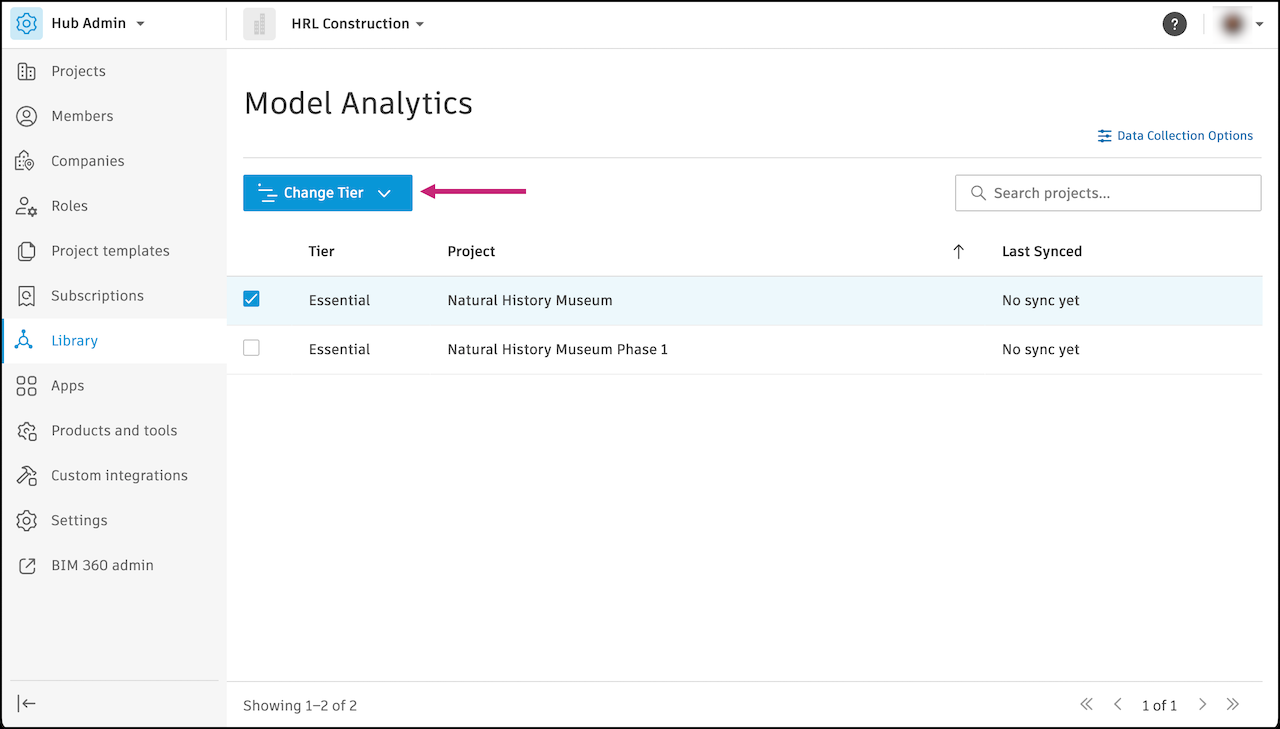
Select Essentials or Disabled.
- Essentials: enables data collection
- Disabled: pauses data collection
Customize Data Collection for Model Analytics
As a hub administrator, you can manage which data types are collected for Model Analytics. Data collection options apply to all projects in your hub. All data types are opted in by default.
In Model Analytics in the Library, click Data Collection Options.
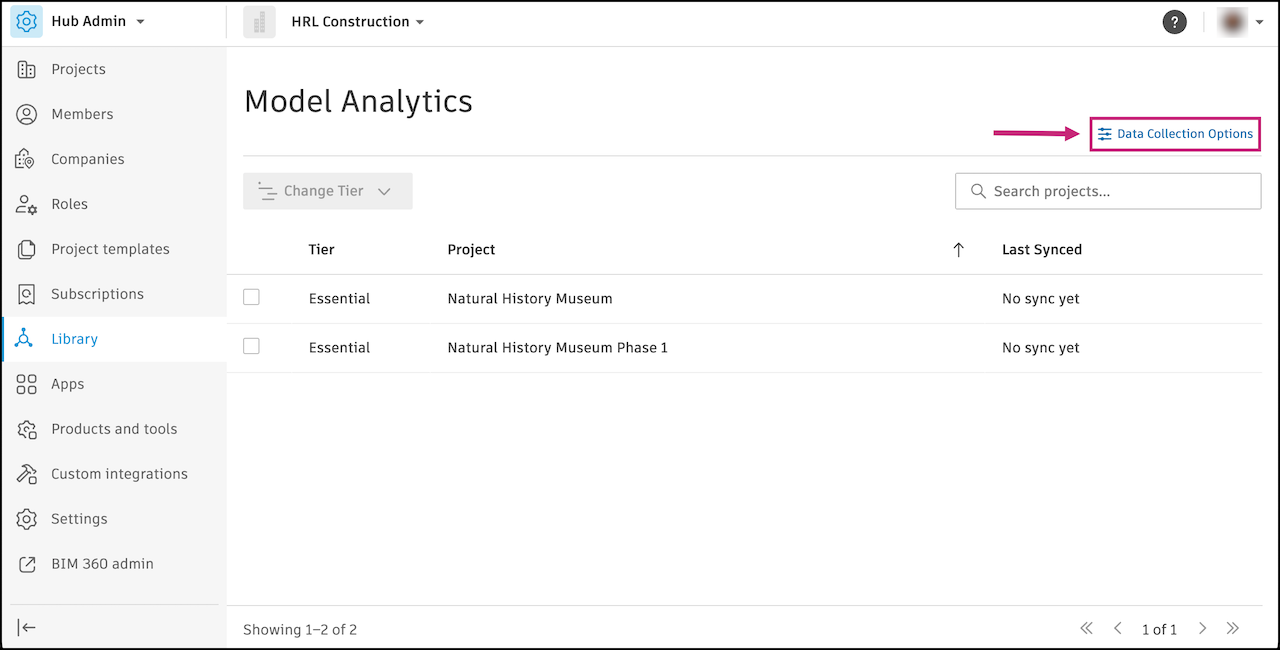
Toggle on or off the data types you want to enable or disable for collection.
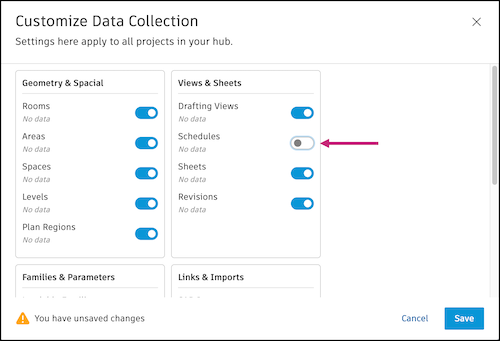
Click Save.