This dialog is used to:
- Set the projected coordinate system for the GeoPlan. It is displayed when you click
 in the
Select Coordinate System dialog.
Note: Although the coordinate system list for a MapXtreme map control includes 'Longitude and Latitude' options, these are geographic not projected coordinate systems and therefore should not be selected for use in InfoWorks WS Pro.
in the
Select Coordinate System dialog.
Note: Although the coordinate system list for a MapXtreme map control includes 'Longitude and Latitude' options, these are geographic not projected coordinate systems and therefore should not be selected for use in InfoWorks WS Pro. - Change the coordinate system for a shape file layer. It is displayed when you click
in the
GIS Layer Control dialog, and lets you change the coordinate system for a shape file. See below for details.
Note: If ArcGIS Maps (Tech Preview) is the current map control, coordinate systems for shapefile GIS Layers will need to bet set before adding those layers.
The Choose Coordinate System dialog for ArcGIS Maps includes a list of projected coordinate system compatible with InfoWorks programs and ArcGIS.
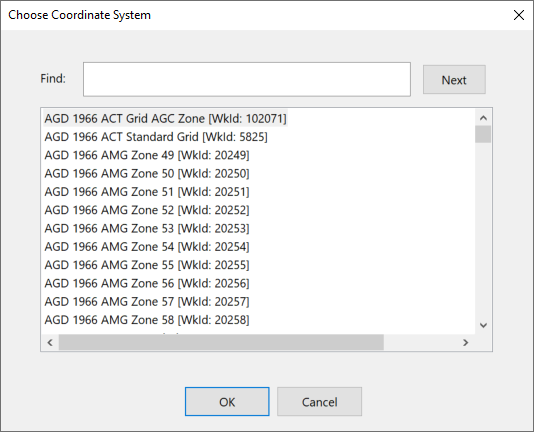
Change the projection system for a shape file layer
- Select the layer of interest in the GIS Layer Control dialog.
- Click
located adjacent to the Projection box. The
Choose Coordinate System dialog is displayed.
- Select the desired projection system and click OK.
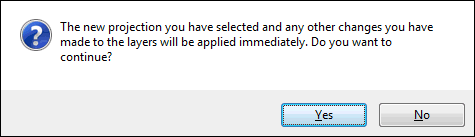
- The following warning message may be displayed to let you know that changes will be applied immediately :
- Click Yes to continue. The new selected coordinate system is applied to the layer and appears in the Projection box.
- Or click No to abort and close the dialog. The projection system has not been changed for the layer.