
Adding / Changing a Model
About models and versions in Workshop XR
Every model in Forma can have multiple versions. Workshop XR works with a specific version of a model, not the file as a whole.
By default, Workshop XR uses the latest available version. You can review and share any earlier version. Non-latest versions are labeled Not current in the version picker and file browser.
Uploading models in Forma
Upload and manage your models in Forma before using them in Workshop XR. Models you upload are immediately available in Workshop XR. See Upload and Manage Files.
See also: File Compatibility in Workshop XR
To add a model from the web
Go to Workshop.autodesk.com.
Select the project.
Select the workshop.
In the details panel, select From Files.
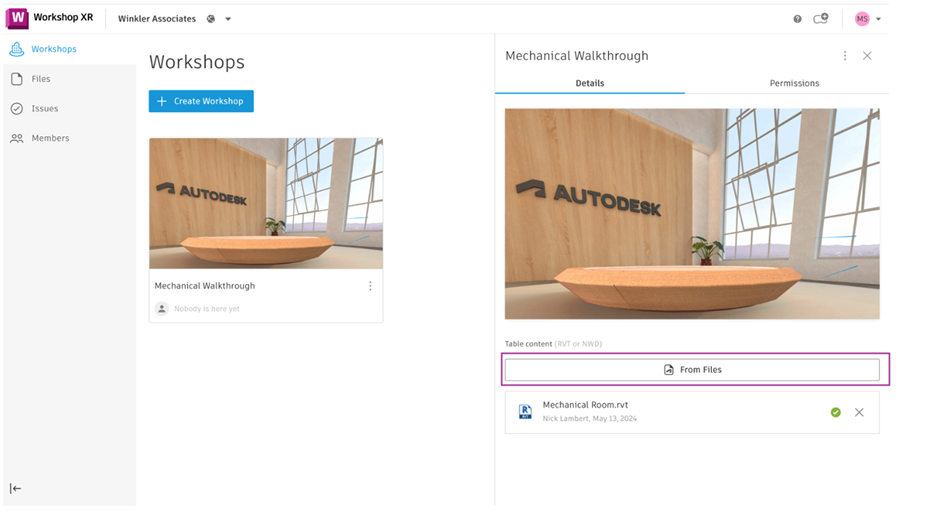
Select the file and select Add.
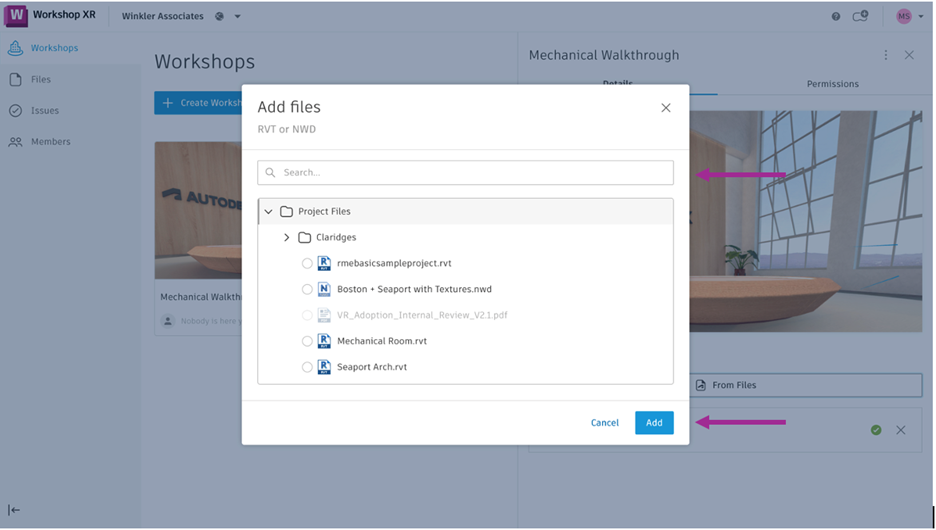
Workshop XR uses the latest version of the model by default. To share a different version, use the version picker after the model is in the workshop.
To access and share a model in Workshop XR
Select the Files icon on the Core Menu.

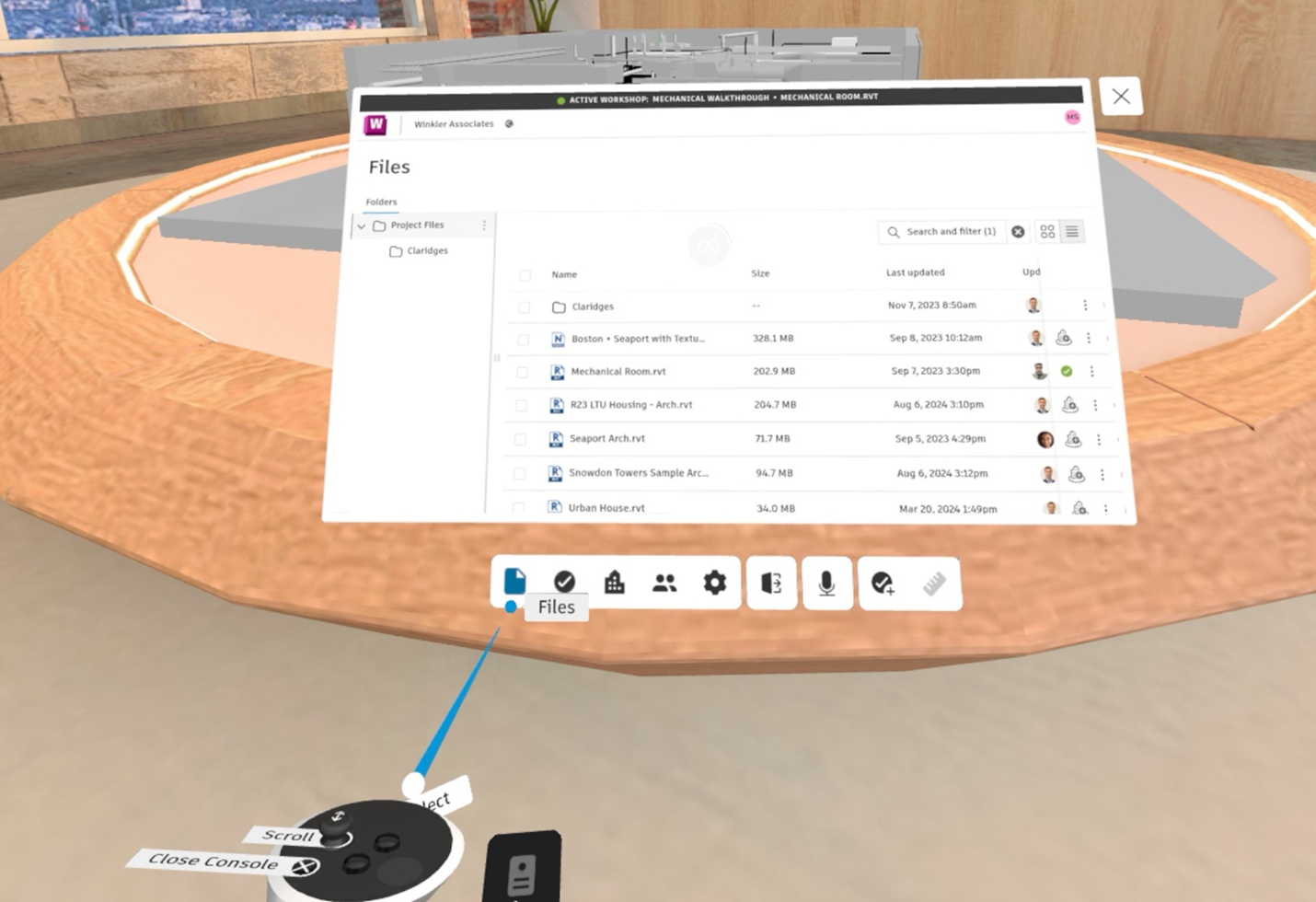
Select Share To next to the model you want to share.
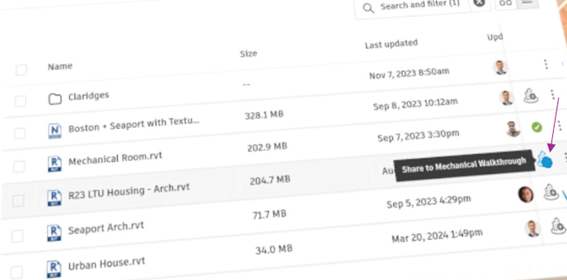
Selecting a model shares the currently selected version into the workshop.
Working with model versions
To view available versions
- Open Forma Data Management from within Workshop XR. In VR, start from the Files console on the Core Menu. On the web, use file management from the active session.
- Browse all available versions of the model.
To share a specific version
- In Forma Data Management, select the version to share.
- Share it into the workshop.
You cannot share a version that is corrupt or has not finished processing.
Version status
Non-latest versions are labeled Not current in the version picker and file browser. New workshops always use the latest version by default.
Measurements and model versions
- Measurements remain when you view or share that same version.
- Measurements do not carry over to newer versions of the model.
- Measurements do not transfer between workshops.