
Work with Automatic In-Process Stock (IPS)
Automatic IPS lets you visualize the success of each toolpath by seeing the simulated stock result.
Enabling automatic in-process stock generation
On the Manufacture workspace toolbar, click Utilities > Actions > Automatic In-Process Stock Generation  to turn on Automatic IPS.
Visibility of in-process stock
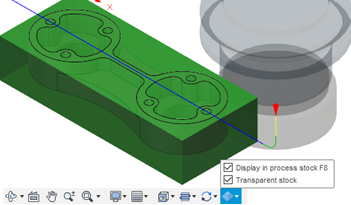
At the bottom-center of the canvas, on the Navigation bar, click the stock visibility icon  then:
then:
- Select the Display in process stock F8 checkbox to toggle the visibility of the stock model.
- Select the Transparent stock checkbox to toggle the transparency of the stock model.
Using in-process stock for simulation
In the Simulate dialog, enable the Stock group, then from the Mode drop-down list, select Standard to use Automatic IPS during simulation.
Learn more about how to manage Automatic IPS in the video below.
The Automatic IPS command is now located in the Utilities tab, on the Actions panel.
Configure IPS processing performance
You can choose to use your graphics processor (GPU) or computer processor (CPU) for generating in-process stock and remaining stock. GPU processing is typically faster, depending on the quality of your graphics processor.
In Preferences, click General > Manufacture.
In the IPS and Remaining Stock group, locate the Processing Mode option, then select Faster (graphics processor) to use GPU processing, or Standard (computer processor) to use CPU processing.
Click OK.