
Create text in a sketch
Learn how to use the Text tool to create text in a rectangular frame or text that follows a path in an active sketch in Fusion.
Add Text
Create text in a rectangular frame, enter lines of text or reference existing parameters, and format the text.
On the Sketch contextual tab, select Create > Text
 .
.The Text dialog displays.
In the Text dialog, select Text from the Type dropdown menu.
In the canvas, place the text frame:
- Click to place the first corner, then the opposite corner.
- Use the rotation manipulator handle to rotate the text frame, or specify the angle.
- Click to select any snap point on the text frame to change the point around which the text frame rotates.
In the Text box, enter text.
For example:
Example Text(Optional) To reference a text parameter or include an expression in the text, wrap it in curly braces (
{and}). Type a parameter name and select it to insert it.For example:
 Part number {PartNumber}

 Label {ExistingTextParameter1}
Adjust additional settings to format the text:
- Font: Select a font from the dropdown list.
- Typeface: Add bold emphasis, italic emphasis, or both.
- Height: Specify text height in units.
- Character Spacing: Specify a percentage to increase the spacing between characters.
- Flip: Flip text in the horizontal, vertical, or both directions.
- Alignment: Select a horizontal and vertical alignment.
Click OK.
The text displays inside the text frame in the canvas and a new text model parameter is created for that Sketch feature in the Parameters dialog.
Add Text On Path
Create text that follows a path by selecting the path, entering lines of text, and formatting the text.
On the Sketch contextual tab, select Create > Text
.The Text dialog displays.
In the Text dialog, select Text On Path from the Type dropdown menu.
In the canvas, click to select a sketch curve as the Path for text to follow.
In Text, enter text.
For example:
Example Text(Optional) To reference a text parameter or include an expression in the text, wrap it in curly braces (
{and}). Type a parameter name and select it to insert it.For example:
The {PartNumber} follows the pathAdjust additional settings to format the text:
- Font: Select a font from the dropdown list.
- Typeface: Add bold emphasis, italic emphasis, or both.
- Height: Specify text height in units.
- Character Spacing: Specify a percentage to increase the spacing between characters.
- Placement: Place text above or below path.
- Fit to Path: Check to distribute text evenly along entire path.
- Flip: Flip text in the horizontal, vertical, or both directions.
- Alignment: Select a horizontal alignment.
Click OK.
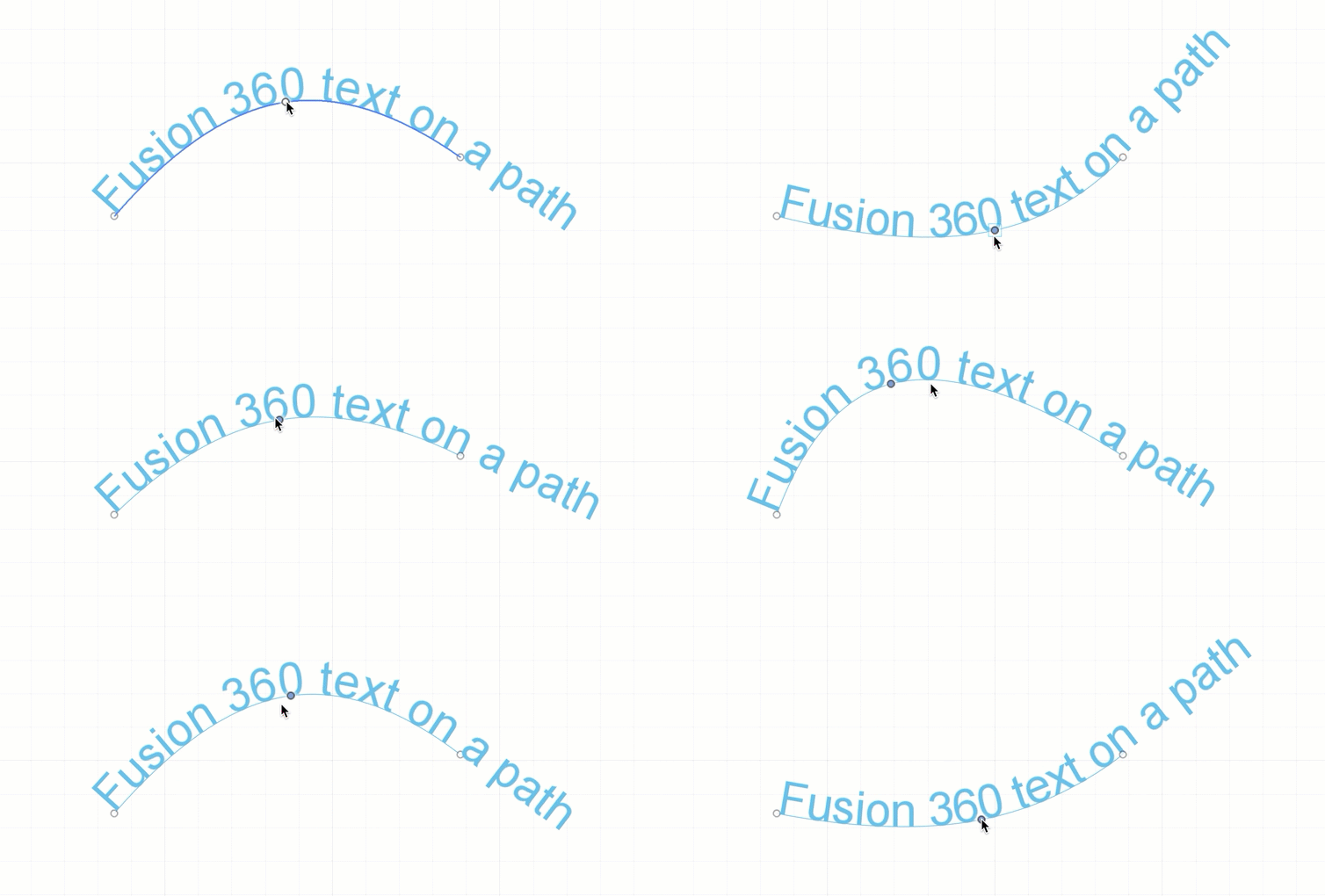
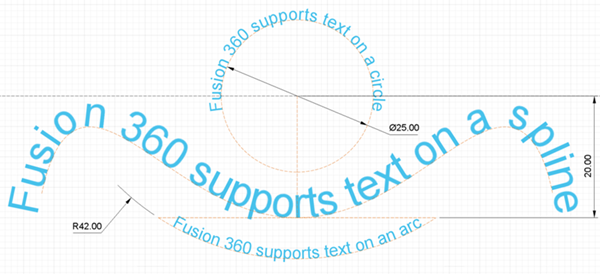
The text displays along the path in the canvas and a new text model parameter is created for that Sketch feature in the Parameters dialog. If you change the path shape, the text adapts to the path.
Tips
- If you plan to use the Emboss tool to emboss text on a solid body, select a font that is not a single line font.
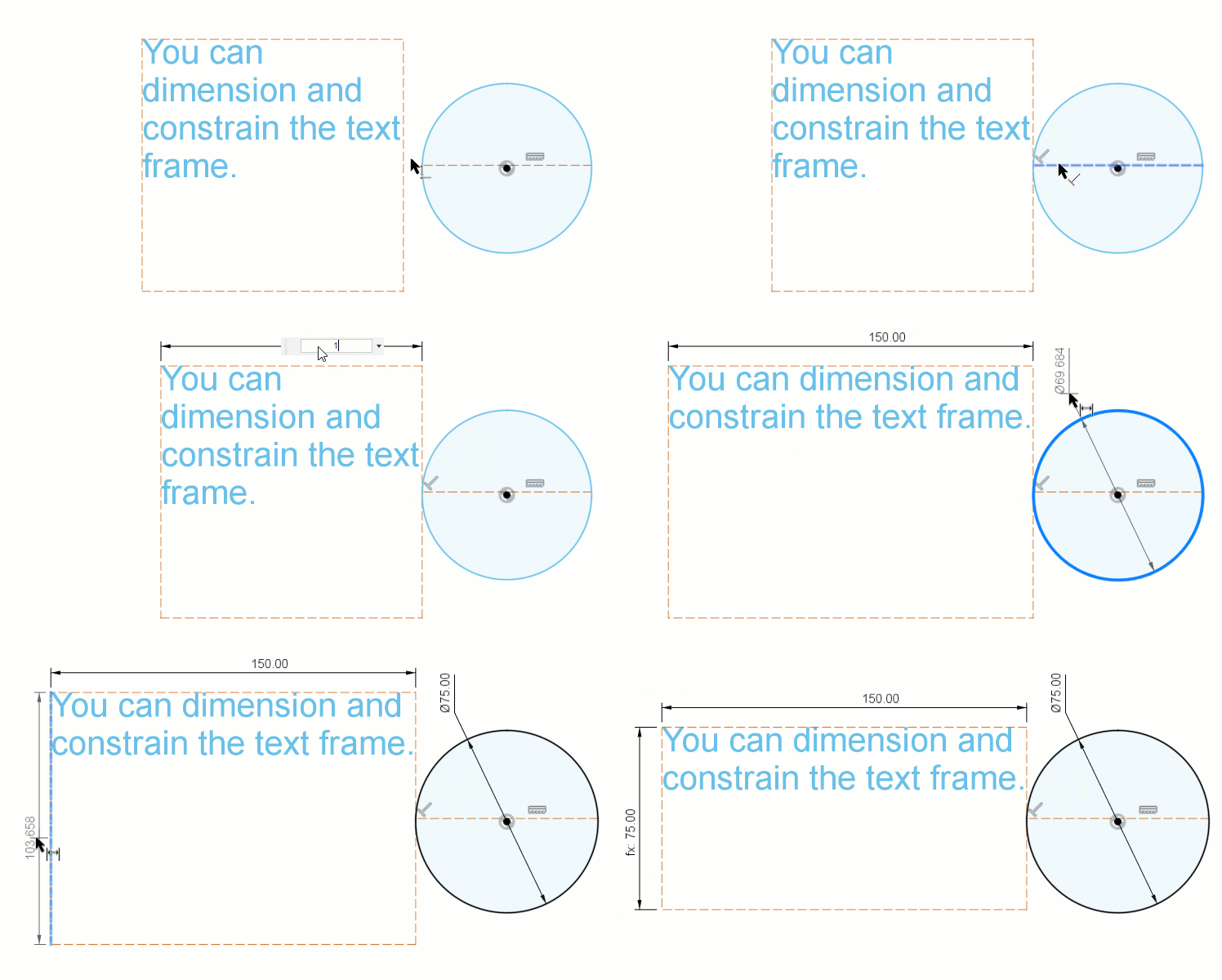
- When Type is set to Text , you can dimension and constrain the text frame to control its size and shape in relation to other sketch geometry.
- When Type is set to Text on Path
 and you modify the path later, the text will adjust along with the path. If the path is a circle, after you create the text, you can use the Move/Copy tool to rotate it around the center point of the circle to align it more precisely.
 - For best results, use a Latin font if you plan to Emboss, Extrude, or Explode the text.