
Custom properties
Fusion Manage requires a separate license and can be used with Fusion or independently. Learn more.
A custom property is a data field, defined by you the administrator, that extends the standard information tracked for components in Fusion. Custom properties allow you to capture additional business-specific information beyond the default fields provided by the system.
When you create a custom property in Fusion, you configure several settings that determine how the property behaves and what type of data it can store. These settings control how users interact with the property and what values they can enter. You can create up to 500 custom properties in a hub.
By default, custom properties appear in the Properties tab and panel, Bill of Materials (BOM), and Drawings in the following products:
- Fusion
- Fusion web
- Hubs with Fusion Manage
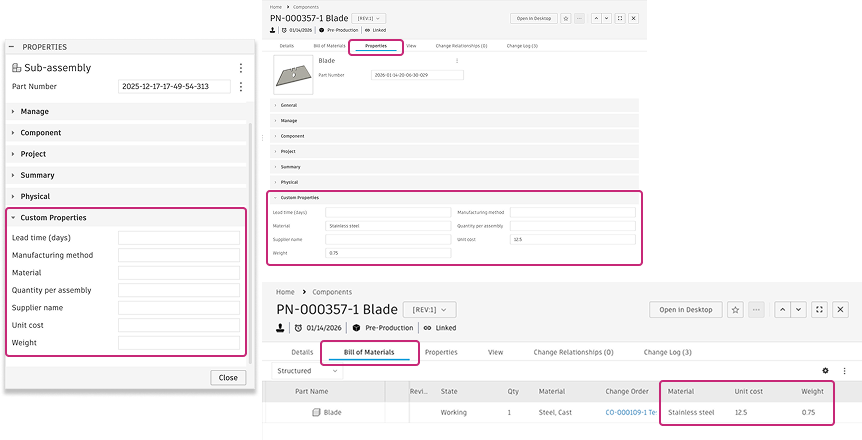
Some users will also have the ability to see custom properties for a hub in their Fusion search results.
View and manage custom properties
You can view and manage all custom properties from the Custom Properties tab in the Admin section of the Fusion web client. From this page, you can create new properties and view, edit, or delete existing properties.
For instructions, see:
- Create a custom property
- View custom properties in a hub
- Edit custom property settings
- Delete a custom property
Custom property settings
When you create a custom property, you configure several settings that determine how the property behaves.
Name
The property name is a required field that identifies your custom property. Keep the following in mind:
- Names must be unique within your hub
- Names can't be changed after creation
- Choose a name that makes the property's purpose clear to your users
You can also provide localized names to ensure the property is clear and understandable for users in different languages.
Description
You can optionally add a description to help users understand what the property represents.
Descriptions provide additional context about the property’s purpose and how it should be used. You can edit the description after the property is created. You can also localize descriptions to provide guidance that is tailored to users in different languages.
Field type
Each custom property must have a field type, which determines what type of data the property can store. Fusion validates all entered values against the property's selected field type.
Available field types include:
- Text: Accepts text values for descriptions, notes, codes, or other text-based information.
- Number: Accepts whole numbers without decimal places.
- Number with decimal: Accepts numbers with decimal places.
- Currency: Accepts monetary values. You can specify the currency type, and values are displayed using the formatting defined by each user’s language and regional settings.
- Date: Accepts calendar date values.
- Single select picklist: Allows users to select one value from a predefined list of options.
- Checkbox: Accepts a true or false value as checked or unchecked. New fields are unchecked by default.
Property versioning behavior
Custom property values are versioned with the component they belong to. This ensures that changes to property values are tracked as part of the component's complete history.
Visibility
Administrators can show or hide custom properties. When you create a property, it is visible to hub members by default.
When a property is visible:
- It appears in Properties tab, Properties panel, BOM, and drawings
- Users can view and edit values based on their permissions
- It is available across all Fusion experiences
When a property is hidden:
- It does not appear in the Properties tab, Properties panel, or BOM
- It remains accessible through the API, so apps can still store and manage values for automated workflows
You can change a property's visibility at any time.
Copy value
The copy value setting determines whether property values are included when users perform copy operations such as Save As, Copy, and Paste New.
By default, this setting is enabled, which means property values are copied to the new component. If you disable this setting, the property starts with a blank value for each new object created through a copy operation.
Changing this setting only affects future copy operations. It doesn't modify values on existing copies.