Performance Improvements (available in the 2016 Feature Update Pack Update)
By supporting Express mode for Inventor Factory, layout load times are significantly faster and memory consumption is lower. All Inventor Factory commands can run in Express mode. Note: Legacy layouts need to be saved and reopened in order to benefit from Express mode.
With these performance improvements, Factory Design Suite is lighter, faster, and better able to handle large data models on the same hardware.
Related Help topics:
Inventor Factory: Working in Express Mode
Access Additional Factory Commands from the Context Menu (available in the 2016 Feature Update Pack)
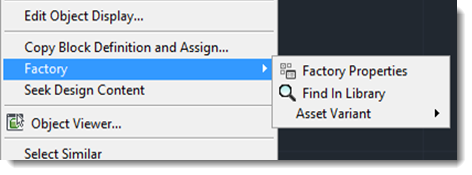
All Factory related menu commands (Factory Properties, Find in Library, Asset Variant, and Convert to Asset) are accessible when you right-click on an asset to view the context menu.
Related Help topics:
AutoCAD Factory: Modifying Properties Using the Factory Properties Browser
Inventor Factory: Modifying Parameters Using the Factory Properties Browser
Insert and Ground a Model at the Layout Origin in Inventor (available in the 2016 Feature Update Pack)
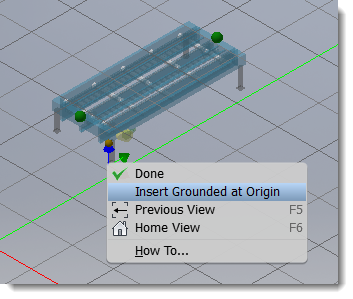
A new Inventor Insert Grounded at Origin command places and grounds a model at the layout origin (0,0,0). When placing an asset, right-click to access the command from the context menu.
Related Help topics:
Inventor Factory: Inserting Factory Assets
Sync Inventor Layout to Navisworks (available in the 2016 Feature Update Pack)
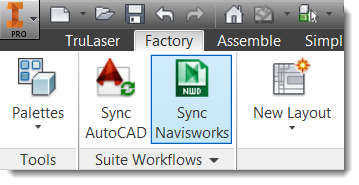
A Sync Navisworks command now appears in the Inventor ribbon bringing further symmetry with AutoCAD functionality. Click the command in Inventor to sync the active layout with Navisworks. The assembly file is saved in .nwf format for improved performance within the Navisworks environment.
Related Help topics:
Inventor Factory: Syncing to Navisworks
Control Asset Tooltip Visibility in the Asset Browser (available in the 2016 Feature Update Pack)
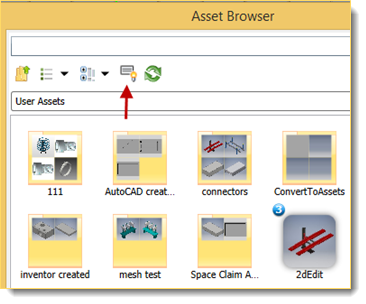
A new tooltip visibility icon in the asset browser controls the browser tooltip display (on/off). Previously, tooltips always displayed, often obscuring other assets in the browser.
Related Help topics:
AutoCAD Factory: Factory Asset Browser - Reference
Inventor Factory: Insert Factory Assets - Reference
Organize Your Favorite Assets (available in the 2016 Feature Update Pack)
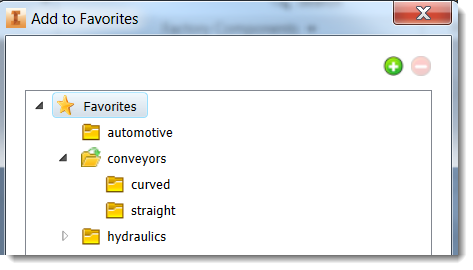
New folder management options help you organize assets you've marked as favorites. Now when you select Add to Favorites a window appears in which you can add folders and subfolders.
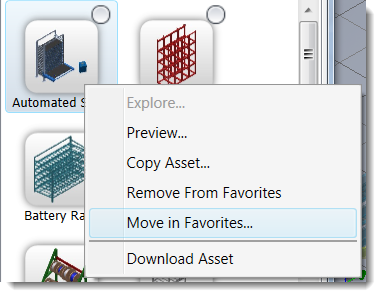
To move an asset from one Favorites folder to another, locate the asset in Favorites, right-click and select Move in Favorites. You can also remove an asset from a folder from this menu. Note that removing an asset from a Favorites folder does not delete the asset from your library.
Related Help topics:
AutoCAD Factory: Factory Asset Browser - Reference
Inventor Factory: Inserting Factory Assets
Finish a Command After Placing One Asset in Inventor (available in the 2016 Feature Update Pack)
When placing an asset, you can place as many instances as needed in one command. You now have the option to finish the command after placing one asset. The setting is available on the Inventor Factory Options Assets tab.

Related Help topics:
Inventor Factory: Setting Factory Options
Define File Location when Creating a Sub-layout (available in the 2016 Feature Update Pack)
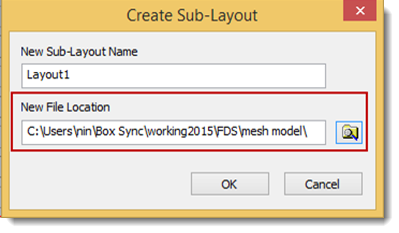
Sub-layout files can now reside in a different location from their parent layout with the addition of a New File Location field in the Create Sub-Layout command.
Related Help topics:
Inventor Factory: Creating Sub-Layouts