
Light Editor

Lets you modify light parameters of the selected light as well as change the selected light's type.
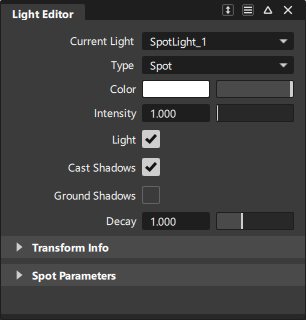
Common Light parameters
You can open the Light Editor from the List Lister by selecting Edit Light from the More menu.
- Color
- Intensity
- Light
- Cast Shadow
- Ground Shadow
- Soft Shadow
- Decay
Type
Lets you choose from the different light types. See Light Lister.
Color
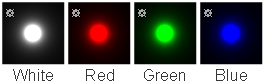
The color of the light. If you map a texture to this parameter, the light projects the texture. (The exact method of projection depends on the Light Type.) The default setting is white.
Intensity
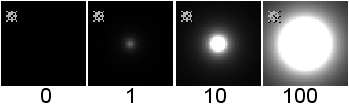
The brightness of the light. If the light exerts a force, this value sets its strength. A light with an Intensity value of 0 produces no light. A light with negative Intensity value removes light from a scene in the area of the light’s influence. The slider range is 0 to 100. The default value is 1.
Lights
Toggles the light on and off.
Cast Shadows
Turns on self shadows
 in the Light Lister has the same effect.
 Ground Shadows
Turns on ground shadows.
 in the Light Lister has the same effect.
 Decay
Controls how quickly light intensity decreases with distance. The Decay setting has no effect at distances less than 1 unit.
The Decay parameter does not apply to Directional lights.
|
| No decay; light reaches everything |
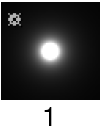 | Light intensity decreases directly (linearly) with distance (slower than real world light) |
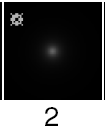 | Light intensity decreases proportionally with the square of distance (the same as real world light) |
|
| Light intensity decreases proportionally with the cube of distance (faster than real world light) |
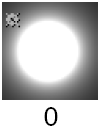
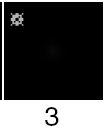
Link to Active Camera

Links Directional lights to the active camera. When linked, you can rotate the camera using standard view commands (tumble, track, dolly) while keeping the lighting direction consistent with the camera's orientation. For more information, see Link a direction light to a camera.
VRED Render Mode Light Settings
When in VRED Render mode, the following light settings are available:
- Material Shadow - Sets how dark or intense the material shadows cast are and their color.
- Ground Shadow - Sets how dark or intense the ground shadows cast are and their color.
- Map Filter Radius - Sets the radius used for filtering the shadow map lookup in rasterization.
- Map Resolution - Sets the quality of rasterization shadow maps. Higher values increase the quality.
Transform Info
Use the transformation settings for Translate, Rotate, and Scale to manipulate lights. MMB-drag the values or select Manipulate and use the in-canvas transform manipulator to make the required adjustments in the viewport.
Spot Light parameters
Dropoff
Controls the rate at which light intensity decreases from the center to the edge of the spot light beam. The valid range is 0 to infinity. The slider range is 0 to 255.
Typical values are between 0 and 50. Values of 1 and less produce almost identical results (no discernible intensity decrease along the radius of the beam). The default value is 0 (no dropoff).
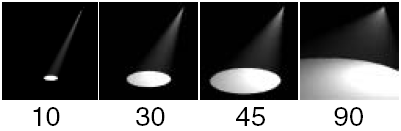
Spread
The angle (in degrees) from edge to edge of the spot light’s beam. Resolution problems may occur when the Spread value is greater than 170; small objects may not cast shadows. The valid/slider range is 2 to 179. The default value is 90.
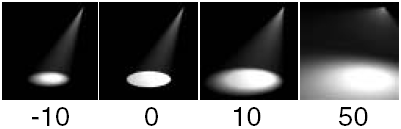
Penumbra
The angle (in degrees) over which the intensity of the spot light falls off linearly to zero.
For example, if the Spread value is 50 and the Penumbra value is 10, then the spot light has an effective spread of 60 (50 + 10) degrees; however, the spot light intensity decreases to 0 between the angles of 50 and 60 degrees. If the Spread value is 50 and the Penumbra value is -10, then the spot light has an effective spread of 50 degrees and the spot light intensity decreases to 0 between the angles of 40 and 50 degrees.
The valid range is -90 to 90. The slider range is -10 to 10. The default value is 0.
Show Spread
Displays a circle representing the Spread value of the spot light in the Spot View window. The default setting is OFF.
Show Penumbra
Displays a circle representing the Penumbra value of the spot light in the Spot View window. The default setting is OFF.
Show Up
Displays the up vector of the spot light in the Spot View window. The default setting is OFF.