Sheets Permissions
Sheet permission levels affect how members interact with sheets and the actions available to them.
- Sheets Permission Levels
- Manage Sheet Permissions
- Access Sheets Permissions
- Add Sheets Permissions for Members
- How to Change a Member, Role, or Company Permission Level
- How to Remove a Member, Role, or Company
- Inherited Permissions
Sheets Permission Levels
All project members have basic permission to View sheets by default. Project administrators have Manage permissions by default.
The sheet permission levels are defined as follows:
| Permission Levels | View | Create | Edit | Manage | Project administrator | |||
|---|---|---|---|---|---|---|---|---|
| View only | View + export | Create only | Create + upload | -- | -- | -- | ||
| Publishing workflow | Add and publish sheets |  |
|
|
 |
|
|
|
| Publish log | Access | |
|
|
|
|
|
|
| Remove your entries | |
|
|
|
|
|
|
|
| Remove other members' entries | |
|
|
|
|
|
|
|
| View sheets from publish log | |
|
|
|
|
|
|
|
| Continue publishing | |
|
|
|
|
|
|
|
| Sheet activities | View | |
|
|
|
|
|
|
| Export | |
|
|
|
|
|
|
|
| Disciplines | Add and edit disciplines | |
|
|
|
|
|
|
| Define a disciplines custom order | |
|
|
|
|
|
|
|
| Permissions | View, add, and edit permissions | |
|
|
|
|
|
|
| Public share setting | Turn on or off | |
|
|
|
|
|
|
| Collections | Enable collections in a project | |
|
|
|
|
|
|
| Access collections settings | |
|
|
|
|
|
|
|
| Create collections | |
|
|
|
|
|
|
|
| Edit collections | |
|
|
|
|
|
|
|
| Delete collections | |
|
|
|
|
|
|
|
| Version set | Publish sheets to a version set | |
|
|
|
|
|
|
| Create a version set | |
|
|
|
|
|
|
|
| Access version set settings | |
|
|
|
|
|
|
|
| Change version set order (When issuance date is the same) |
|
|
|
|
|
|
|
|
| Edit | |
|
|
|
|
|
|
|
| Delete | |
|
|
|
|
|
|
|
| Sheets log | View and export | |
|
|
|
|
|
|
| Sheet actions | Delete | |
|
|
|
|
|
|
| Restore |
|
|
|
|
|
|
|
|
| Edit version set | |
|
|
|
|
|
|
|
| Edit sheet number | |
|
|
|
|
|
|
|
| Create or edit tag | |
|
|
|
|
|
|
|
| Edit sheet title | |
|
|
|
|
|
|
|
| Share with project members | |
|
|
|
|
|
|
|
| Share with public |
|
|
|
|
|
|
|
|
| Export | |
|
|
|
|
|
|
|
| View sheet activities | |
|
|
|
|
|
|
|
| Export sheet activities | |
|
|
|
|
|
|
|
Manage Sheet Permissions
Members with Manage permission and project administrators can change member permissions.
Access Sheets Permissions
To manage sheet permissions:
Click the Sheets tool.
On the right side of the screen, click Settings > Permissions.
By default, there are the following groupings:
- Administrator - Lists all the members with the adminstrator role in the project.
- Everyone - Everyone in the project has at least View + Export permission.
You can change the permission level for Everyone.
Search and Filter Permissions
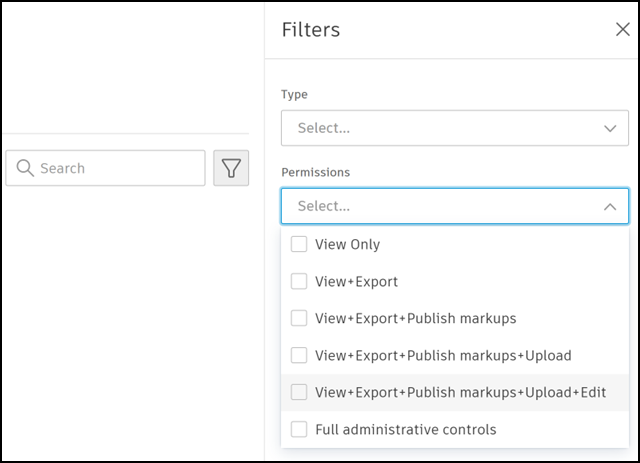
You can also search for a member by starting to type their name in the search box. Filter members through user, role, company, or by permission level.
Add Sheets Permissions for Members
Everyone in the project has at least View + Export permission by default. You can add users, roles, and companies, to grant those members greater permission levels.
- Click Add.
- Enter names, email addresses, roles or companies.
- Select a permission level.
- Click Add.
How to Change a Member, Role, or Company Permission Level
You can change the permission level of an individual user, role, or company already added to the Sheets tool.
Find the individual member, role, or company whose permissions you want to change.
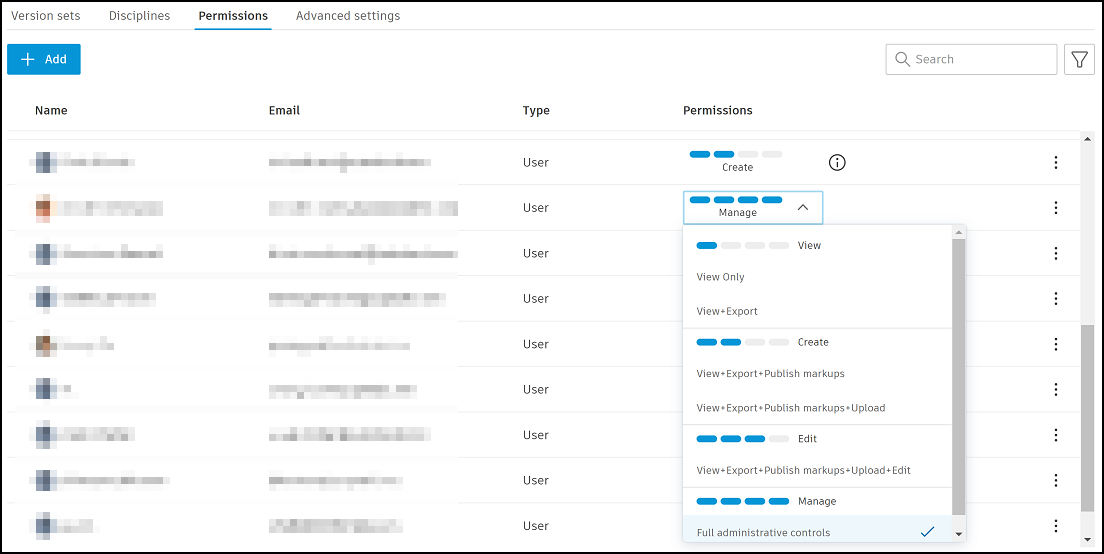
Note: You can search for terms in the name and email address, or filter by permission type and level to refine the list.In the Permissions column, click the drop-down menu and choose a new permission level.
How to Remove a Member, Role, or Company
Removing a permission only affects access granted through that specific permission type; user, role, or company. This won't affect permissions if they've also been granted to members using other permission types.
| Permission type removed | Access removed For | Access retained through |
|---|---|---|
| User | That specific user | Role, Company, or Project administrator |
| Role | Members of that role | User, Company, or Project administrator |
| Company | Members of that company | User, Role, or Project administrator |
Find the relevant user, role, or company.
Click the More menu
 on the right side.
Click Remove.
The dialog informs you that only this specific permissions is being removed.
Click Remove.
Inherited Permissions
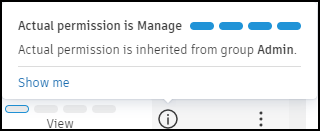
Sometimes, individual members my be granted different permissions than those they inherit through other permission types such as company or role. If there is an information icon  next to a permission level, click this to view the details of the inherited permission. This will display your Actual permission and where this permission derives from.
For example, the Permissions column initially shows this user as having View permission. Click to see that they have an Actual permission of Manage which they have inherited from their role as project administrators in the group Admin.