
In the Administrator view, the RFQ tab displays a list of RFQs from your clients.
Note: On the Options tab  RFQs sub tab, you can customize the functionality of the RFQs associated with your designs.
RFQs sub tab, you can customize the functionality of the RFQs associated with your designs.
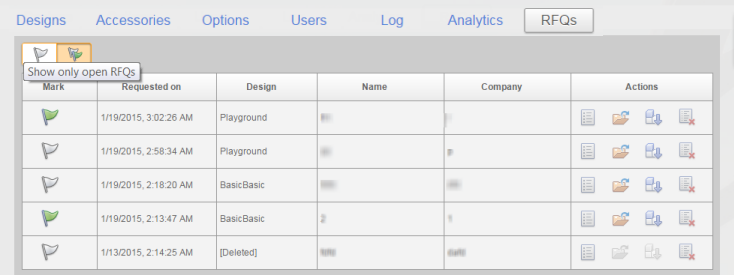
- Show only open RFQs
- When selected, removes closed RFQs from the display without deleting them. You can display them later by clearing the check box.
- RFQ Details

- Displays name, address, and other information about the client who submitted the RFQ.
- Open model

- Opens the specific version of the model used by the client. Contains the parameter values specified by the client so that you can view client requests.
- Download IAM

- Downloads the specific version of the model used by the client, with the parameter values specified by the client. Downloads as an IAM (zipped) file. You as admin-user (or sales engineer) can take further action on the Inventor model, while not exposing the detailed Inventor model to outsiders.
- Check Box
- When selected, closes the RFQ and removes it from the display. Does not delete the RFQ.
- Delete RFQ

- Deletes the RFQ. Does not delete the related model.