
Searching the Schematic
Since Schematics can get large very quickly, use the Search function to find specific nodes.
In Batch, Batch FX, or Modular Keyer, click the magnifying glass icon.

In the Search and Select in the Schematic dialog window:
Select whether one or all criteria must be met using the Every Criteria Below / Any Criteria Below option.
Set the desired criteria.
Tip: Click Get Information From Selected Node to automatically fill in information from the selected element into the search criteria.In the example below, only clips with matching Resolution will be found. And even if the text field is filled, the Name criterion is not considered because it is not enabled.
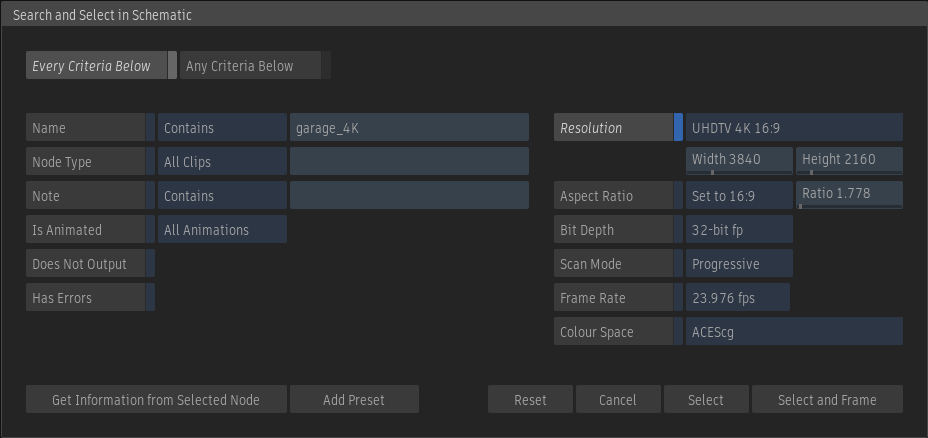
Click Select to select in the Schematic the nodes matching the enabled criteria.
Click Select and Frame to select and frame in the Viewport the nodes matching the enabled criteria.
Most of the criteria are self-explanatory, but here are additional details regarding some of the more complicated ones.
| Criteria | Description | Options |
|---|---|---|
| Node Type | Match nodes with the specified type. A node type is something like 2D Transform, Action, or Colour Blend. |
|
| Is Animated | Match nodes with either keyframes, expressions, or both. |
|
| Note | Search the content of notes, matching the contents of the text field. | |
| Does Not Output | Match nodes that do not have any outgoing links from their output sockets. | |
| Has Errors | Match nodes with an error. |
Search Presets
Create presets to gain quick access to searches you perform often.
Set the desired criteria
Select whether the preset must be saved at the User, Project, or Shared level.
Click Add Preset.
Give a name to the preset.
To use a preset, select it from the drop-down next to the right of the magnifying glass icon.
Identifying Nodes in the Schematic
To quickly find all the nodes of a given type, the Find Node function can also be used. Find Nodes highlights all the nodes of one type in the Schematic, and then allows you to jump from one instance of a node to another.
To search for a node type in the schematic:
In the Node bin or schematic, hover over the node type that you want to search for, and press the Win+F keystroke mapped to Find Node(s) in Batch / MK Schematic in the keyboard shortcut editor.
All nodes of the selected type are highlighted in the schematic.
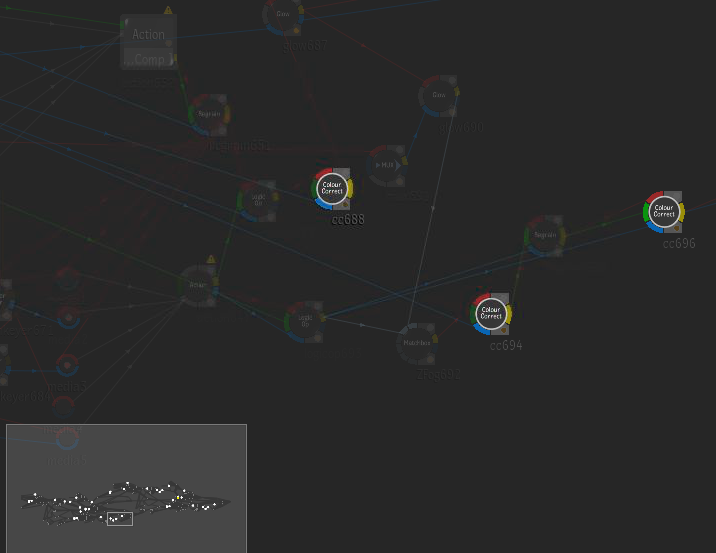 Tip: Enable Display Navigator from the View menu to help you see the complete schematic. This also displays all of the highlighted search results.
Press Tab to cycle forward through the selected nodes, or Shift+Tab to cycle backward. The Tab and Shift+Tab shortcuts can also be used to cycle through all nodes of the same type after a node is selected in the Schematic view.