Vault project collaboration software helps designers, architects, engineers, and contractors easily manage project data and revisions. When you set up Autodesk Vault Professional to work with Factory Design Suite, you can use factory assets stored in Vault in your factory layout designs and easily track where assets are used, revision histories, properties, and other information.
Copy and Publish Assets to Vault
Previously, when you copied or published an asset, you had only two storage options: locally or in the cloud. New Vault integration features let you manage asset libraries and store, view, and download assets.
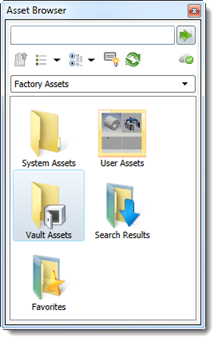
Assets stored in Vault appear in your Asset Browser in a Vault Assets folder. The structure of the folder mirrors the library structure in Vault.
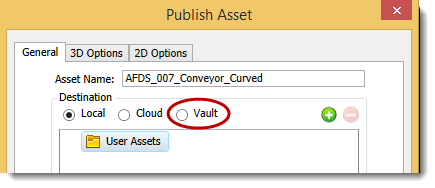
To publish assets to Vault, follow the same steps you would when publishing other assets, except select Vault as the destination:
Related help topics:
Move Existing Assets to Vault
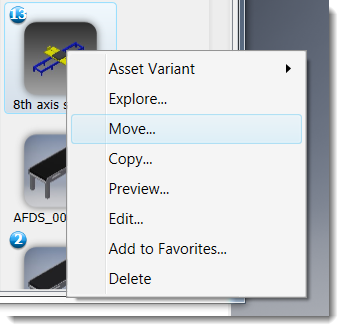
The Move features is useful if you are storing assets locally, but want to move them into Vault for storage or sharing. Just right-click an asset in the Asset Browser and select Move on the context menu:
Related help topics:
Inventor Factory: Inserting Factory Assets
AutoCAD Factory: Factory Asset Browser Reference
Update Layouts with Assets from Vault
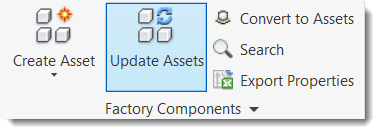
If Vault is storing a version of an asset that is newer than the one in your layout, click Update Assets in the Inventor Factory ribbon to quickly update your layout.
Related help topics:
View Factory Data in Vault
Once a factory layout is checked into Vault, you can quickly view which assets are used in the layout, and how many other layouts are using a particular asset. Similarly, you can view data from an asset perspective to determine where an asset is used, how many versions of the asset are available, and instance level details.
Based on the type of information you need, click one of the following Vault tabs:
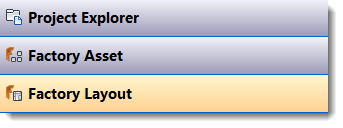
- Project Explorer: Displays the files stored in the vault, including factory layout files and the asset library.
- Factory Asset: Lists assets in the vault and their corresponding properties. To see layouts that use an asset, click on the asset and then click the Where Used tab.
- Factory Layout: Lists assets used in the selected layout.
To use this feature, your Vault administrator must first set up your asset library folders. See the Vault Factory Help topics in the Factory Design Suite online help for step by step configuration instructions.
Related help topics: