Copy and Edit Assets Within Factory Design Suite
Right-click on an asset in the Asset Browser to view an expanded menu that includes a Copy option for system assets, and Copy and Edit options for user assets.
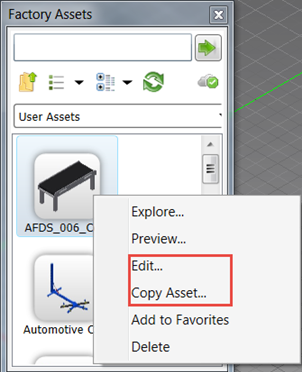
Select Copy Asset to select a destination (either local or cloud) for the copy. Select Edit to launch the Asset Editor.
Related Help topics:
AutoCAD Factory: Factory Asset Browser Reference
Inventor Factory: Edit and Save a Library Asset
Update Placed Assets
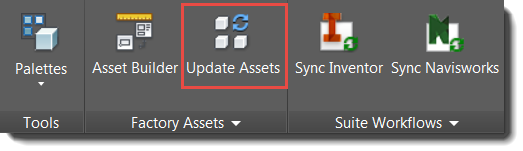
If you make changes to a library asset, you can apply those changes to placed assets using the new Update Assets feature. Previously, an update would require manually deleting a placed asset, replacing it with the updated asset, and then repeating these steps for each occurrence of the asset in a layout.
Clicking Update Assets on either the AutoCAD or Inventor Factory ribbon displays a list of assets in the current layout with updates available. Select an asset to bring it up to date with the latest definitions; unselected assets remain unchanged.
Related Help topics:
AutoCAD Factory: Updating Assets
Inventor Factory: Updating Assets
Replace an Object with an Asset (available in the 2016 Feature Update Pack)
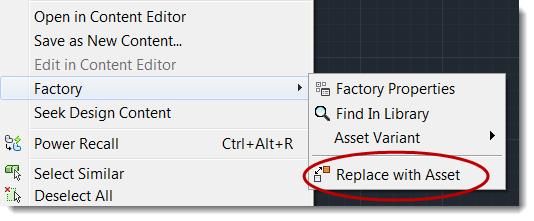
The new Replace with Asset option on the Factory context menu replaces a block or asset with an asset you select from the asset library. If, for example, you use placeholder assets in early layouts, the Replace option offers an easy way to swap them out with finalized assets as the layout progresses.
To replace an asset, select it in the layout, right-click to view the context menu, and select Replace with Asset from the Factory sub-menu. You can select multiple objects if you are replacing them with the same asset.
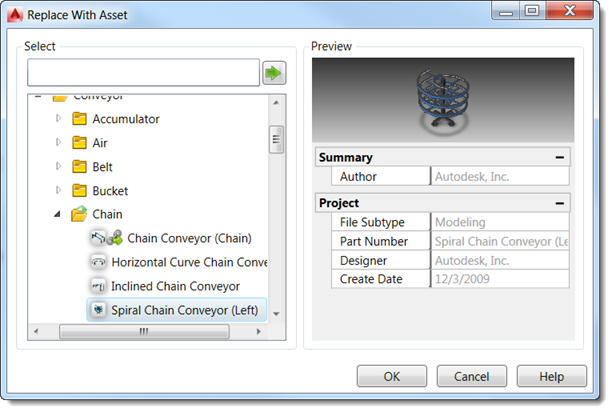
A selection window of asset library folders appears. Select from a folder or search for an asset via the Search field at the top of the window. A preview of your selected asset appears on the right.
Related Help topics:
AutoCAD Factory: Replace an Object with an Asset
Inventor Factory: Replace an Object with an Asset
Add Placeholder Assets to Layouts (available in the 2016 Feature Update Pack)
New placeholder assets let designers place simple blocks in early concept layouts to represent assets that have not been finalized. Asset parameters are limited to length, width, and height. Factory tag definitions are also available to distinguish the assets from one another.
A default placeholder asset is installed with Factory Design Suite and stored in a new Placeholders system assets folder.
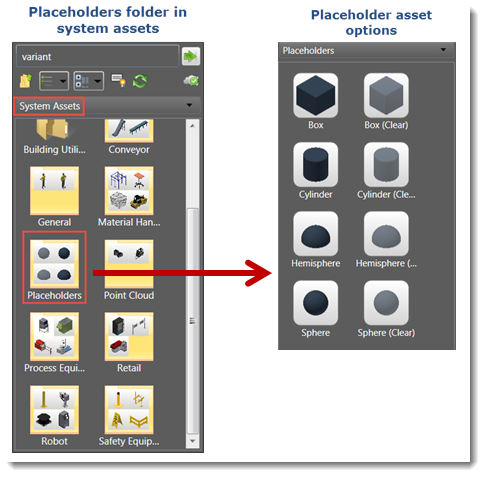
As with other assets, you can copy, edit, delete, and add placeholder assets to your Favorites list. As assets are finalized, use the new Replace feature introduced in this release to swap out placeholders with final assets.
Related Help topics:
AutoCAD Factory: Using Placeholder Assets
Inventor Factory: Using Placeholder Assets
Apply Layer Color to 3D Models (available in the 2016 Feature Update Pack)
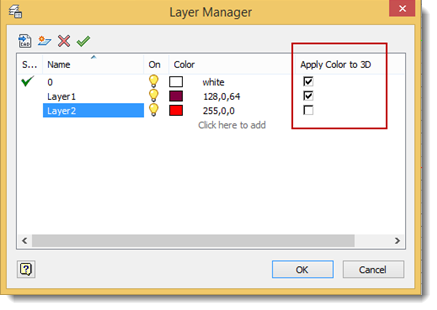
To help you easily distinguish assets by layer, select the new Apply Color to 3D option in the Inventor Layer Manager to apply the layer color to assets within the layer. Leaving this option unchecked retains the original asset colors regardless of layer color.
Related Help topics:
Inventor Factory: Using the Layer Manager
View and Edit Asset Tags in a New Way (available in the 2016 Feature Update Pack)
Hovering your cursor over an asset in AutoCAD, Inventor, or Navisworks displays a new asset tooltip showing the asset name, descriptors, and asset tags. An Asset Tag section added to the Factory Properties browser offers an easy way to add and edit tag content. Click in the field in the browser to type a single line. To add a multi-line tag, click on the ellipses (…) to open the Asset Tag or Extended Asset Tag window.
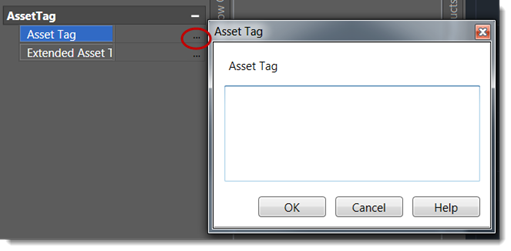
A tag can contain multiple lines and hyperlinks (hyperlinks are supported in AutoCAD and Inventor only).
- Removal of the Visibility commands from the Factory ribbon. In Navisworks, the Visibility command is replaced with a Quick Properties command to toggle visibility on and off.
- Removal of the Annotations panel from the Factory tab
- Removal of the Annotations balloon
- Removal of the Asset Tag command in Inventor
Related Help topics:
AutoCAD Factory: Adding Asset Tags and Descriptors
Inventor Factory: Working with Asset Tags and Annotations
Navisworks: Working with Asset Tags and Descriptors
Expanded Asset Search Capabilities
In addition to searching for asset tags and descriptors, you can now search on the expanded asset properties introduced in this release. You can also locate a placed asset in the library with the new Find in Library search feature. Just right-click on a placed asset and select Factory > Find in Library to open the Asset Browser to the asset's location.
Related Help topics:
AutoCAD Factory: Placing Factory Assets
Inventor Factory: Inserting Factory Assets