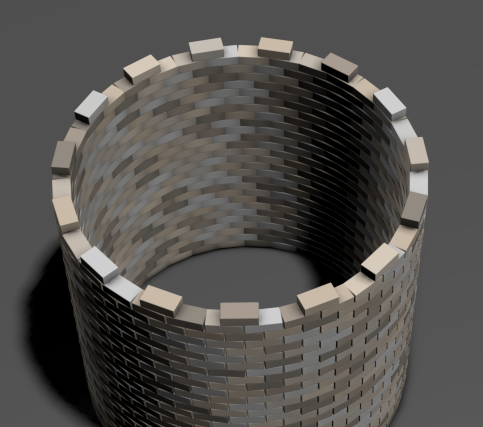
Create a brick tower using the Array Modifier
The following workflow describes how to create a brick tower using the Array modifier. It highlights the Radial Distribution method and uses other Array modifier rollouts to build and tweak the array.
Create a single brick
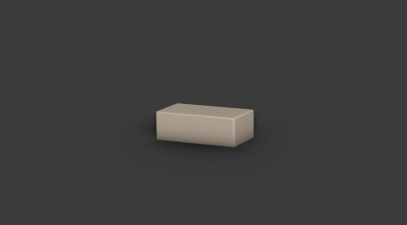
A box acts as a single brick and is the base of the array.
-
In the following example, the box is created using the following parameters:
- Length: 0.691cm
- Width: 1.334cm
- Height: 0.452cm
Create a tower
You can use the Radial Distribution method to quickly build your tower.
In the Modify panel, select Array from the Modifier List.
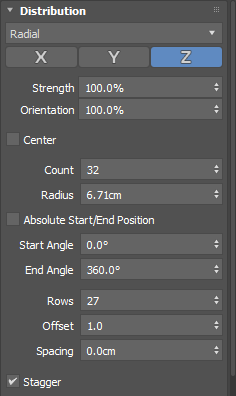
In the Distribution rollout, set the following:
Distribution method: Radial
Count: 32
Sets the number of bricks in each row.
Radius: 6.71cm
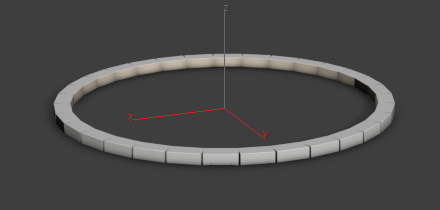
Together these parameters create the base of the tower: a single row of bricks laid end to end in a circular pattern.
Continue to set parameters in the Distribution rollout:
Rows: 27
Stagger: Enabled
In the Material ID rollout, set the following:
- From: 1
- To: 8
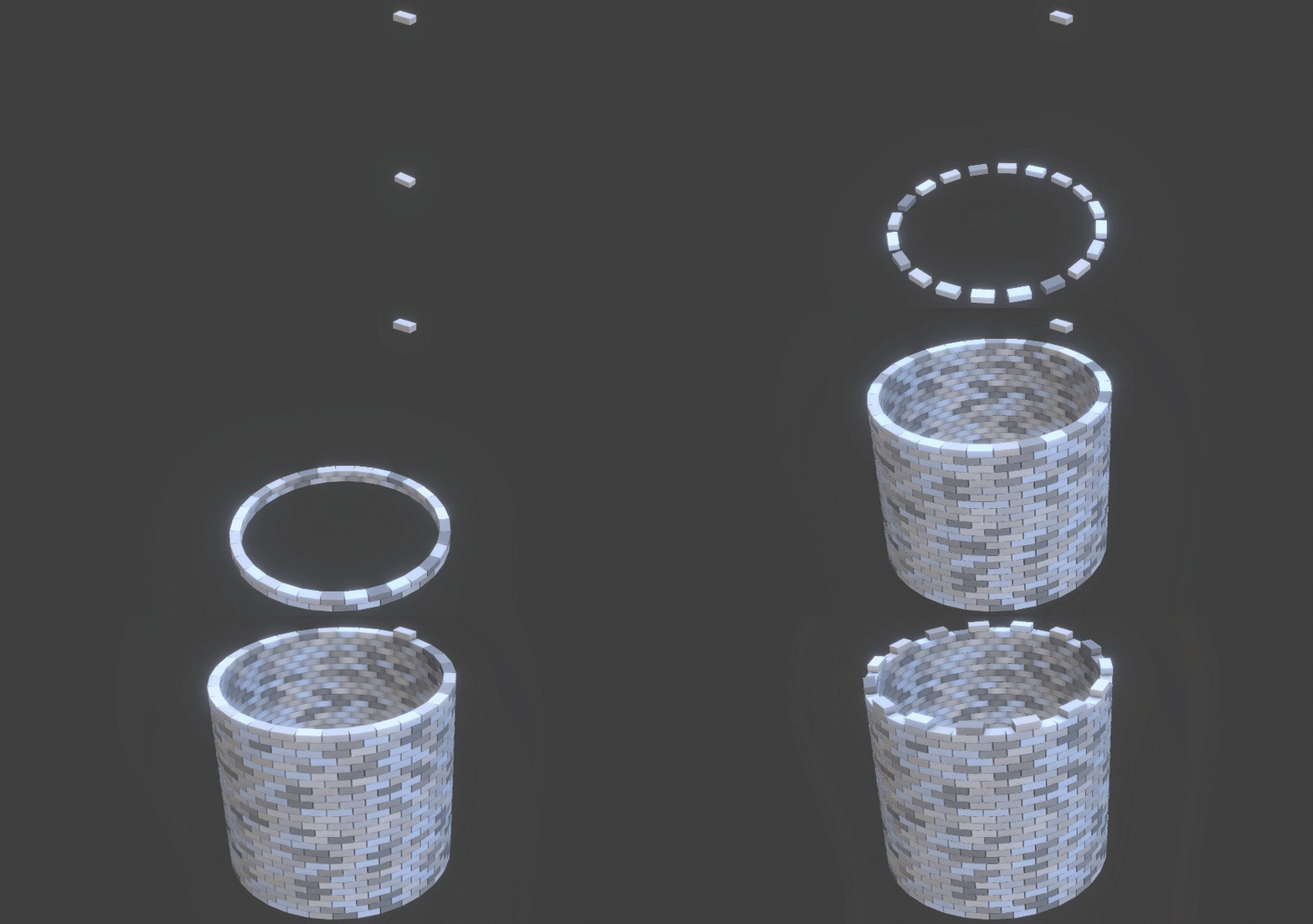
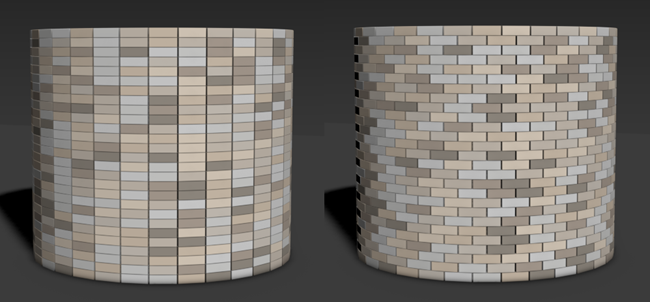
Different colors are applied to the 27 rows of bricks. The Stagger parameter rotates each row of bricks half the width of a single brick, creating a running bond pattern. The following image illustrates the bricks before Stagger is enabled (left) and after (right).
Create a battlement
A battlement is located at the top of a tower and has regularly spaced squared openings. You can add another array to create this decorative feature for your tower.
-
This box is created using the same parameters that you used for the bricks in your tower:
- Length: 0.691cm
- Width: 1.334cm
- Height: 0.452cm
Apply a Chamfer modifier to your brick using the following parameters:
- End Bias: 0.027cm
- Amount: 0.1cm
- Segments: 20
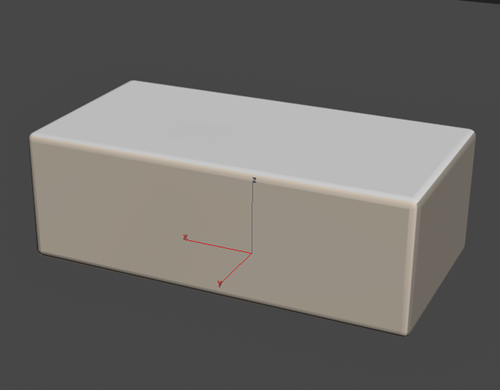
Now the brick's edges are rounded.
Select the box with the chamfered edges.
In the Modify panel, select Array from the Modifier List.
In the Distribution rollout, set the following:
- Distribution method: Radial
- Count: 15
- Radius: 6.71cm
These parameters create the shape of the battlement.
In the Material ID rollout, set the following parameters:
- From: 1
- To: 8
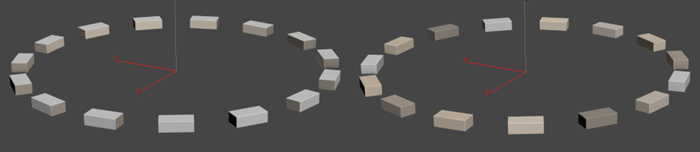
Color is applied to the bricks. The following image illustrates the battlement's appearance before adding color (left) and after (right).
Move the battlement so it rests on top of your tower.