The example database is a transportable database, named IWICM_Examples.icmt. This database is part of the tutorial data which you can download; it is NOT installed with the main application.
If there is more than one of these files, please work with the one with the latest date.
Opening the transportable database
To open the transportable database:
- Start InfoWorks ICM.For more information see Getting Started.
- From the File menu, choose Open | Open transportable database.
- Browse for the transportable database. This should be located in the ICM folder after the files have been downloaded and unzipped. Select the file (IWICM_Examples.icmt) and click Open.
- An Explorer window opens with the contents of the transportable database.
- The tutorial data is in the Model group. Click on the
 button adjacent to the Model group database item to expand its content:
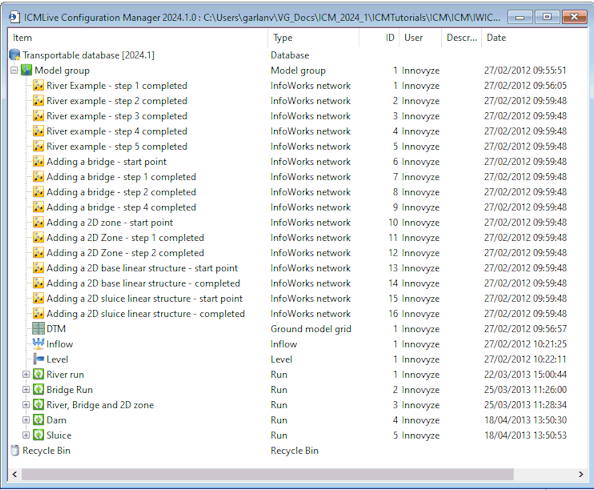
Each network ( ) is a copy of the example data as it should appear at the start of each stage of a tutorial.
- For example, the River example - step 3 completed network contains the network as it is expected to be at the start of step 4 of the River Tutorial.
- Similarly, the Adding a bridge- step 2 completed network contains the network as it is expected to be at the start of step 3 of the Bridge Tutorial.
If the network for a particular step is missing (e.g. Adding a bridge - step 3 completed network is missing from the transportable database), it is because no changes were made to the network during that step, therefore a previous network can be used to continue the tutorial (in this case, the Adding a bridge - step 2 completed network can be used to go through step 4 of the Bridge Tutorial).
The transportable database also contains the following database objects:
- The
DTM (
 ) Ground Model (grid) imported at
step 1 of the River Tutorial.
) Ground Model (grid) imported at
step 1 of the River Tutorial.
- The
Inflow (
 ) and
Level (
) and
Level ( ) hydrographs created at
step 5 of the River Tutorial.
) hydrographs created at
step 5 of the River Tutorial.
- The River Run run, with the DWF simulation which are created at step 5 of the River Tutorial.
- The Bridge Run run, with the DWF simulation which are created at step 6 of the Bridge Tutorial
- The River, Bridge and 2D zone run, with the DWF simulation which are created at step 3 of the 2D zone Tutorial
- The Dam run, with the DWF simulation which are created in the Base Linear Structure Tutorial
- The Sluice run, with the DWF simulation which are created in the 2D Sluice Linear StructureTutorial
You can work with your own version of this database all the way through the tutorials. Alternatively, you can start with the prepared database for any stage.
Working with the prepared data for a particular stage
To work with the prepared data for a particular stage:
- Ensure you have created and / or opened a database.
- Open the transportable database as described here. It opens in an Explorer window.
- Click on the
button to the left of the Model group icon. The Tutorial data appears. If required, click on the
button to the left of the River Run icon and the Bridge Run icon to reveal the
DWF simulations.
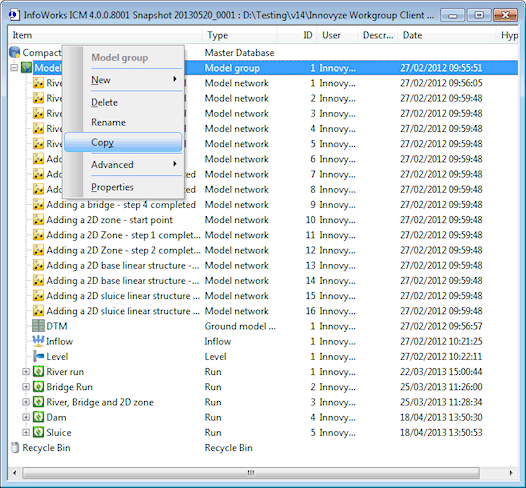
- Right-click on the top level of data you want to copy. For example, you can choose a whole model group (Model group group in our case) or any item in a model group (such as a network, a hydrograph or a simulation). Select Copy from the popup menu.
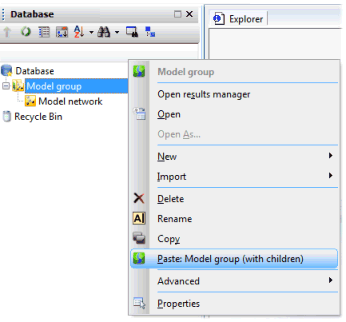
- In the Explorer view for the database to be copied to (your database), right-click on the item that is to contain the copied data and select Paste: nameofitem (with children) from the popup menu.
- If some of the items you are trying to copy are in the destination database, the
Copying of Duplicate Items dialog is displayed.
- Click on OK to continue to paste the objects. Items that already exist in the database will be duplicated there and they are identifiable by the exclamation mark (!) that has been appended to the end of their name.
- Click on Cancel to abort the paste operation alltogether.
- If you are copying simulation results, the
Copying of Simulation Results, Ground Models and Time Series Data Objects dialog is displayed.
- Ensure the Copy Simulation Results box is ticked.
- Ensure the Copy Ground Models box is ticked.
- Click Continue.
- InfoWorks ICM will copy all items of data at or below the selected level.
- You can use the copied data in your database.