Edit, Publish, Unpublish, and Comment on Issues
Learn how to edit, publish, unpublish, and comment on issues that were created in your project.
In this article, you can learn how to:
Edit Issues
From the Issues Log, you can edit a single issue or select multiple issues to edit together. You can edit issues using inline editing directly in the Issues Log or by opening the issue Details panel.
Inline Edit Issues in the Issues Log
You can quickly edit issue fields directly from the Issues Log without opening the full issue Details panel. When you hover over a table row, editable fields display a Pencil icon  positioned on the right side of the field.
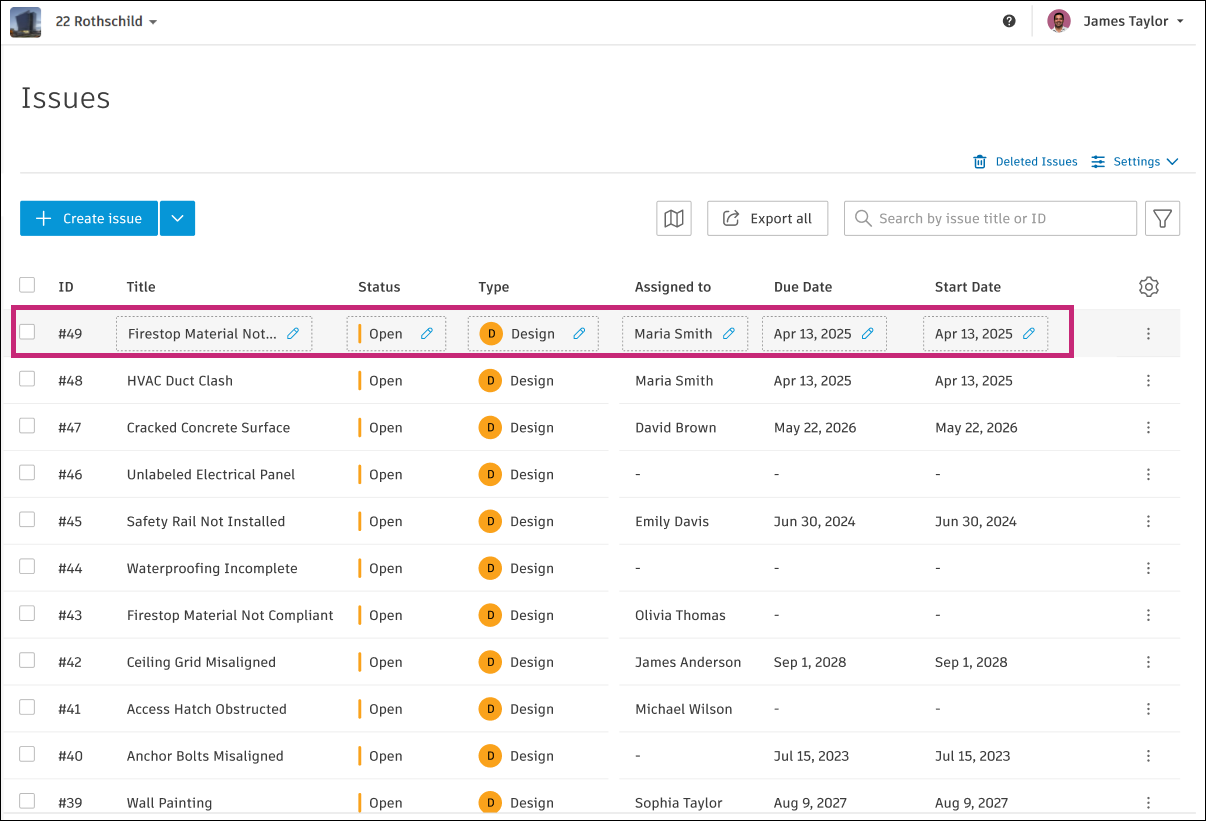
To edit a field inline:
Hover over the issue row in the Issues Log.
Note: The Pencil icon appears only when hovering over the row. Fields expand to full column width, and if content is truncated, the field width adjusts to accommodate the Pencil icon.Click the Pencil icon
next to the field you want to edit.Make your changes based on the field type:
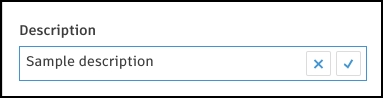
Text fields (Title, Description, Location details): Click in the field, type your changes, and click the check mark to confirm.
Drop-down fields (Status, Type, Root cause, Placement): Select a value from the dropdown list.
Note: For Type (Category), the category itself is not editable; you can only select from available types within the current category.Date fields (Due date, Start date): Use the date picker dropdown to select a date.
Search dropdowns (Assigned to, Watchers, Location): Search for and select the appropriate option. Location can be displayed in tree view for easier navigation.
Published status: Toggle between published and unpublished using the toggle button or dropdown.
Custom fields: Edit based on the field type configured for the custom field:
- Text fields: Enter text
- Numeric fields: Enter numbers
- Paragraph fields: Enter multi-line text
- Dropdown fields: Select from available options
Your changes are saved automatically when you click outside the field or press Enter.
- ID
- Company
- Created by
- Created on
- Updated by
- Updated on
Edit a Single Issue in the Details Panel
Click the relevant issue from the Issues Log. A flyout panel opens to display all the issue details.
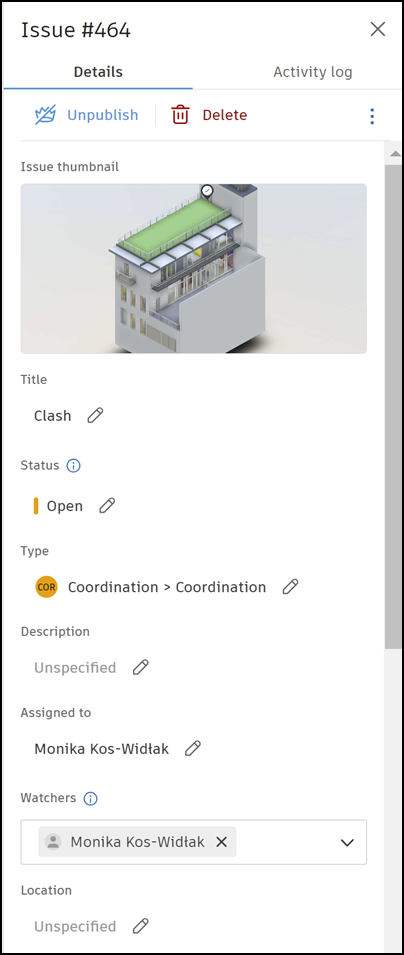
You can edit any of the issue's fields:
- Issue thumbnail (in issues placed on 3D models). See Edit Issue Thumbnail to learn more.
- Title
- Status
- Type
- Description
- Assigned to
- Watchers
- Location
- Location details
- GPS location
- Due date
- Start date
- Placement
- Root cause
- Any custom fields
- Attachments: You can add an attachment to the issue that you're editing.
- References: You can add references to photos, files, RFIs, assets, forms, submittals, or PCOs.
See Issue References and Attachments for more information. - Comments
Click a text field to enter your changes. Click the check mark to save.
A previously filled required field cannot be empty. Required fields are marked with an asterisk.
Editing status:
In Draft Status? All required fields complete? Result 

You cannot change the status.
When you complete the last required field, a pop-up window will appear asking if you want to update the issue status. Click Set to open and the issue status will be updated to Open automatically or click Keep as draft.You can edit the issue status. Editing issue type:
In Draft Status? All required fields complete? Result A pop-up window will appear where you can complete any required fields from the new issue type. Fill out to proceed and click Save changes or click Cancel which will cancel the type change.
Edit Issue Thumbnail
When you create an issue on a 3D model in Files, an issue thumbnail is automatically generated from the current display of the issue in the viewer.
See Place Issues on 2D Files and 3D Models and Create Thumbnails to learn how to create and edit issue thumbnails.
To edit a thumbnail from the issue flyout panel:
Click the link in the Placement field.
In the viewer, click the pencil icon
 in the bottom left corner of the thumbnail to activate the markup mode.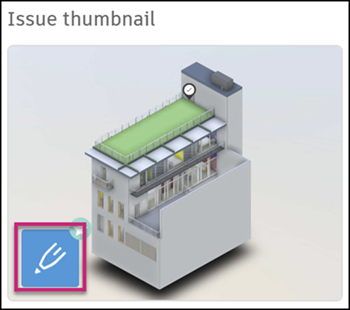
Add markups as needed.
Click Save thumbnail.
Edit Multiple Issues
Select two or more issues using the multiselect box next to an issue's title.
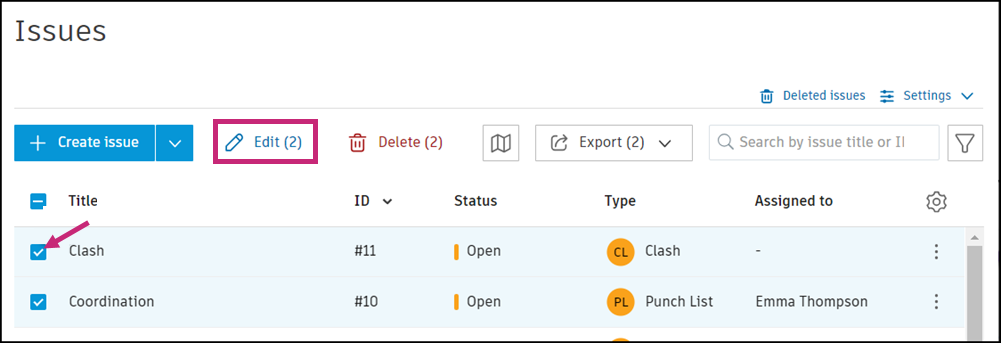
Click Edit to open the issue panel.
Change any of the issue fields as desired
Click Save
Any edits that you make will apple to the multiple issues selected.
Publish and Unpublish Issues
Issues can be published or unpublished directly from the Issues log.
Click the relevant issue from the Issues log.
Once you select an issue from the Issues log, you'll be able to see if the issue is already published.
Click Publish or Unpublish and confirm the action to change its published status.
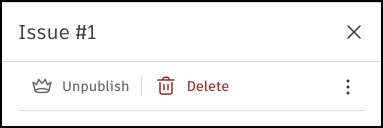
Published issues are visible to anyone on your project with the correct permissions. If you unpublish an issue, only its creator, assignee, and watchers can view it. They see it in the Issues log and on the relevant sheet or model.
Comment on Issues
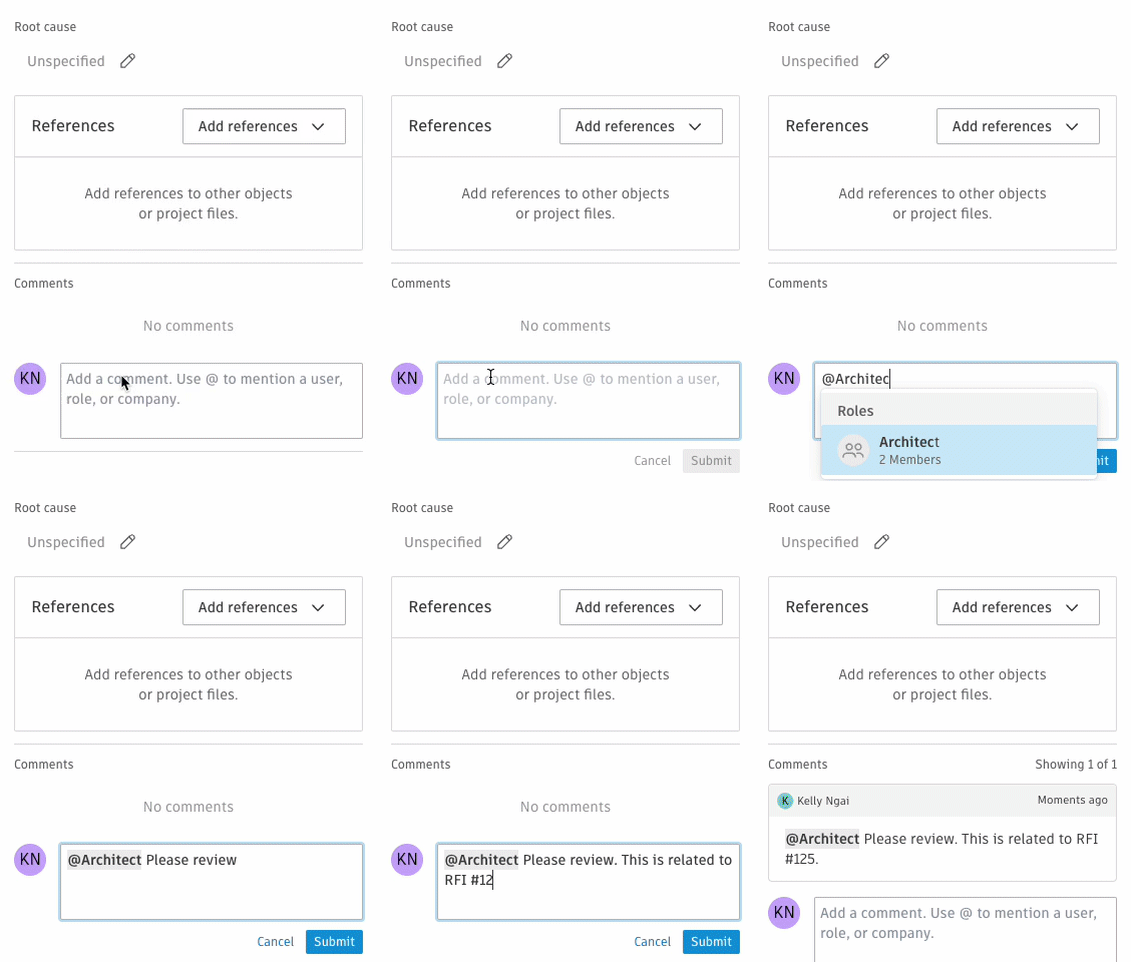
You can leave comments on any issues you have access to. Commenting gives your team a centralized place to communicate and flag information regarding an issue.
Click the relevant issue from the Issues Log. A panel opens to display all the issue details.
In the Comments section, click the field to type your comment. You can type the @ symbol to mention a project member, role, or company to get their attention. Type in a name or select from the drop-down menu. Only members, roles, or companies who can view are listed. The mentioned member or members will receive a notification when you submit your comment.
Click Submit.
Tip: The ability to mention others is available to all members that can comment on issues.