
Edit Keyframes with the Edit Box
You can use the Edit Box to transform a selection of multiple keyframes.
To display the Edit Box:
In the Curves or Dope Sheet view, Ctrl+Drag to select keyframes.
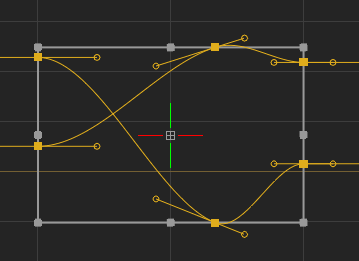 Tip: If the Edit box does not appear, select
 Show Edit Box.
To move the selected points:
Click and drag inside the Edit Box to move the points freely.
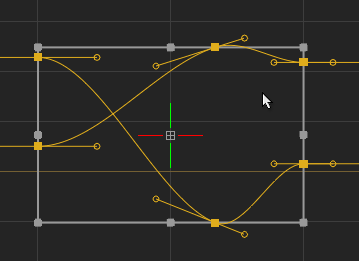
Click and drag one of branches of the pivot to constraint the movement the X or Y axis.
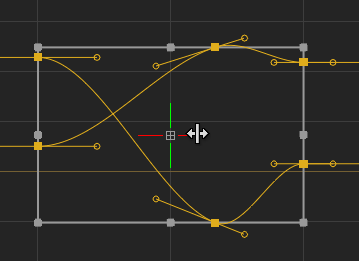
To scale the selected points:
Click and drag one of the Edit Box handles.
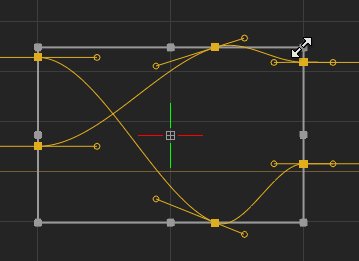 Note: In the Dope Sheet, you can only scale the keyframes on the X (time) axis.
To scale proportionally around the Edit Box pivot point.
- Shift+Alt+Click-drag an Edit Box handle.
To scale symmetrically around the Edit Box pivot point.
- If the Pivot is at the centre of the Edit Box, Alt+Click-drag an Edit Box handle.
- If the Pivot is off-centre, Click-drag an Edit Box handle.
To scale freely and ignore the Edit Box pivot.
- If the Pivot is at the centre of the Edit Box, Click-drag an Edit Box handle.
- If the Pivot is off-centre, Alt+Click-drag an Edit Box handle.
The Scale Edit Box Proportional keyboard shortcut can be used to apply a proportional scaling around the pivot. The keyboard shortcut is assigned to Shift+Alt in all keyboard shortcuts profiles.
Moving the Edit Box Pivot gives you the flexibility to scale the keyframes around a different centre.
To move th Edit Box Pivot, do one of the following:
- Click-drag the Pivot in the canvas.
- Right-click a keyframe and select Pivot and select Move Edit Box Pivot.
- Use one of these keyboard shortcuts:
- Flame and Lustre profiles: Shift+Command+Click the canvas.
- Smoke Classic profile:Ctrl+Alt+Click the canvas.
- Smoke (FCP 7) profile:Alt+Command+Click the canvas.
When you move the Pivot, its appearance changes to indicate it is no longer centred in the Edit Box.
| Centred Pivot | Off-Centre Pivot |
|---|---|
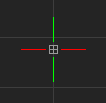 |
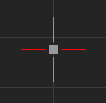 |
To move Pivot back to the centre of the Edit Box:
- Right-click the Pivot and select Reset Edit Box Pivot.
- Alt+click the Pivot.