
Register the Outpost device in Tandem Connect
In order for the platform to communicate with the pysical Outpost Device, you must register the connection. This process involves:
- Creating a new Outpost Device in the Platform Console.
- Using the generated ID, Password, and API URL on the physical device to enable communication between the device and the platform.
Create the new Outpost Device in Tandem Connect
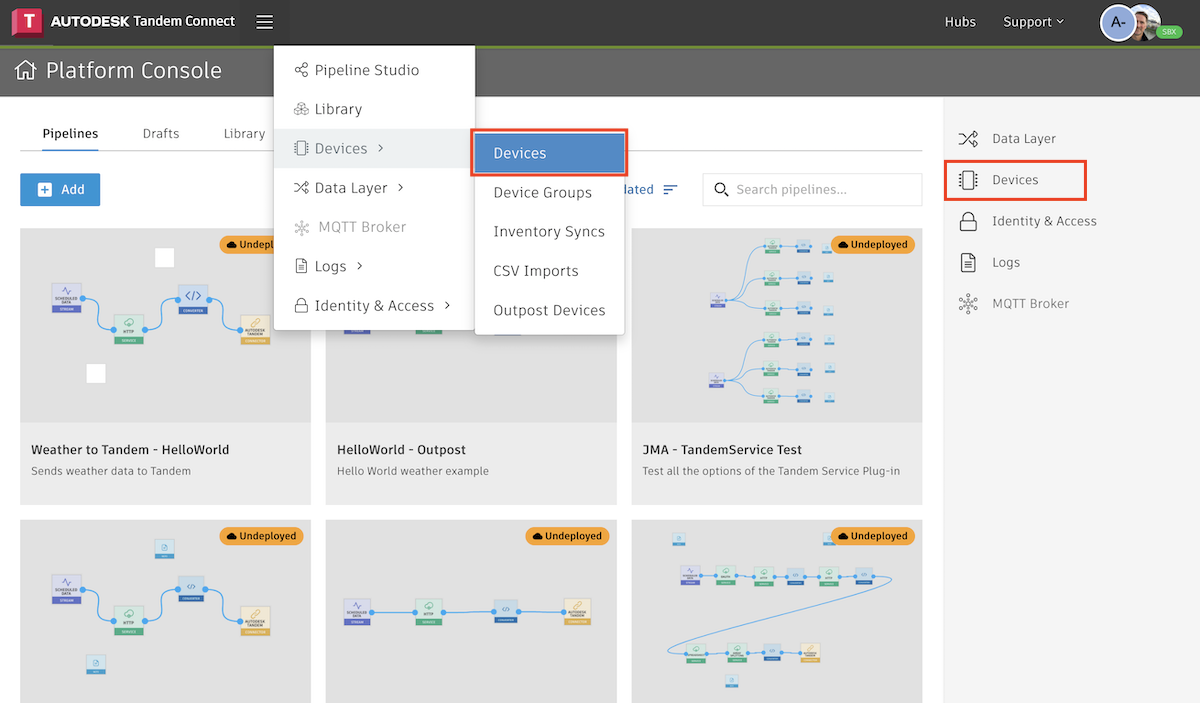
Login to the Platform Console and switch to the account you wish to link the Outpost Device to. Click on the Devices area.
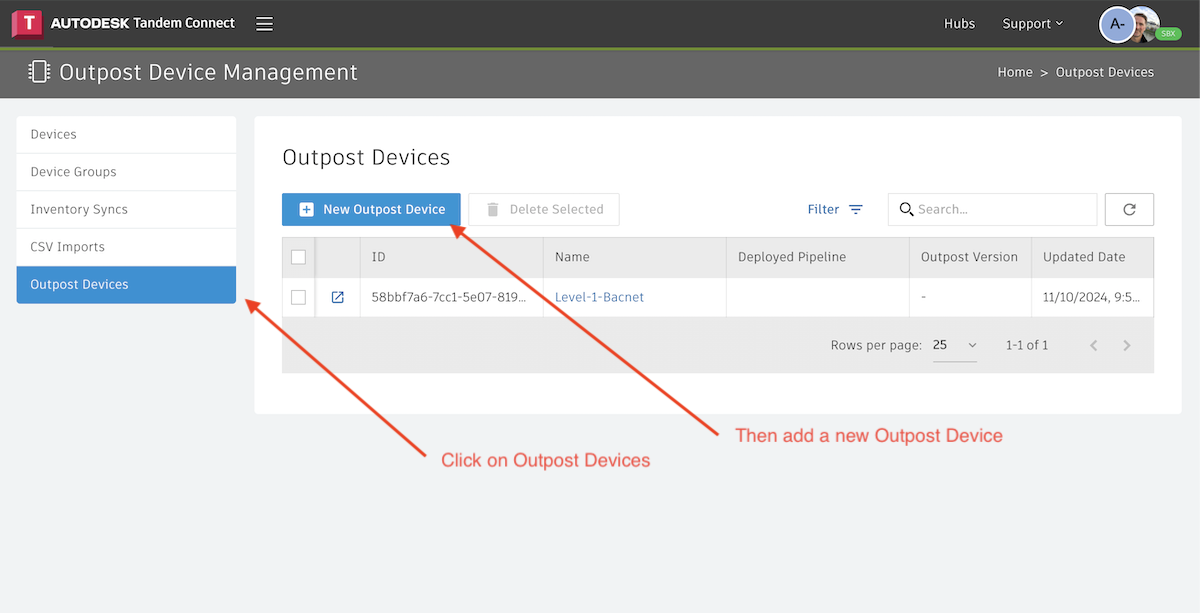
Click on Outpost Devices in the left-hand panel, and then click on the "New Outpost Device" button.
Specify:
- ID (optional, auto-generated if not specified)
- Name
- Description
- Password (optional, auto-generated if not specified)
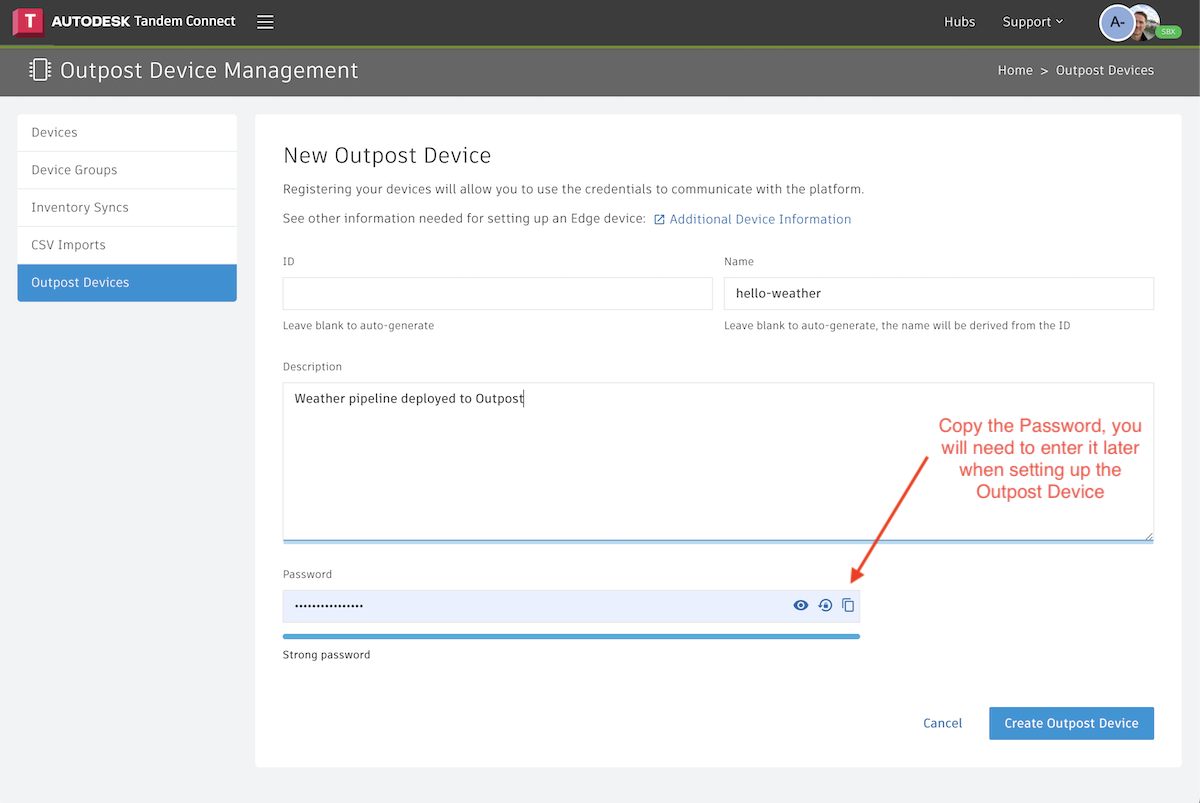
Make a note of the password. You will need this later when you set up the physical device.
Click Create. The new device should appear in the list of Outpost Devices. Now click on the button link above the ID to display additional device information.
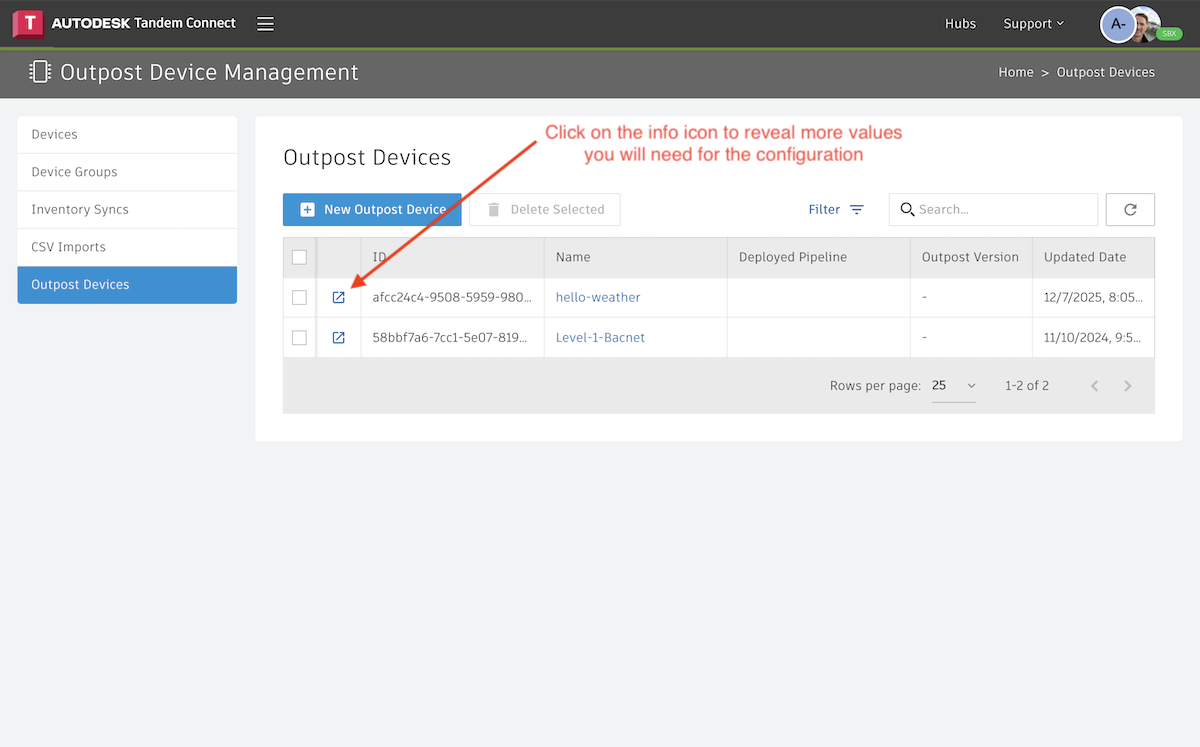
A pop-up window will appear with the ID, Account ID and API URL. Make a note of these too. Click Close.
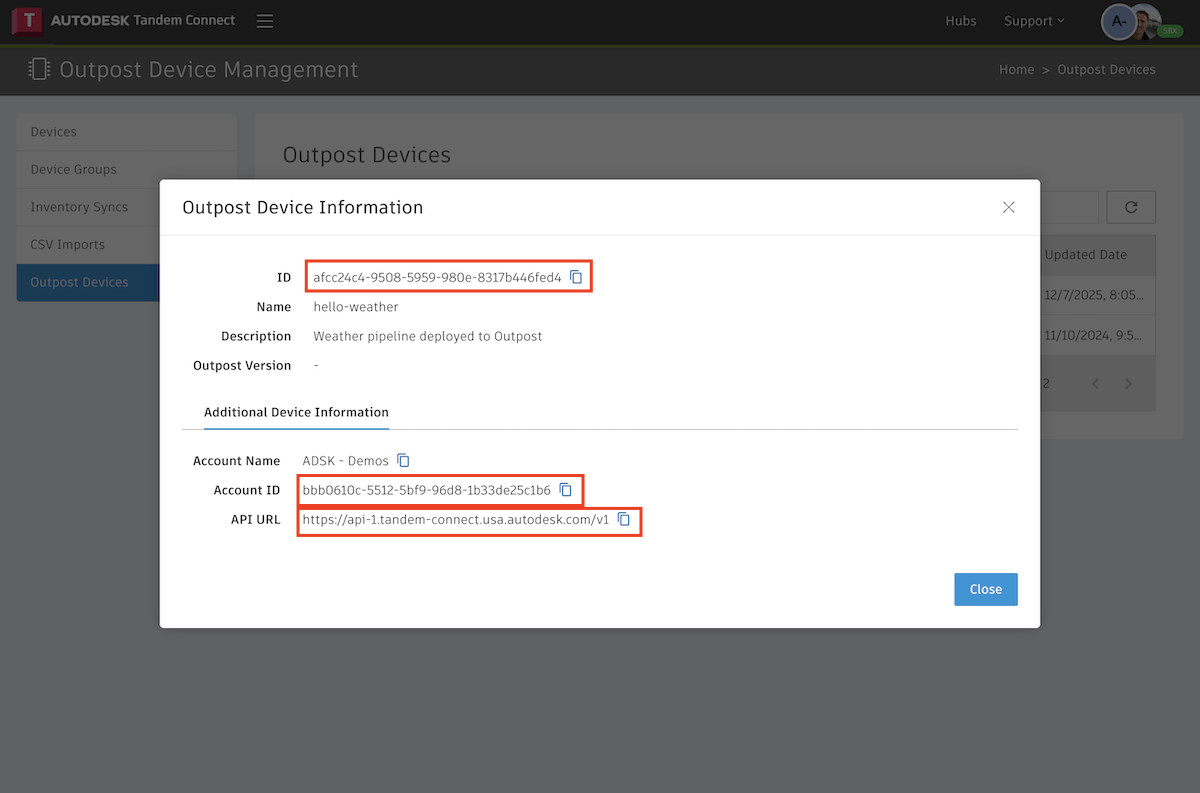
When you run the setup scripts on the Outpost device, it will ask for the information you recorded when registering it here.