Welcome to Maya 2024.2 Update! You can access the Maya 2024.2 Update from your Autodesk Account.
For technical details including What's Fixed, see the Maya 2024.2 Update Release Notes. For changes to the 2024.2 Maya devkit, see What's New in the 2024.2 devkit.
For more on the evolution of Maya over the years, check out the Maya timeline on Autodesk AREA.


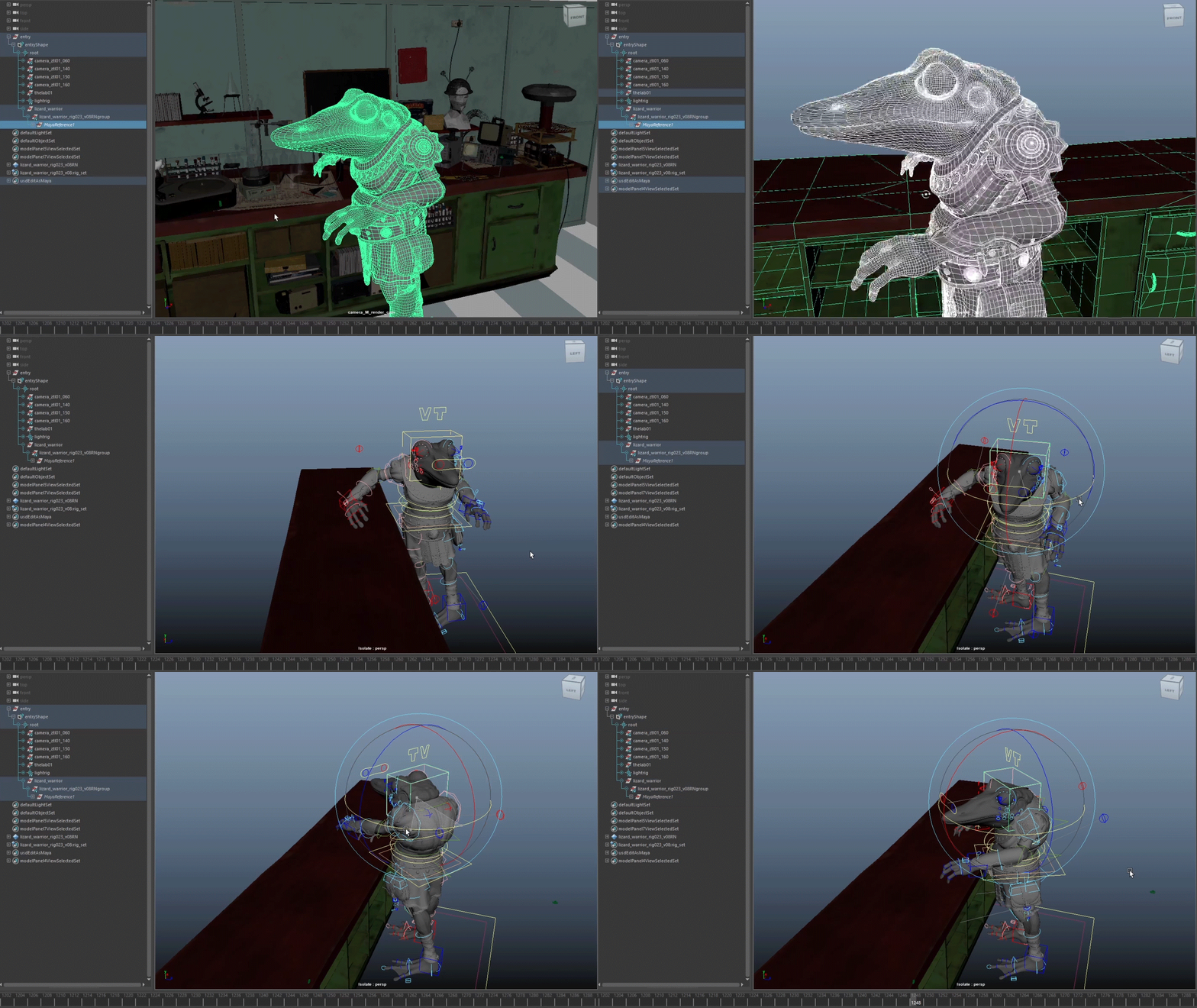

What else is new?
This release of Maya also includes the following changes and improvements.
| Bifrost 2.7.1.1 | Maya 2024.2 includes Bifrost 2.7.1.1 with editable value display expressions, detachable watch points, component tags, and more. For the full details, see the Bifrost release notes. |
| Graph Editor: New ability to sculpt curves in Value and Time |
A new Affects Time option has been added to the Grab and Smear Sculpt curve tool settings to let you modify curves on both the Time and Value axis. 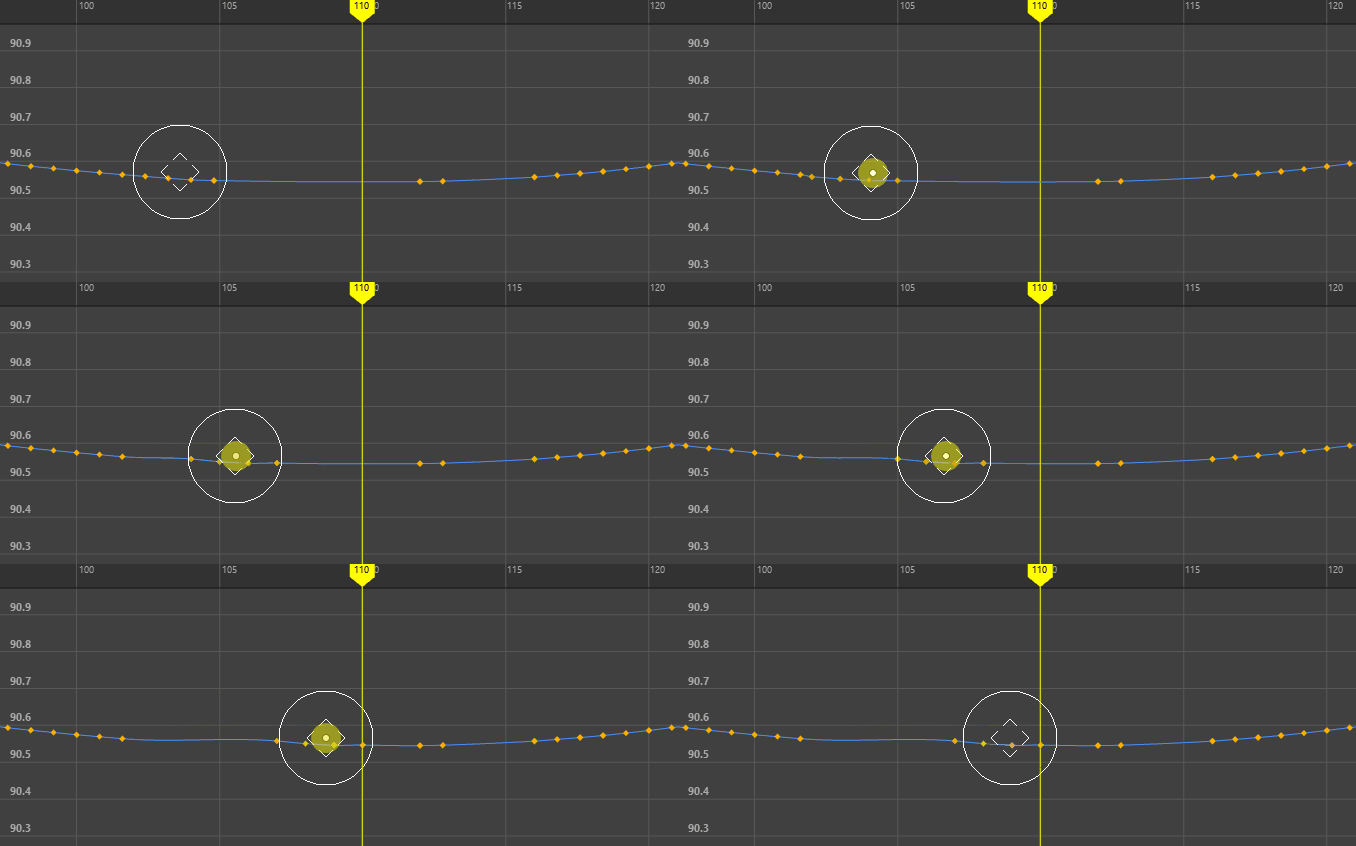 Sculpting with the Grab tool in Time 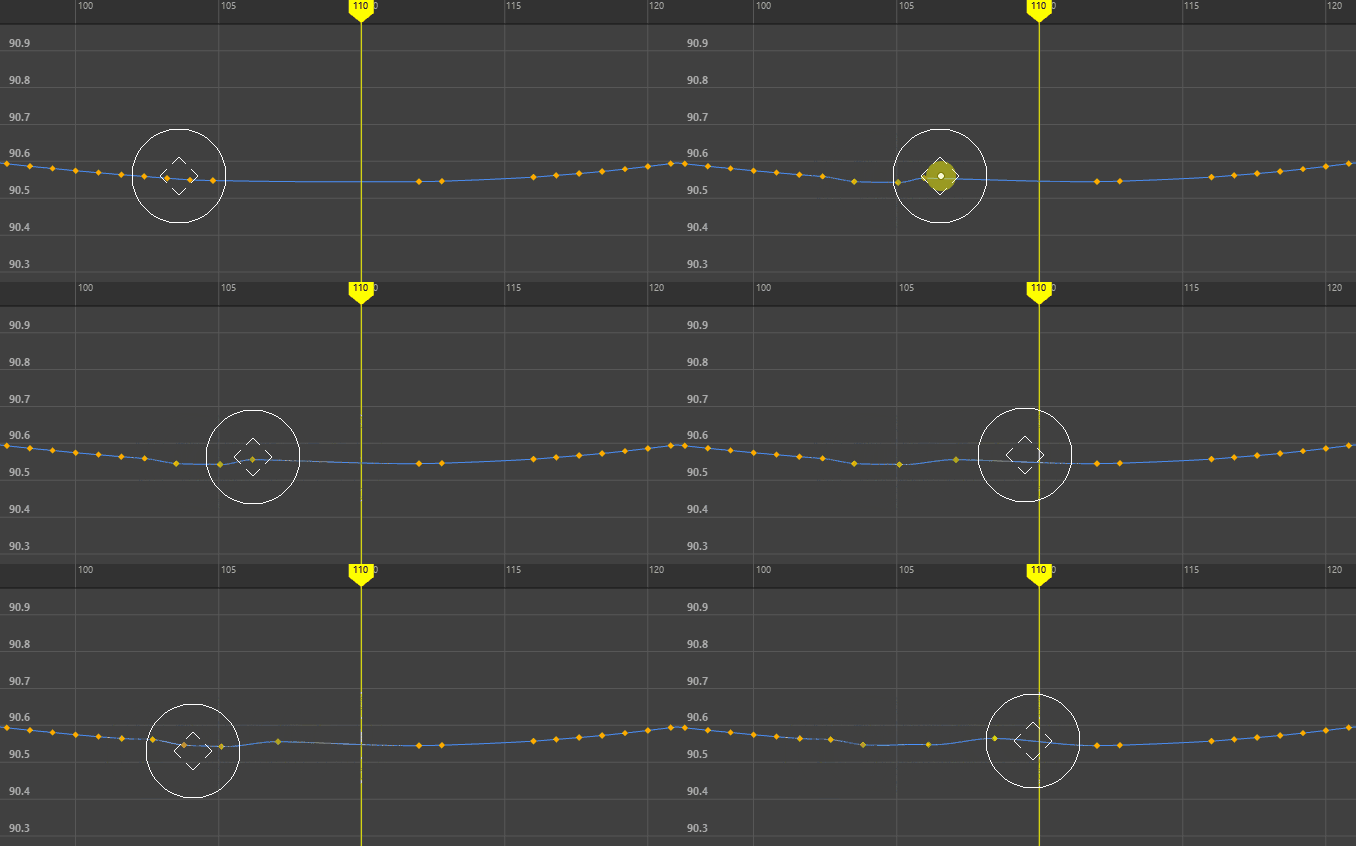 Sculpting with the Smear tool in Time With either the Graph Editor Grab and Smear tool active, open the Sculpt Curves Tools Settings and turn on Affects Time. The cursor changes to indicate that you can move curves on the left and right axes (time) as well as the up and down (value) axes.
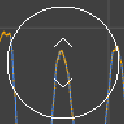 Default Sculpt cursor (Value axis only) 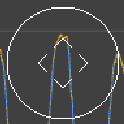 Sculpt Cursor with Affects Time option active. |
| Graph Editor: New List view option | The
Show Animated Shapes setting in the
Graph Editor List menu now lets you choose whether you want to show
All,
None, or
One transform. Now you can choose
One from the
Show Animated Shapes option to show only the selected transform and its shape nodes.
This option simplifies the Graph Editor so that it won't show the transform and every other node that shares the instanced shape node expanded in the Graph Editor Outliner. |
| Arnold for Maya 5.3.4.1 |
Maya 2024.2 ships with MtoA 5.3.4.1 for Arnold 7.2.4.1 which provides several bug fixes and performance improvements. See the Arnold for Maya release notes for the full list of bug fixes. |
| Substance 2.3.4 |
Maya 2024.2 includes Substance 3D version 2.3.4. For more information, visit http://www.autodesk.com/maya-substance-docs. |
| Graph Editor: New Curve Select option |
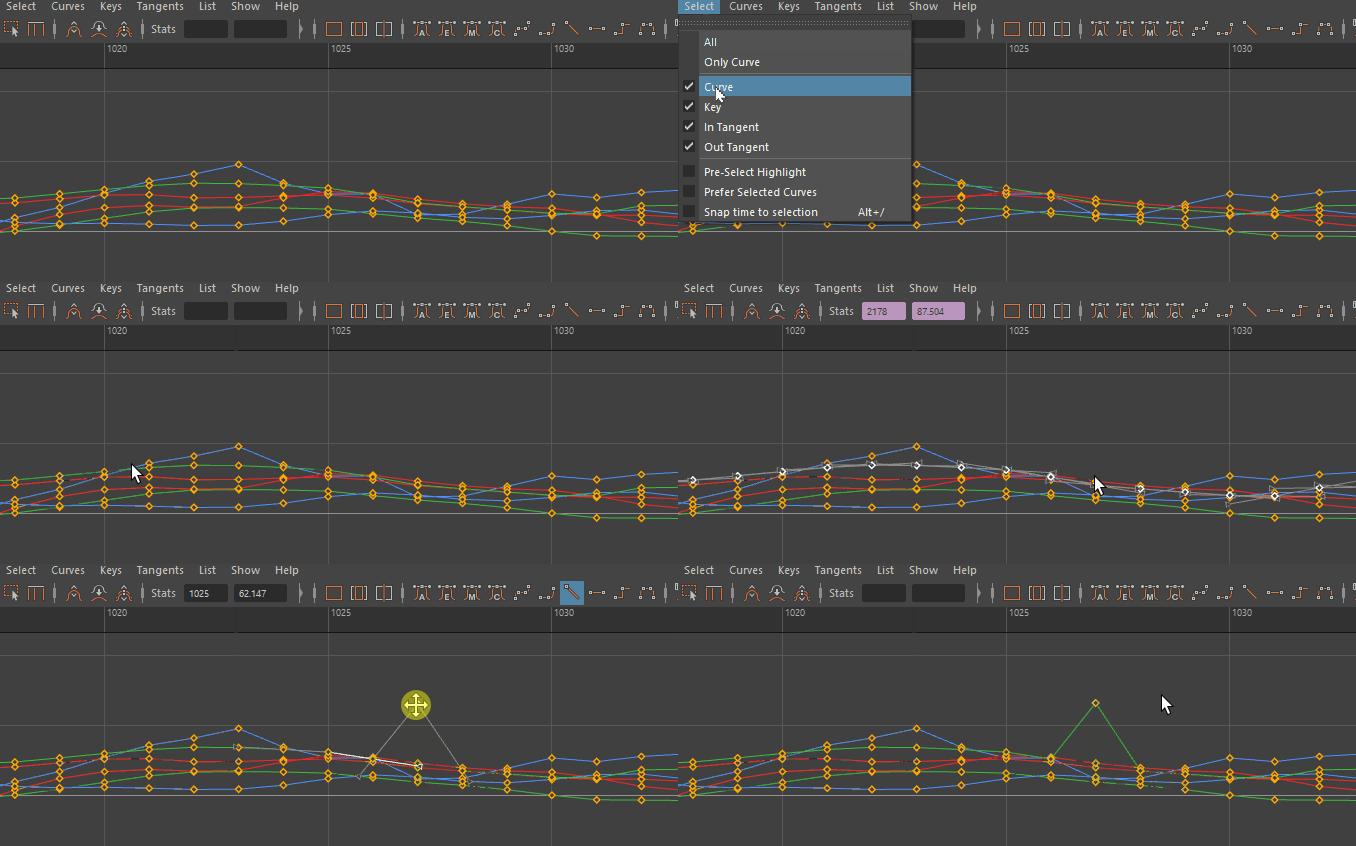
A new option has been added to the Graph Editor Select Menu to let you limit key/tangent selection to a specific curve. Prefer Selected Curves is similar to selection behavior previously used in Autodesk Softimage, and lets you focus on a specific curve, which is useful to prevent unintentional selection when working with dense animation data.
 |
| New Channel Box Copy/Paste options |
Two new options have been added to the Channel Box Channel menu to let you quickly copy the attribute from one object to one or more objects:
Note: If you select more than one object in the scene, only the attributes from the first item selected is copied.
|
| Time Editor: Blend Shape Clips Fix | A problem where Blend Shape animation would not work in the Time Editor has been resolved. Now, you can animate with Blend Shape animation clips in the Time Editor. |
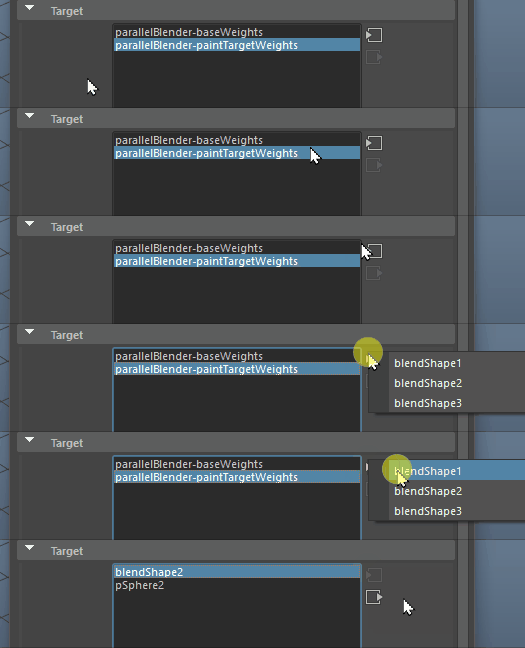
| New Paint Blend Shape Weights Target selection | A new set of navigation buttons in the
Paint Blend Shape Weights Tool lets you select which target to paint, making it easier to work with multiple Blendshape targets.
 |
| New Manipulator preferences |
A new Channel Box Manipulator section in the Manipulator preferences lets you set the state of manipulators in the Channel Box for future Maya sessions. Options include No Manipulators, Invisible Manipulators, or Standard Manipulators. For more information, see Show or hide the manipulator for an attribute in the Channel Box. |
| New Zero Pivot option |
You can now reset your custom pivot to the object's origin. To reset the pivot for the currently selected object(s), select the new Modify > Zero Pivot option. To reset the pivot so it persists for after restarting Maya, select Zero Position on Reset from the custom pivot marking menu or Pivot Reset > Zero Pivot in the Tool Settings for the Move Tool, Rotate Tool, or Scale Tool. After selecting either of these options, clicking Reset Pivot in the Tool Settings or marking menu zeroes the pivot. |
| Bake Simulation Performance settings |
A new Performance Settings area has been added to the Bake Simulation Options to give you an extra performance boost when working with large scenes by letting you disable processes that draw processing power away from the simulation. |