The Task Sequence editor allows you to edit a task sequence that you can run in the network and control.
The Task Sequence editor is displayed when you open a Task Sequence object from the Task Sequence Group in the
explorer tree.
You can insert a task by clicking any of the Insert Task option, or by dragging a supported object from the explorer tree.
This editor allows you to create a sequence of updates to the network/control, Stored Queries, Ruby Scripts, Inference objects, Reconnect float valves, etc.. These tasks can be edited, moved up or down, and deleted.
Clicking the Run all tasks or Run selected tasks button will run the task in sequence to the network/control. Alternatively, dragging the Task Sequence object onto a network will apply the tasks in sequence to the network/control.
After running the task sequence, an amalgamated log from each step is shown.
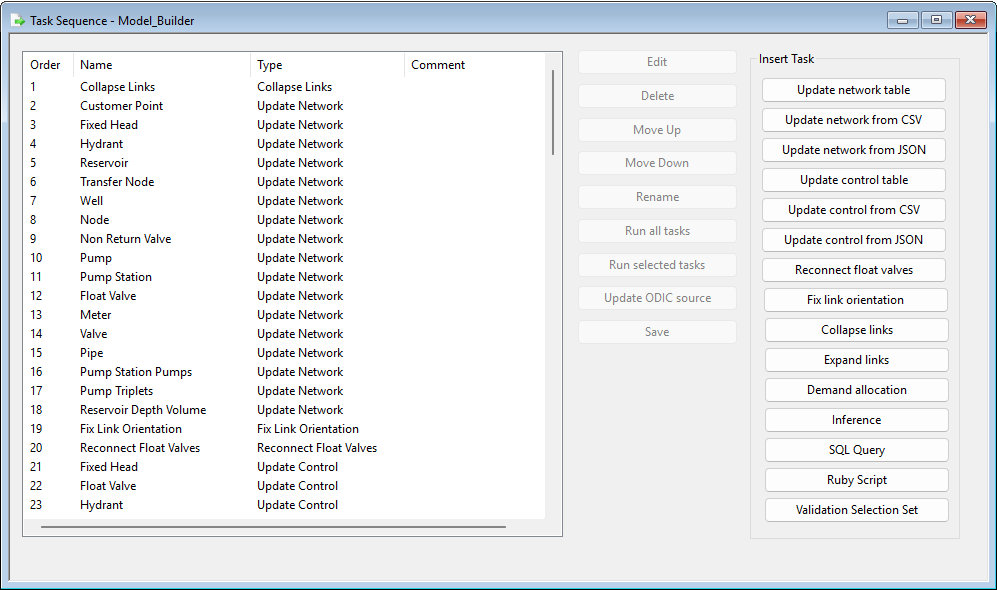
| Item
|
Description
|
|---|
| Order
|
Displays the order for which the task sequence will run.
|
| Name
|
Displays the name of the task.
|
| Type
|
Displays the type of object.
|
| Comment
|
Displays the comment you have added for the particular task.
|
| Edit
|
Opens the
Edit task dialog. Allows you to edit the specific task.
|
| Move Up/Move Down
|
Allows you to move the order of the task sequence, either up or down.
|
| Rename
|
Allows you to modify the name and comment for a task.
|
| Run all tasks
|
Runs all the task in sequence.
Note: A network must be open to run this option.
|
| Run selected tasks
|
Runs the selected tasks in sequence.
Note: You can select a number of task by holding the Ctrl button and clicking tasks that you want to run.
Note: A network must be open to run this option.
|
| Update ODIC source
|
Allows you to update the SQL Server or Oracle Database connection for the selected Update Network or Update Control tasks.
After clicking this button, you can select whether to update the
SQL Server or
Oracle Database connection for the selected Update Network or Update Control tasks. It will skip tasks that are not Update Network or Update Control, even if these tasks are selected.
This option will change the connection for all the selected tasks at once, rather than going through them one by one.
|
| Save
|
Saves the changes.
|
| Insert Task
|
| Item
|
Description
|
|---|
|
Update network
Update control
|
Clicking the Update network/Update control button will open the
Open Data Import Center dialog, which will allow you to create options to update the network/control. The saved options will be added in the task sequence.
|
|
Update network from CSV
Update control from CSV
|
Clicking the Update network/control from CSV button will open the
Import / Update From CSV Data dialog, which will allow you to update the network/control from a CSV file. The saved options will be added in the task sequence.
|
|
Update network from JSON
Update control from JSON
|
Clicking the Update network/control from JSON button will open the
Import / Update From JSON dialog, which will allow you to update the network/control from a JSON file. The saved options will be added in the task sequence.
|
|
Reconnect float valves
|
Connects float valves to a reservoir directly, and removes any unnecessary pipe.
Note: You will get a validation error if float valves are not connected to a reservoir.
|
|
Fix link orientation
|
Clicking the Fix link orientation button will open the
Fix link orientation dialog, which will allow you to specify the upstream and downstream asset ID where the orientation for pump stations, valves, non-return-valves, and meters will be reversed to the correct direction, if required.
|
|
Collapse links
|
Allows you to collapse links - place the end points to the middle of the link.
This option is applicable to valves, non-return valves, meters, and pump stations. It is not applicable to float valves and pipes.
|
|
Expand Links
|
Clicking the Expand Links button will open the
Expand Short Links dialog, which will allow you to expand the geometry of links with length below a specified value.
|
|
Demand Allocation
|
Clicking the Demand Allocation button will open the
Demand Allocation dialog, which will allow you to assign demands to nodes in the network.
|
|
Inference
SQL Query
Ruby Script
|
Clicking the SQL Query, Ruby Script, and Inference button will open the
Edit task dialog, which will allow you to add a corresponding task in the sequence.
Note: You can add a task in the sequence by dragging it from the
explorer tree.
|
|
Validation Selection Set
|
Clicking the Validation Selection Set button will open the
Create Selection Set dialog, which will allow you to create selection lists with changes that have been made to the network/control.
|
|