Get started with System Modeler
This feature is part of an extension. Extensions are a flexible way to access additional capabilities in Fusion. Learn more.
This guide walks you through enabling System Modeler and running your first graph.
Step 1: Enable System Modeler
System Modeler runs as an add-in. Enable it before it appears in the ribbon.
In the Fusion ribbon, click Utilities.
Click Scripts and Add-Ins, or press Shift+S.
Find SystemModeler in the list, select it, and click Run.
Select Run on Startup so it loads automatically next time.
System Modeler now appears in the Automation tab of the Design and Manufacture workspaces.

Step 2: Create a user package and a graph
Graphs must be saved to a user package. The public packages (Base, System, Design, Manufacture) are read-only, so you need your own package before you can save a graph.
In the Automation tab, click System Modeler.
The Welcome screen opens.
Click Create graph.
In the Name box, enter My graph.
From the Package drop-down list, select + New package.
In the Package name box, enter My package.
The Package ID is generated automatically.
Click Create.
The package appears under User packages in the Library panel and the graph canvas opens.
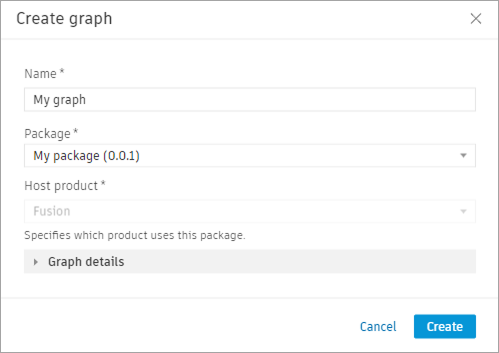
See Create a user package and Create a new graph for detailed steps.
Step 3: Build your first graph
This walkthrough uses only Base package nodes, so no active Fusion document is required. You'll build a graph that adds two numbers and logs the result.
Add nodes
In the Library panel, expand Base and open the Math category.
Click the Add node to place it on the canvas.
Open the Constant category and add two Number constant nodes.
Open the Text category and add a Log node.
Tip: You can also drag a node from the Library panel to place it at a specific position on the canvas.
Connect the nodes with wires
Select each Number node and set its value in the Node tab of the Details panel (for example, 3 and 5).
Connect the output of the first Number node to the A input port of the Add node.
Connect the output of the second Number node to the B input port of the Add node.
Connect the Sum output of the Add node to the input of the Log node.
Place the pointer over any port to see its name and accepted type.
Tip: To give a node a more descriptive name, select it, open the Node tab in the Details panel, click the node name at the top, and type a new name.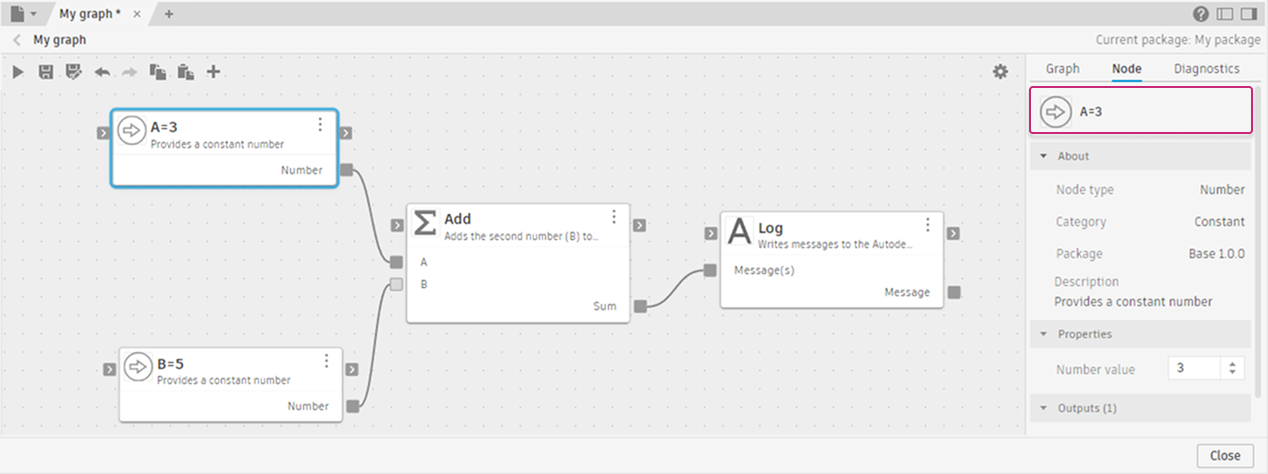
Step 4: Run the graph
Click Save and run the graph
 on the toolbar, or press Ctrl+R (Windows) / Command+R (macOS).
The graph is automatically saved before running.
While running, the toolbar is disabled.
See Run a graph for details on the running state and what to expect.
Step 5: Review the results
After the run, the canvas updates automatically. Each node shows a diagnostic badge:
- Blue badge: The node ran successfully. The Diagnostics tab shows execution time.
- Red badge: The node failed. The Diagnostics tab shows what went wrong.
- Orange badge: A wiring issue was detected before the run, such as a required input port with no wire connected.
Open the Diagnostics tab in the Details panel to see the full list of outcomes. For the Log node, the result also appears in the Fusion Text Commands console.
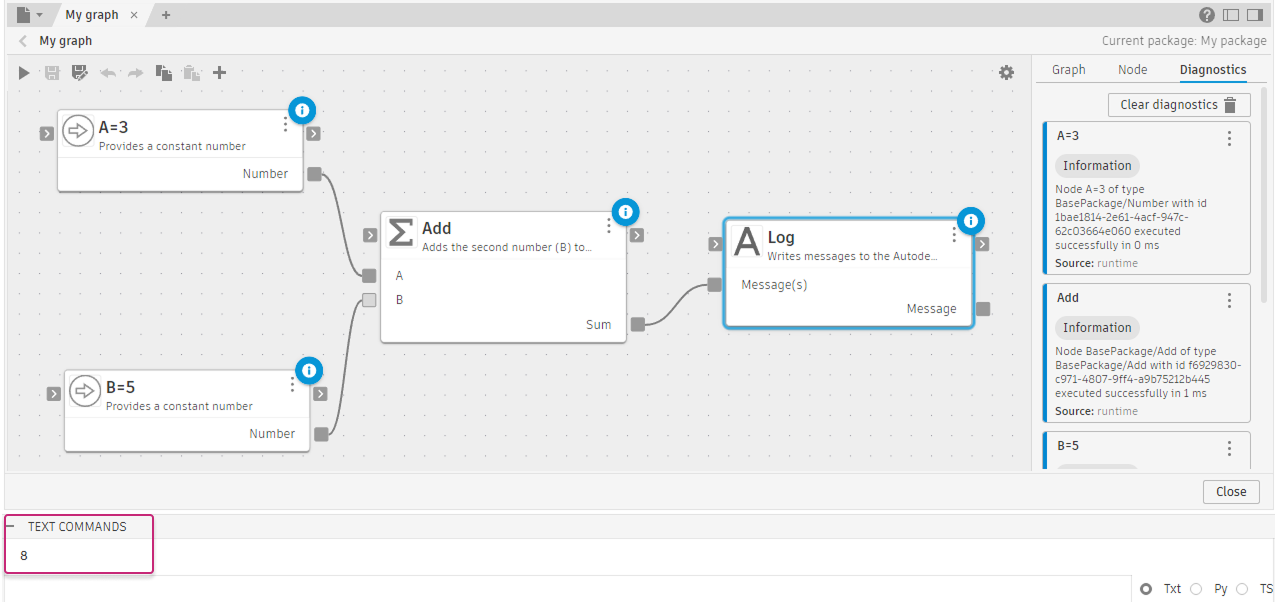
See Debugging graphs for how to trace errors back to their source.
What to explore next
Once you're comfortable with the basics, these topics explain the key concepts in depth:
- Graphs: nodes, wires, ports, and the execution model
- Packages: the four public packages and how to use user packages
- Subgraphs: encapsulate and reuse logic within a single graph
- Reusable subgraphs: use a graph as a node across multiple parent graphs
- Loops: process lists and run iterative algorithms
- Conditional logic and the If node: branch execution based on a condition
- Lists: ordered collections and available list operations